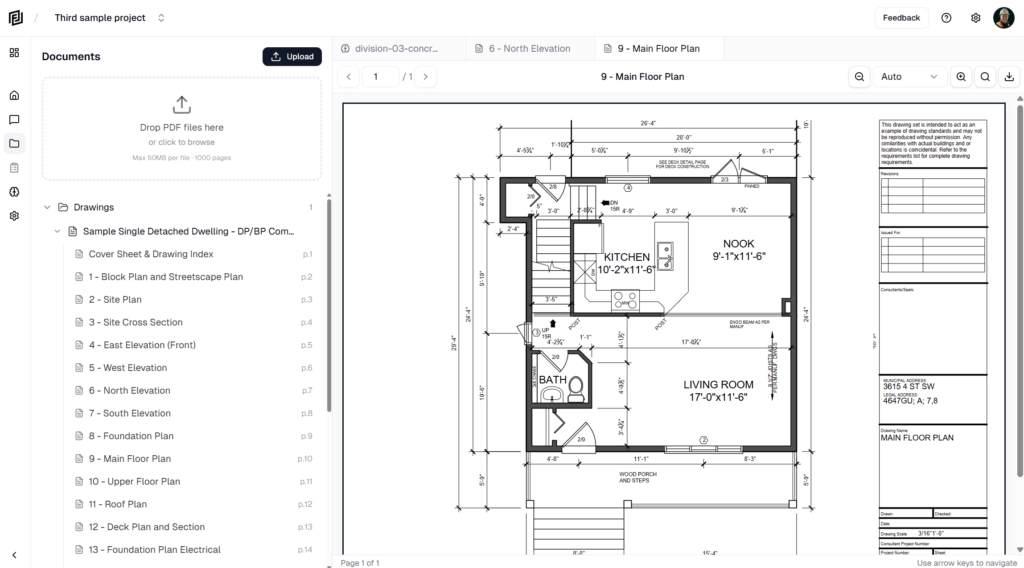
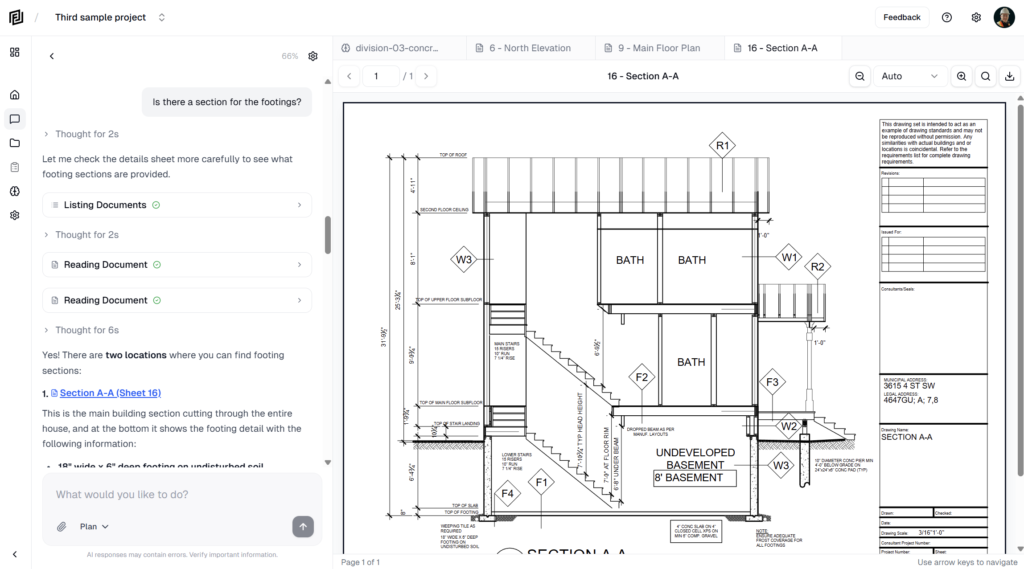
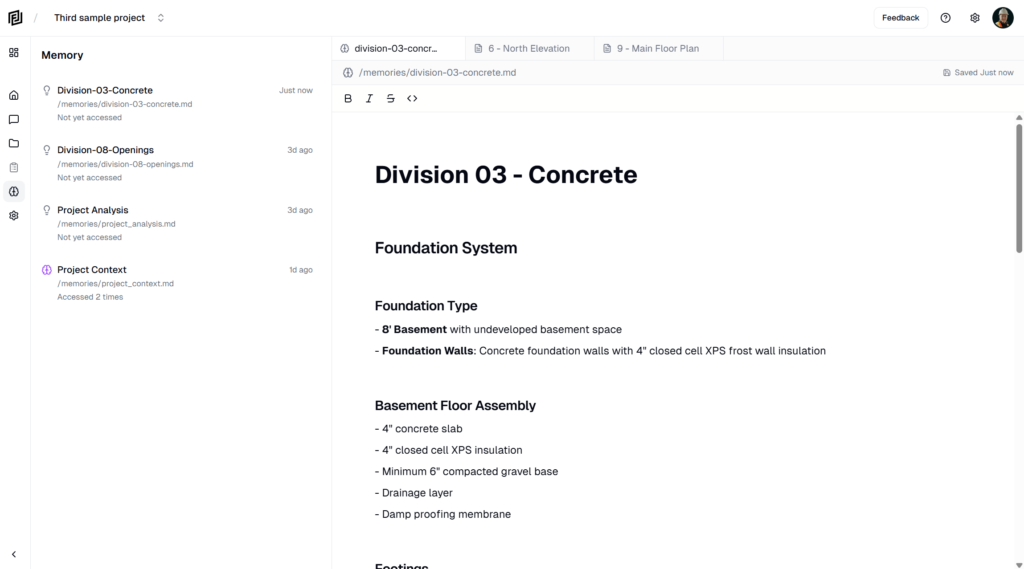
Every project uses the same layout. Learn it once and you can find anything: the left rail picks what you’re looking at, the panel beside it lists it, and the main area shows the page you opened.
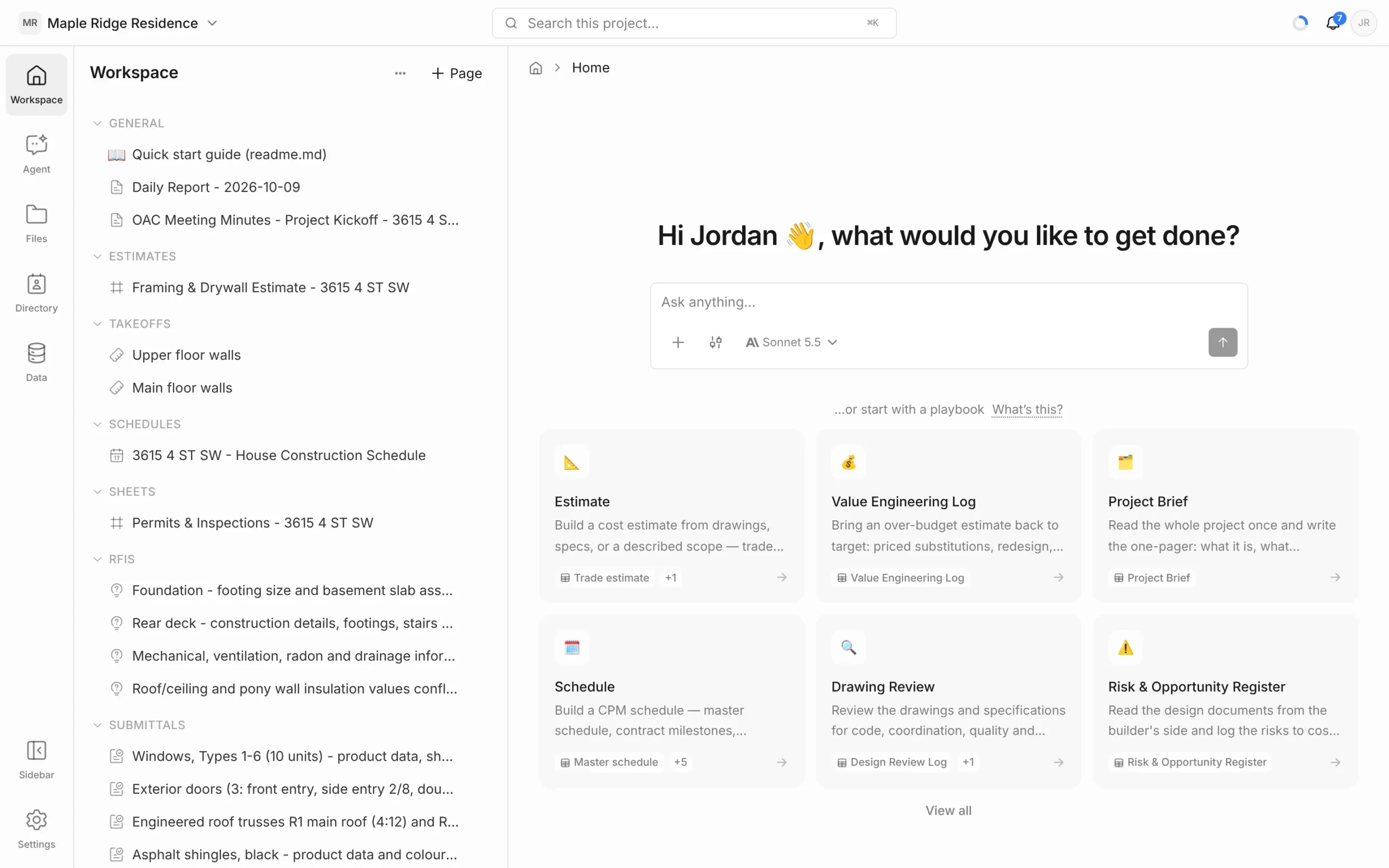
The four areas
- Top bar — switch projects, search the project, see AI usage and notifications, and open your account menu. See Top Bar.
- Left rail — the column of icons on the far left.
- Side panel — the list for whatever you picked in the rail.
- Main area — the page you’re working on: Project Home, a drawing, an estimate, a schedule, a note.
The left rail
- Workspace — your project’s pages: notes, estimates, takeoffs, schedules, sheets, RFIs and submittals. Use + Page to make a new one.
- Agent — your chats with the agent, plus Routines and Memories.
- Files — uploaded PDFs, split into sheets and sections.
- Directory — companies and contacts on the project.
- Data — records from tools you’ve connected, such as Microsoft Project or Primavera P6.
At the foot of the rail:
- Sidebar — hides or shows the side panel, so the main area gets the full width.
- Settings — project, account and workspace settings. Settings takes over the side panel while it’s open.
Clicking the rail item you’re already on also hides its panel. Click any rail item to bring the panel back.

Working beside the agent
Open a chat from the Agent panel and it stays in the side panel while you work in the main area. You can read an estimate or a drawing while the agent works on it. When the agent works to a plan, the plan opens in its own panel on the right — close it with the ×.
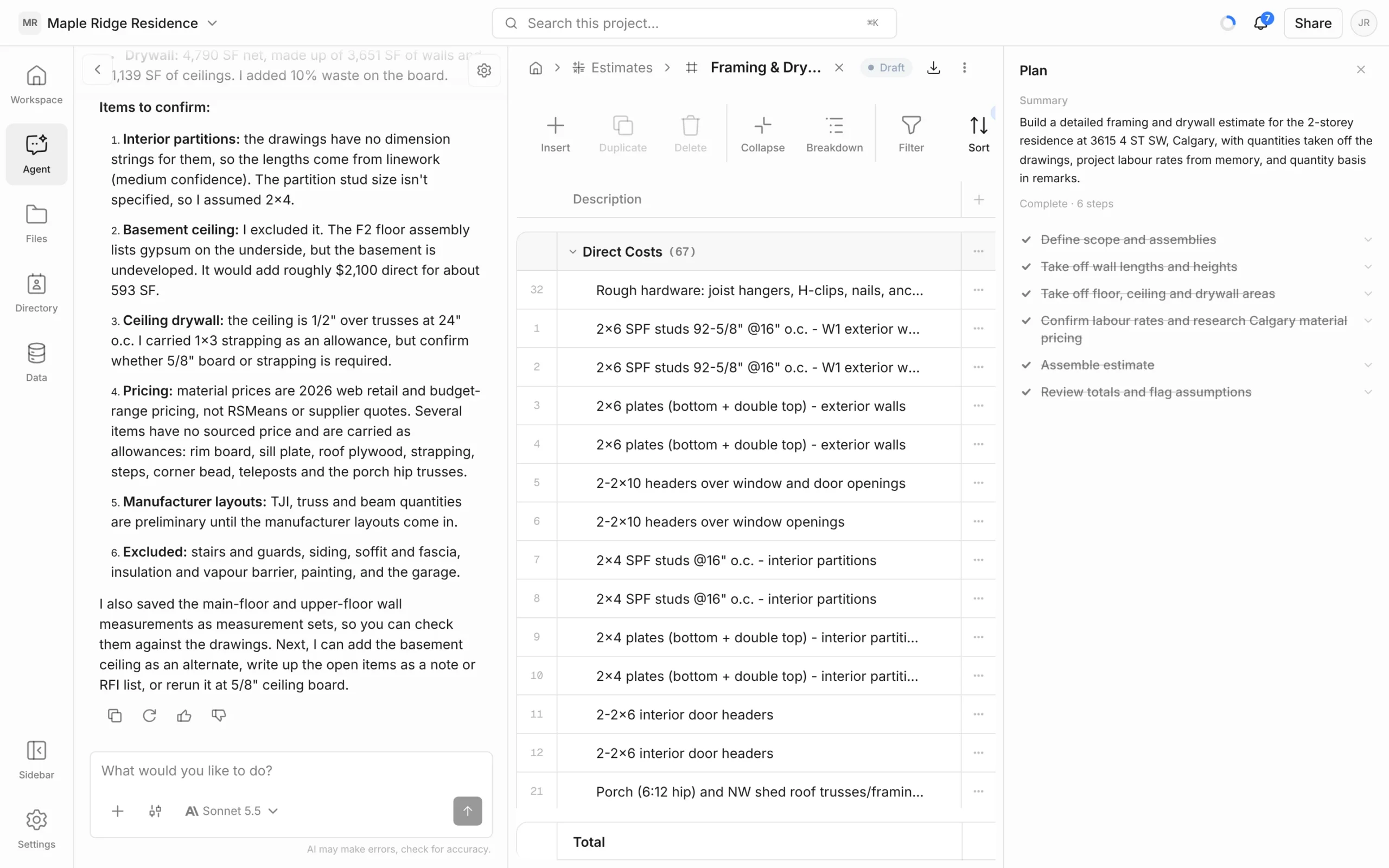
The main area
- Project Home is the starting screen. It has the Ask anything… box for the agent and suggested playbooks. Click the house icon in the breadcrumb to get back to it.
- The breadcrumb at the top shows where you are — for example Estimates › your estimate. Click a level to go back up.
- Some pages, like drawings, add their own panels on the right (for example markups and measurements). Use Show panel / Hide panel at the foot of the right-hand rail to open or close them.