
A playbook is a set of instructions, templates and examples that tells the agent how to do a particular job — an estimate, a drawing review, a closeout log. Framework provides a library of them, and workspace owners and admins can add their own so the whole team gets the same result every time.
Start a job from the project home
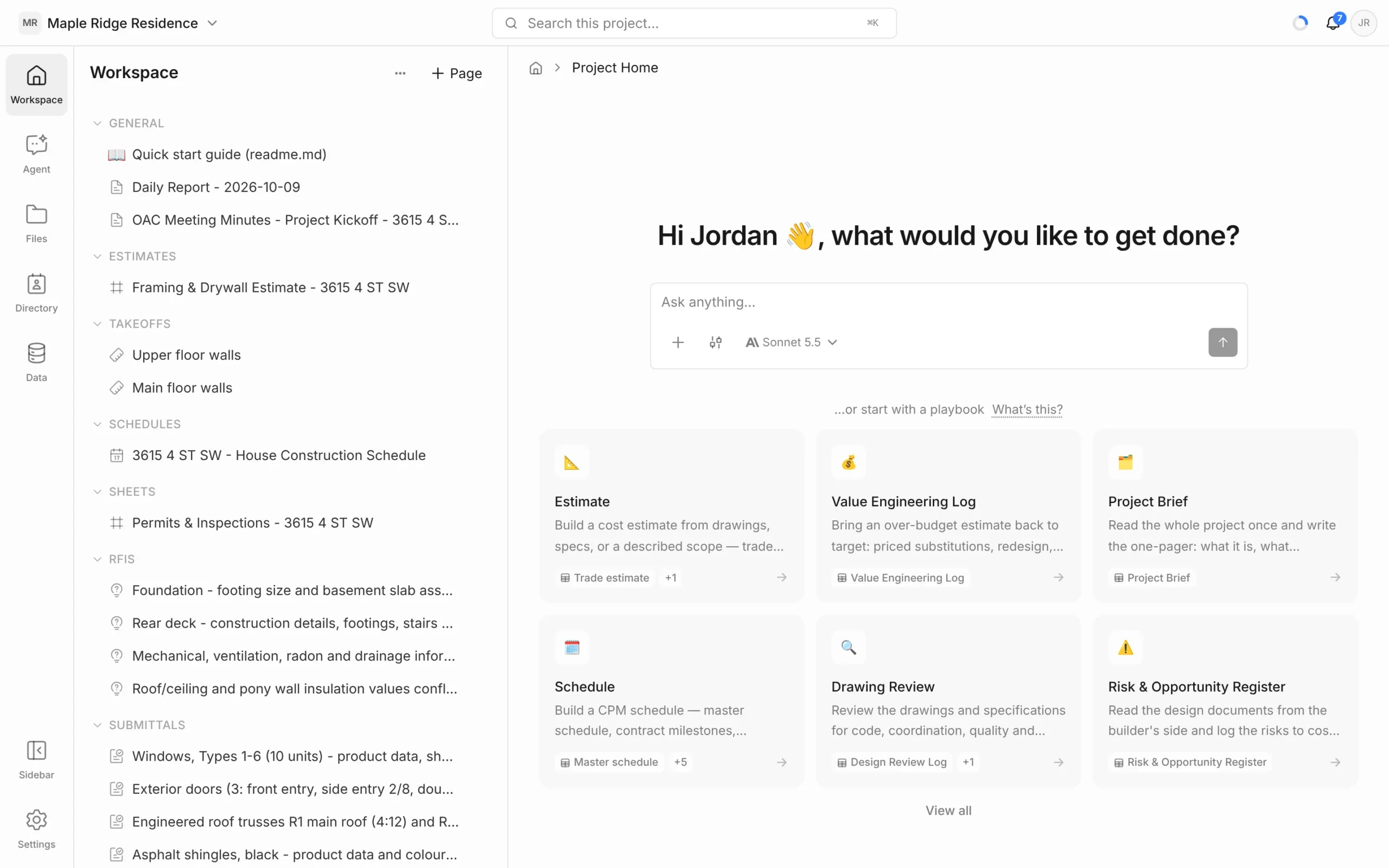
- Open the project. Under …or start with a playbook, pick a card — for example Estimate, Project Brief or Drawing Review. Click View all to see and search the full list.
- In the box that opens, add anything the agent should know — scope to cover, what stage, what to leave out. This is optional.
- Click Proceed.
A chat starts with the playbook attached, and the agent works through it. The tags on each card show what it builds, such as Trade estimate or Master schedule.
Attach a playbook in a chat
- In the message box, click + and choose Playbooks.
- Click one or more playbooks to select them, then describe the job and send.
Workspace playbooks are labelled with their description or Your playbook; Framework’s are marked System.
Manage your workspace’s playbooks
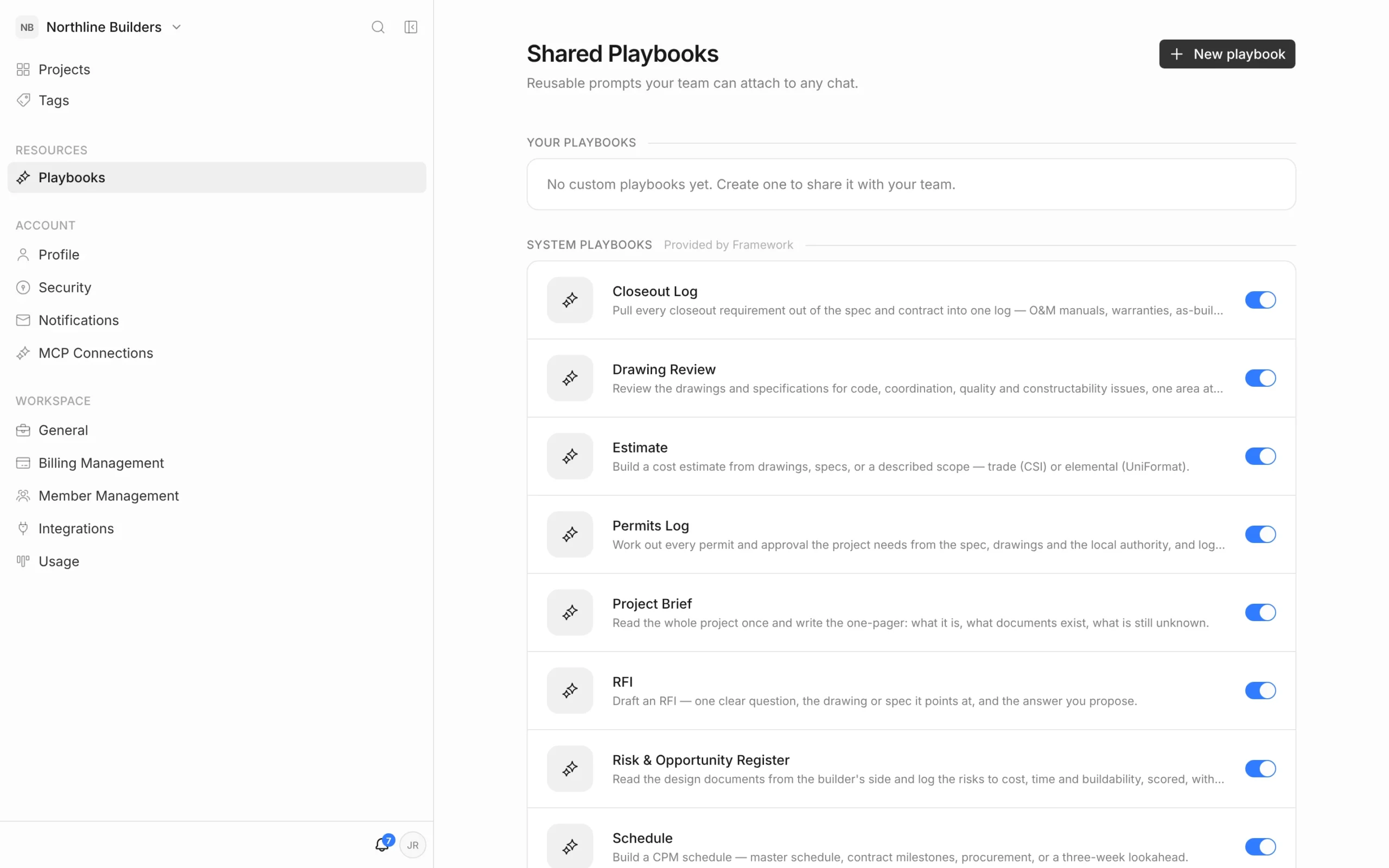
Go to the projects list and click Playbooks in the left sidebar. The Shared Playbooks page lists:
- Your playbooks — ones your workspace created.
- System playbooks — provided by Framework.
Use the switch beside a playbook to turn it on or off for the whole workspace. Only enabled playbooks appear in chats and on the project home.
Create a playbook
- On Shared Playbooks, click New playbook. (You can also choose New playbook at the bottom of the Playbooks list in a chat.)
- Fill in the Details:
- Name and a short Description (shown in the chat picker).
- Enabled — whether it’s offered in chats.
- Icon — an emoji for its home-screen card.
- Show on home — offer it as a card on every project’s home screen.
- Write the Prompt: the instructions the agent should follow — steps, format, rules, what to check.
- Click Create playbook.
- Open it again to add Structures & examples — the templates it produces and finished examples the agent can look at.
To change a playbook, click it on the Shared Playbooks page, edit, and click Save changes. To remove it, open it and use Delete playbook.
Only workspace owners and admins can create, edit, delete or switch playbooks on and off. Everyone in the workspace can use them.


