
The agent can run on several AI models from Anthropic, Google and OpenAI. The default suits most work. Switch when you want a faster, cheaper answer or more depth on a hard problem.
Change the model for a chat
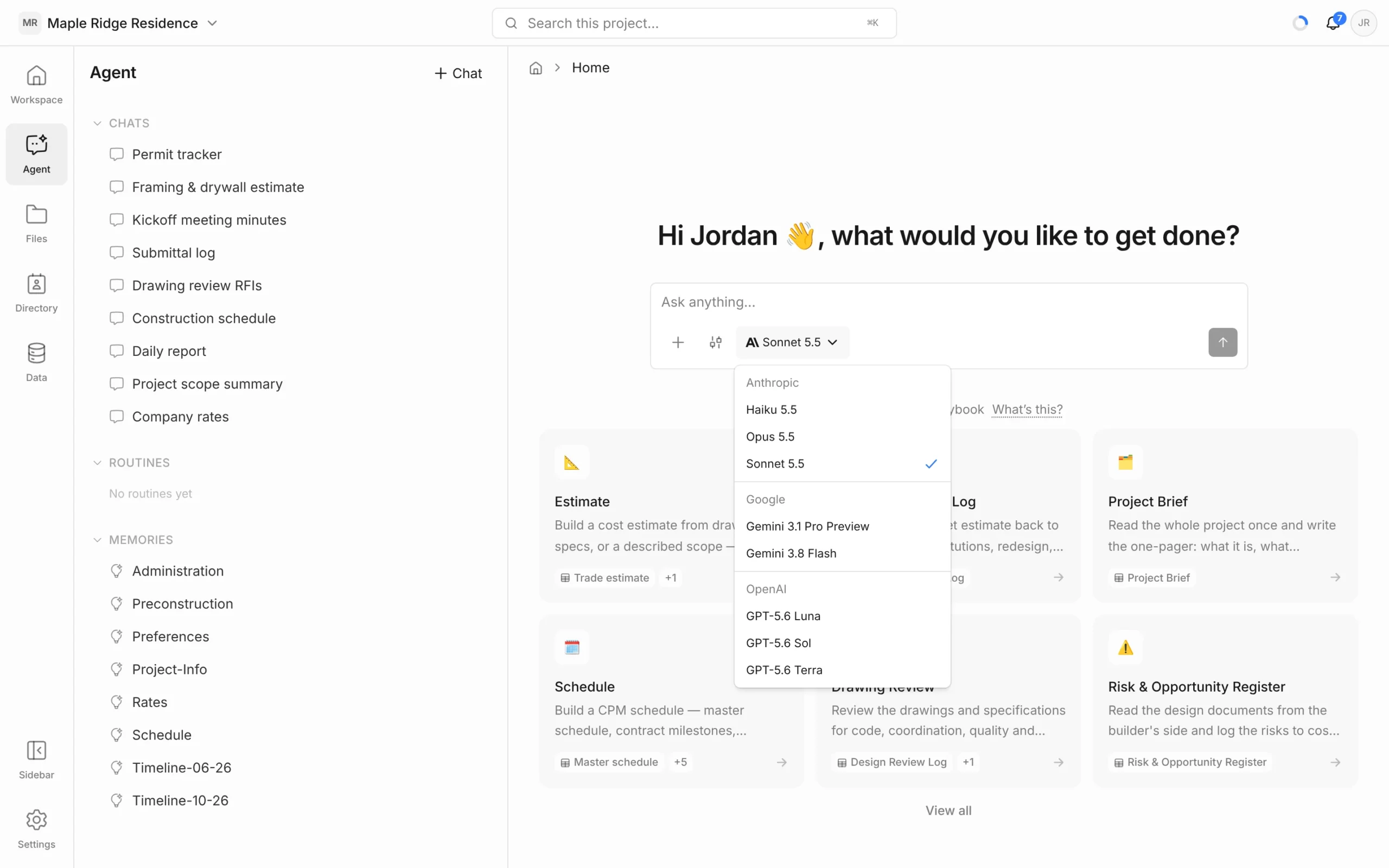
- In the message box, click the model name — for example Sonnet 5.5.
- Choose a model from the list. The current one has a tick.
The change applies from your next message, and the chat stays on that model until you change it again. You can’t switch while the agent is mid-answer.
Which model to use
Models are grouped by maker:
- Anthropic — Haiku 5.5, Opus 5.5, Sonnet 5.5
- Google — Gemini 3.1 Pro Preview, Gemini 3.8 Flash
- OpenAI — GPT-5.6 Luna, GPT-5.6 Sol, GPT-5.6 Terra
Some rules of thumb:
- Start with the default (Sonnet 5.5). It’s a good balance of quality, speed and cost for drawing review, estimates and schedules.
- Use a smaller, faster model (such as Haiku 5.5 or Gemini 3.8 Flash) for quick lookups and simple edits.
- Use a larger model (such as Opus 5.5) for long, complex jobs where reasoning matters more than speed.
- Try another model if an answer isn’t right. Switch, then click Retry on the last answer.
Models and AI credits
Every request uses AI credits from your workspace’s allowance, and the amount depends on the model. Larger models use more credits for the same request; smaller ones use fewer. Long chats and big documents use more too.
See Usage & AI Credits to check what you’ve used, and the pricing page for plan allowances.
Set your default model
New chats start on your default model.
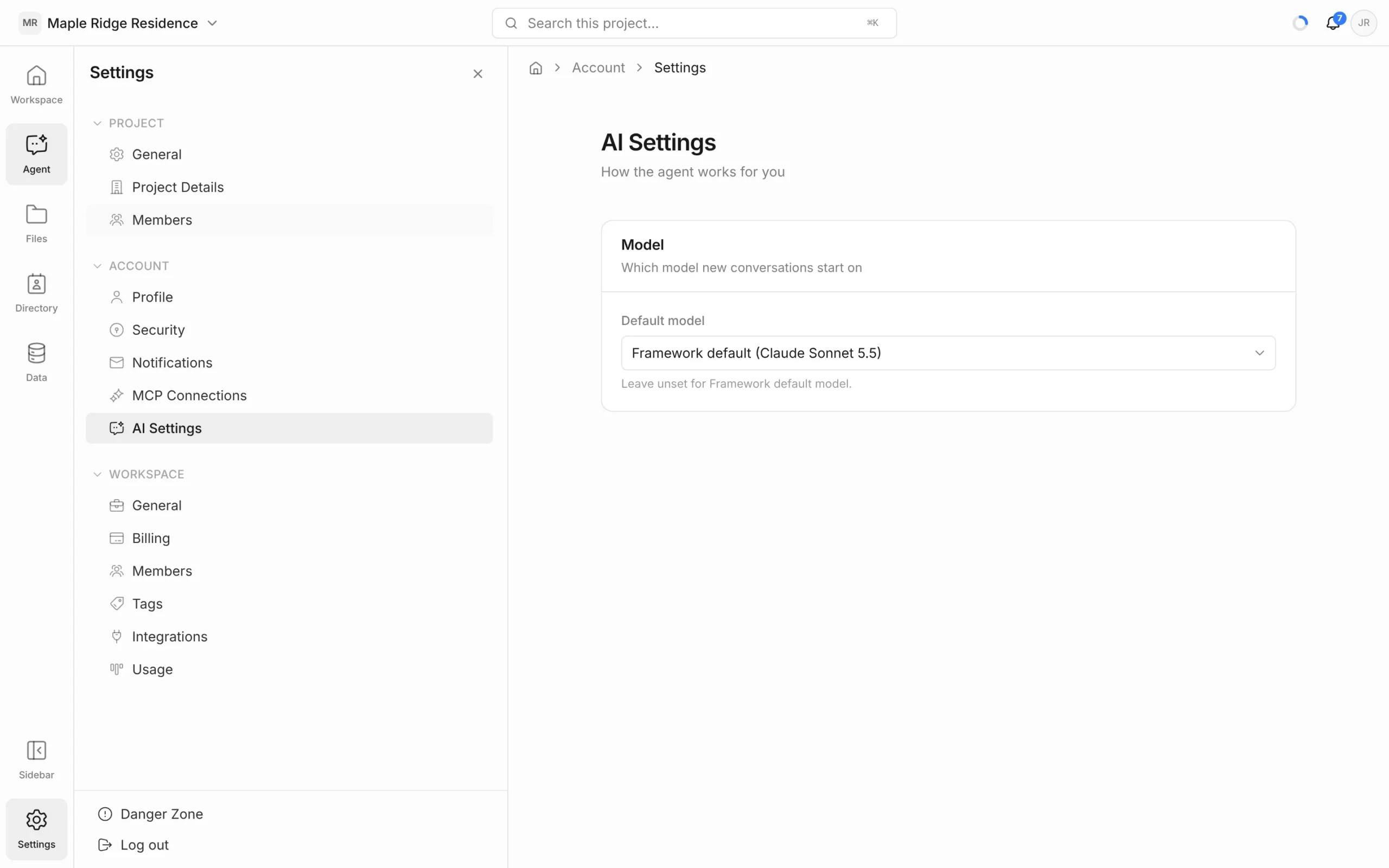
- Click Settings at the bottom of the left rail.
- Under Account, click AI Settings.
- Under Default model, pick a model. Choose Framework default to follow Framework’s recommended model.
Your default is personal — it doesn’t change the model for anyone else in the workspace, and it doesn’t change chats you’ve already started.


