
The Contract documents register lists every drawing sheet and specification section in the project as one table, built automatically from the files you upload. Use it to answer “where’s sheet A-301?” or “show me every elevation” without opening each drawing set.
Open the register
- Click Search this project… in the top bar, or press ⌘K (Ctrl+K on Windows).
- Type contract and choose Contract documents.
Nothing to set up: as soon as a drawing set or specification finishes processing, its sheets and sections appear here. If the project has none yet, the register says No contract documents yet.
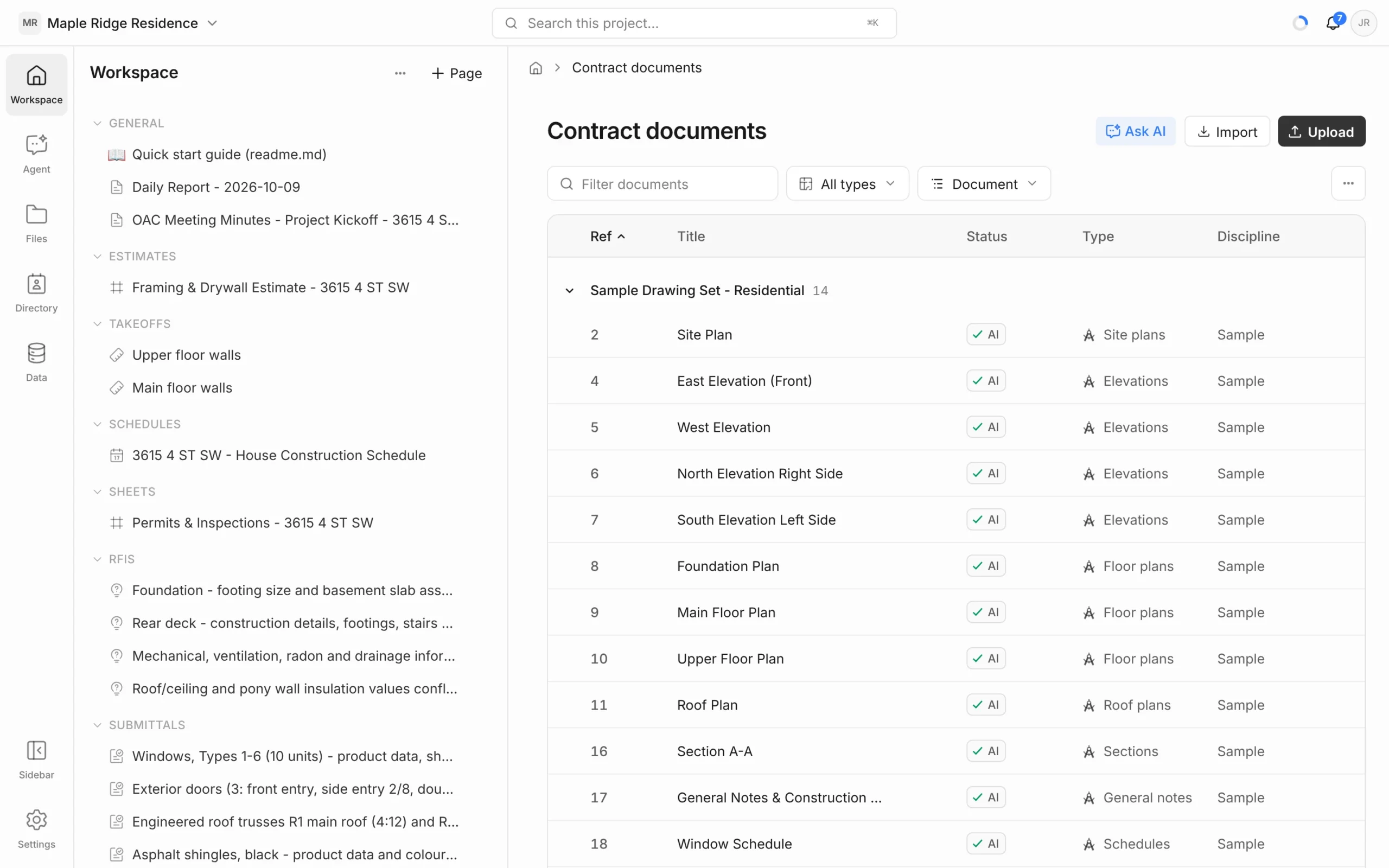
What’s in each row
By default the table shows:
- Ref — the sheet number or spec section number.
- Title — the sheet or section name.
- Status — AI with a tick once Framework has read the sheet, or Not read.
- Type — floor plan, elevation, section, detail, schedule and so on.
- Discipline — architectural, structural and so on for drawings; the MasterFormat division for specs.
- Scale and Page.
Click the arrow at the start of a row to see what the sheet shows or what the section covers.
Search, filter and group
- Filter documents — type a sheet number, title or keyword.
- All sets — show only Drawings or only Specifications.
- All types — narrow to one sheet type, such as Elevations.
- All disciplines — narrow to one discipline.
- Group by — group rows by Set, Discipline, Sheet type or Document, or choose No grouping.
- Clear — remove all filters.
Click a column heading to sort by it. Drag the edge of a heading to resize the column.
Choose columns
- Click the View options button at the right of the filter row.
- Under Columns, tick the ones you want. Extra columns include Set, Size, Rev, Revised, Issued, Firm, Tags and Document.
- Choose Reset to default to go back to the standard set.
Revision, issue date and firm come from the title block. They’re only filled in for documents processed recently; reprocess an older set from the Files panel to fill them in.
Open a sheet
- Click a row to open that sheet or section in the viewer.
- The row’s ⋮ menu also offers Open whole document and Properties (reference, discipline, scale, paper size and title block details).
Add documents or ask the agent
- Upload opens the Files panel; Import brings files in from cloud storage.
- Ask AI starts a chat with “Find the drawings that show …” ready for you to finish.


