
The Data tab holds records synced from the tools your team already uses — schedules, plans, staffing and logs. They stay in sync with the source, and the agent can read them to answer questions about where the job stands.
Connect a data source
- In a project, click Data in the left rail.
- Click + Connect (or Connect data if nothing is linked yet).
- Pick a source. Each one shows what it brings in under What you can import.
- If the source isn’t connected yet, click Connect and sign in. You come back to the same dialog.
- Tick the plans, schedules, workbooks or project you want, then click Link to this project.
The first sync starts straight away. Records appear as they arrive.
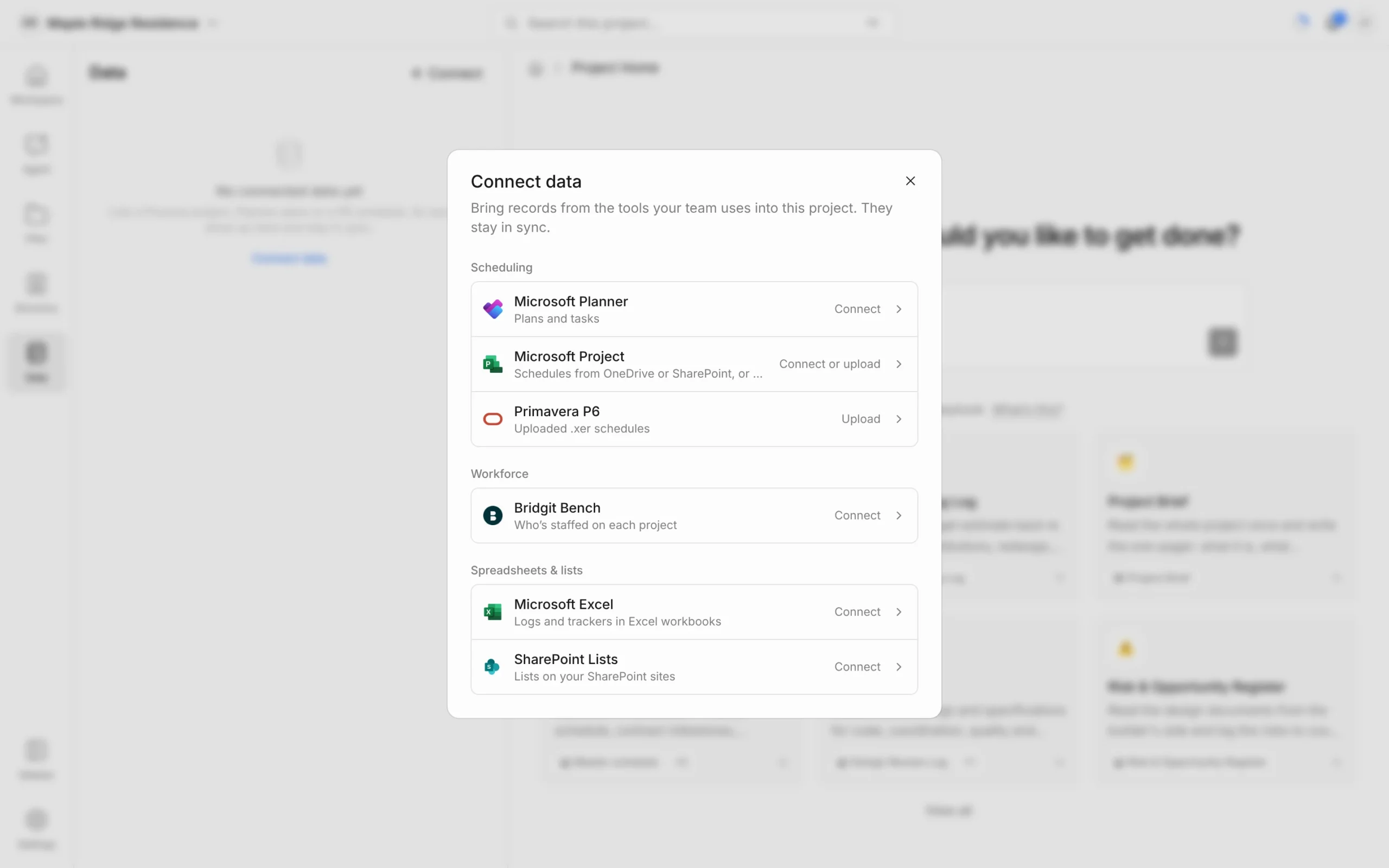
Available sources
- Microsoft Planner — tasks grouped by bucket, with dates, progress, priority and assignees. Link one or more plans; each becomes its own table.
- Microsoft Project — link .mpp schedules kept in OneDrive or SharePoint, or upload one saved anywhere else.
- Primavera P6 — upload a .xer export. Activities come in under their WBS, with durations, float, the critical path and logic links.
- Bridgit Bench — every role on the project, who fills it, dates and allocation. Only workspace admins can connect it.
- Microsoft Excel — workbooks in OneDrive or SharePoint, such as RFI logs or buyout trackers. Each workbook becomes its own table.
- SharePoint Lists — punch lists, logs and registers on your SharePoint sites.
A project in another tool can only feed one Framework project. If it’s already linked elsewhere, the picker says where and you can’t pick it.
Browse records
Linked sources appear in the Data panel, with each table and its record count underneath. Click a table to open it.
- Use Filter, Sort and Group in the toolbar to narrow the list.
- Use Columns to show, hide or rename columns. Column changes are shared with everyone in the workspace.
- Click a row to open the record. Open in takes you to it in the original tool.
Records are read-only in Framework. The original tool owns them — edit them there and the change syncs back.
Sync, unlink and remove
- Sync now — click the refresh icon beside a source in the Data panel, or Sync now at the top of a table.
- Sync schedule — at the top of a table, choose how often it syncs: Every 15 minutes, Every hour (the default), Every 4 hours, Daily or Manually only.
- Add more — in the source’s … menu, choose Add from … to link more plans or schedules.
- Unlink — in the source’s … menu, choose Unlink from this project. Its records leave this project’s Data tab. Nothing changes in the original tool, and other projects keep their links.
- Uploaded schedules — use a schedule’s menu to Upload new version or Remove it. Removing deletes the file and its activities for everyone, and can’t be undone.
Who can do what
- Everyone on the project can browse the Data tab.
- Project editors and workspace admins can connect, link, sync and unlink sources. Bridgit Bench is limited to workspace admins.
Ask the agent about it
The agent reads linked data the same way it reads your drawings. Ask things like “What’s on the critical path this month?” or “Who’s the superintendent on this job?” It says which source each answer came from. It can’t change linked records, but it can build a lookahead, note or schedule from them.


