
Search finds things in the project you’re in by name — a sheet number, a drawing title, an estimate, an RFI, a company — and takes you straight there. It also doubles as a quick way to jump to any area of the project.
Search the project
- Click Search this project… in the top bar, or press ⌘K (Ctrl+K on Windows).
- Start typing. Results appear as you type.
- Use the arrow keys and press Enter, or click a result to open it. Press Esc to close search.
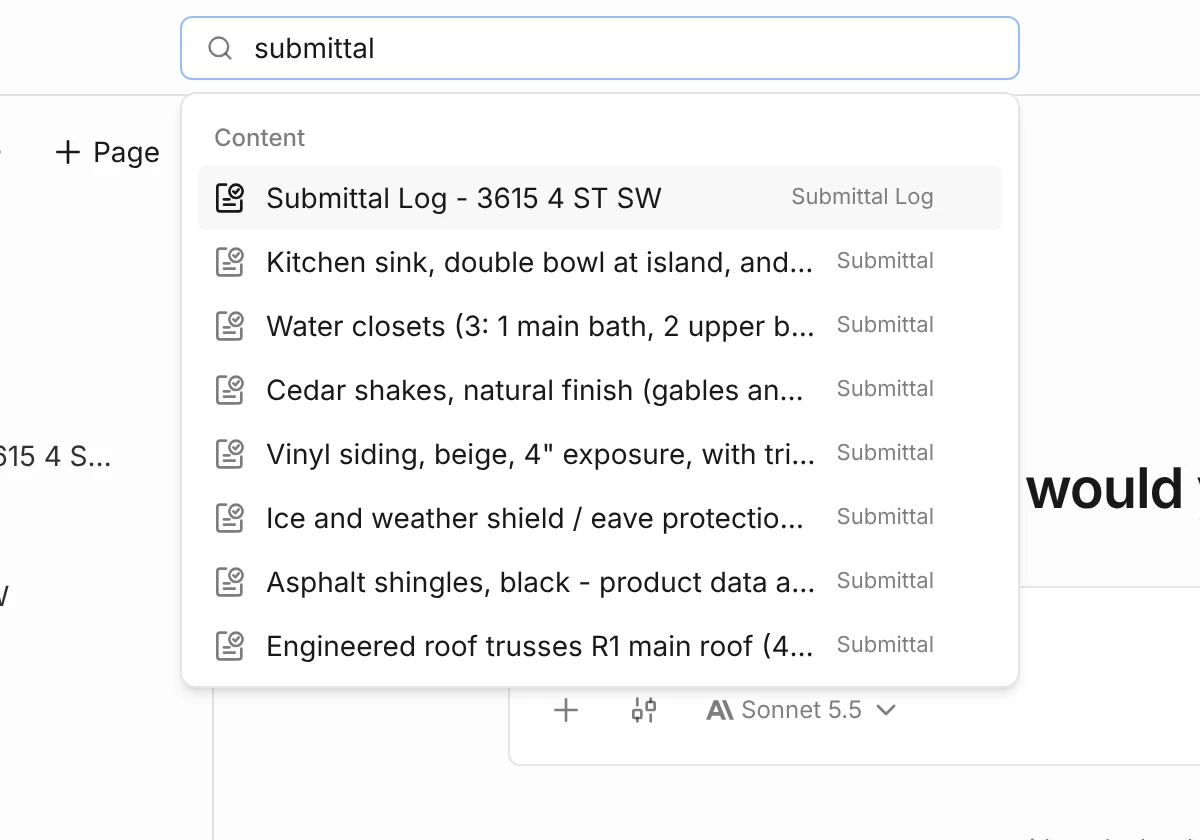
What you’ll see
Results are grouped:
- Content — pages in your Workspace, such as estimates, notes, schedules, sheets, RFIs, submittals and companies. The label on the right says what kind of page each one is.
- Sheets & sections — individual drawing sheets and spec sections. Search by sheet number or title, for example “A-201” or “Main Floor Plan”. Opening one takes you to that page of the drawing set.
- Documents — your uploaded files.
- Go to — areas of the project, such as Project Home, Contract documents, Estimates, Takeoffs, Schedules, RFIs, Submittals, Minutes and Daily reports. Type the area’s name to jump to its list.
If nothing matches, you’ll see No matches in this project.
Ask the agent instead
Search matches names and titles, not the text inside your drawings. To find something by what it says — “where’s the vapour barrier detail?” — choose Ask the agent about “…” at the bottom of the results. It opens a new chat in the Agent panel with your search already typed in — finish the question if you like, then send it. The agent searches the documents themselves.
You can also skip search and go to Agent in the left rail to ask directly.
Search from the projects list
Outside a project, ⌘K (or the magnifying glass at the top of the left menu) searches your projects and settings pages instead — handy for jumping to a project by name.


