
The Directory holds the companies on a project — owner, architect, engineers, subcontractors, suppliers — and the people you deal with at each one. Contacts you add here are the ones you can assign RFIs, submittal reviews and bids to, and a company’s branding can head your exports.
Open the Directory
Click Directory in the left rail (on a phone, tap Directory in the tab bar). The panel lists the project’s companies under Project contacts, each with its role. Click … to sort by Role first, Name or Date added.
Companies the agent found in your drawings and that are waiting for you appear above the list — see Agent-Found Companies.
Add a company
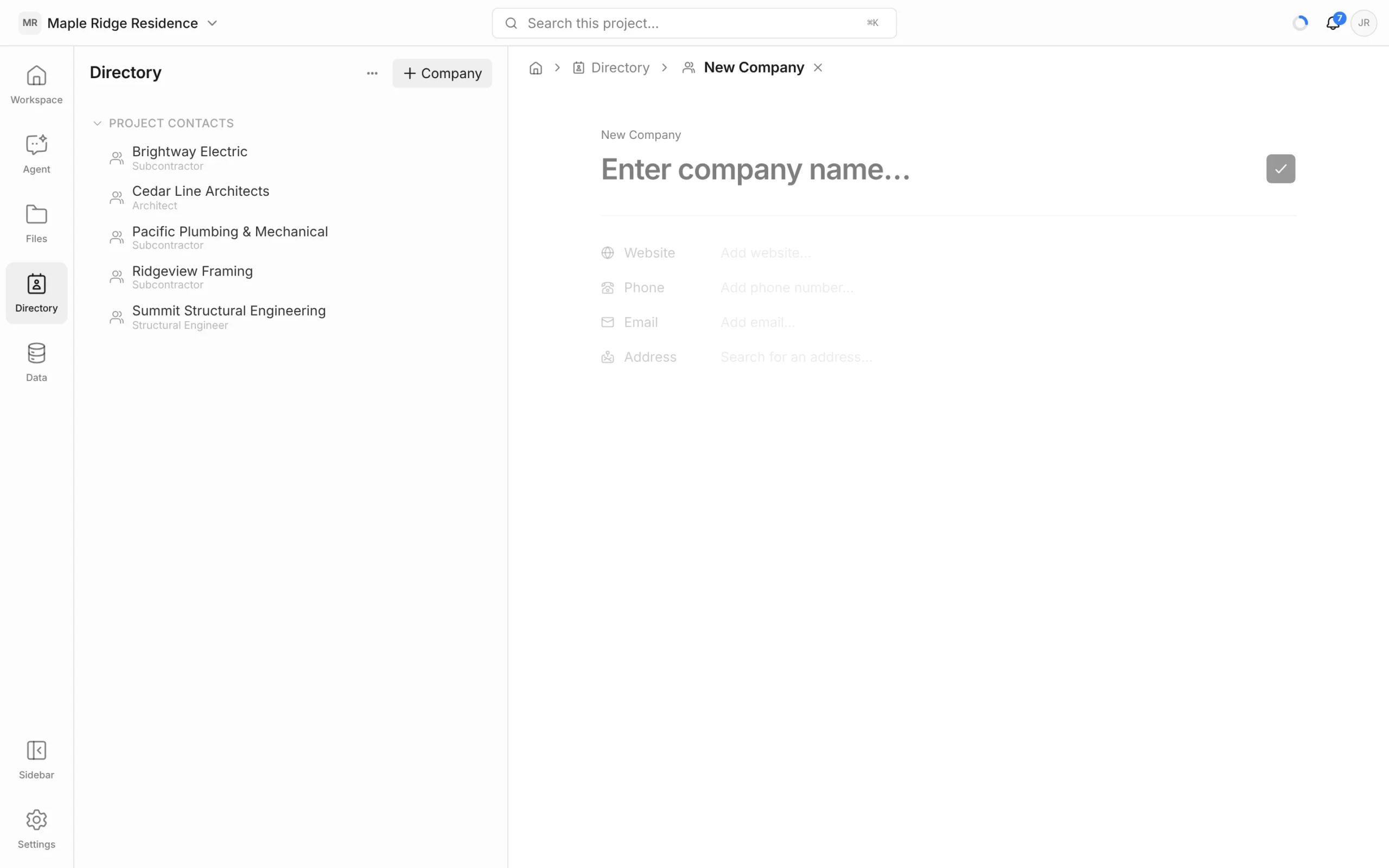
- Click + Company at the top of the Directory panel.
- Type the name in Enter company name…. If the company is already known to Framework, it shows under Existing companies — pick it to bring in its details.
- Press Enter or click the tick to create it.
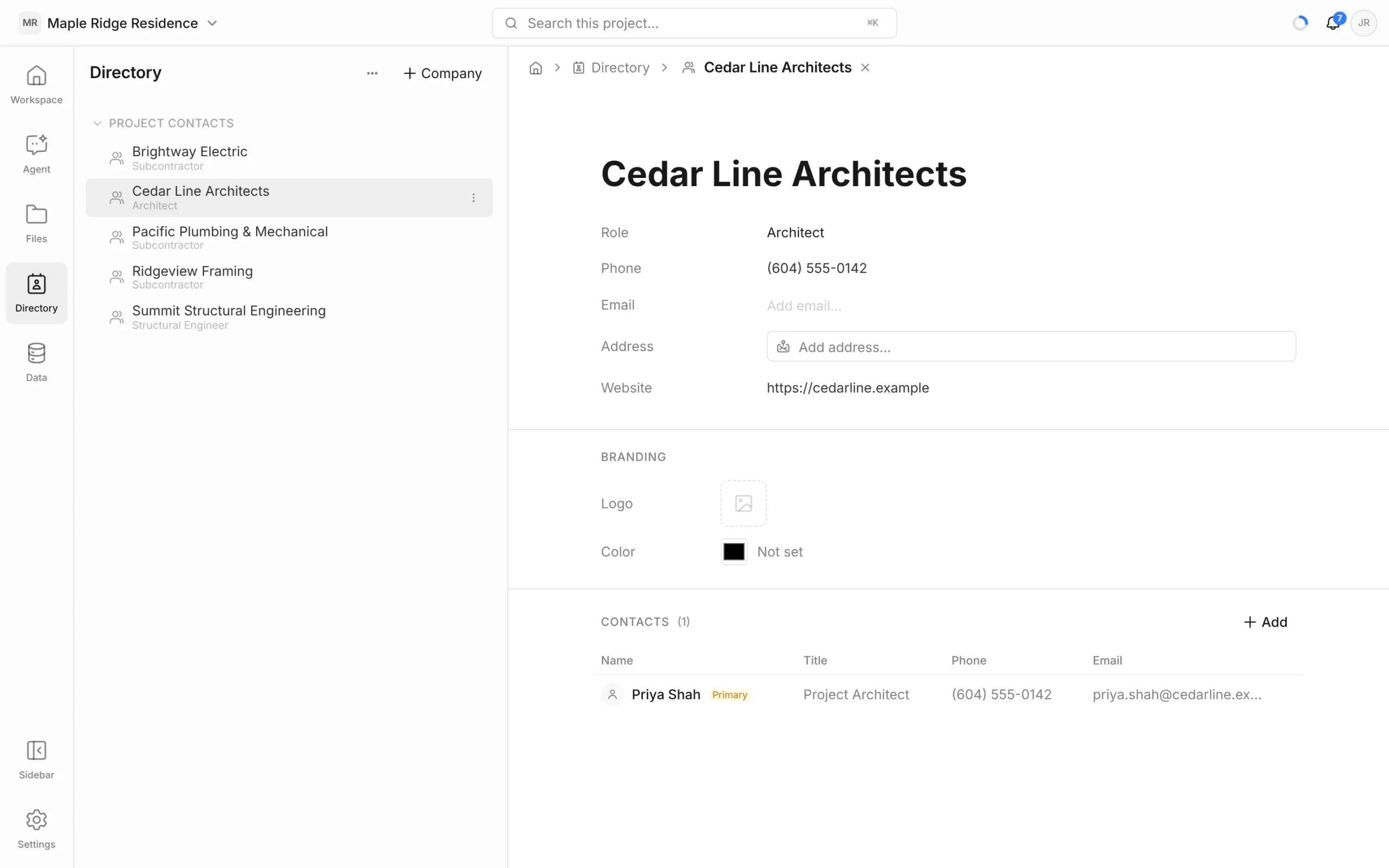
- On the company page, set the Role and fill in Phone, Email, Address and Website.
Roles include Owner, Architect, Structural, Mechanical, Electrical, Civil, Plumbing and Fire Protection Engineer, Landscape Architect, Interior Designer, General Contractor, Construction Manager, Subcontractor, Supplier, Consultant, Inspector, Surveyor and Other.
Branding
Under Branding on the company page, upload a Logo and pick a Color. When you export a note, sheet, estimate, schedule or RFI, choose this company under Company branding in the export menu to put its logo on the document. Add your own company to the Directory to brand your outgoing paperwork.
Add contacts
- On the company page, click + Add beside Contacts.
- Enter the person’s name, Job Title, Email and Phone. Turn on Primary for your main contact, and add notes if useful.
Click a contact in the table to open and edit it. Use the row menu to delete one. You can also create a contact on the spot when assigning an RFI, reviewer or bidder — choose Create new contact in the person picker.
The email address matters: it’s where RFI, submittal and bid links are sent.
The Directory log
For a table view of every company, press ⌘K (Ctrl+K on Windows) and type Directory, or click Directory in the breadcrumb of an open company. From there you can:
- Filter to All companies, Approved, Needs approval or AI extracted.
- Sort by Name, Newest or Most contacts, and group by Role or Source.
- Change a company’s Role or Remove from project from its row menu.
- Click New company to add one.
Removing a company takes it off this project only. In the Directory panel, the same action is called Archive.
What the agent can do
The agent reads the Directory, so you can ask “Who’s the structural engineer and how do I reach them?” or “Draft an email to the architect about RFI-003.” It doesn’t add companies itself — you add them, or approve the ones it finds in your drawings.


