
You can connect Framework to Claude, ChatGPT and other AI assistants that support custom connectors (MCP). Once connected, you can ask that assistant about your projects and have it create or update content in Framework — without opening the app.
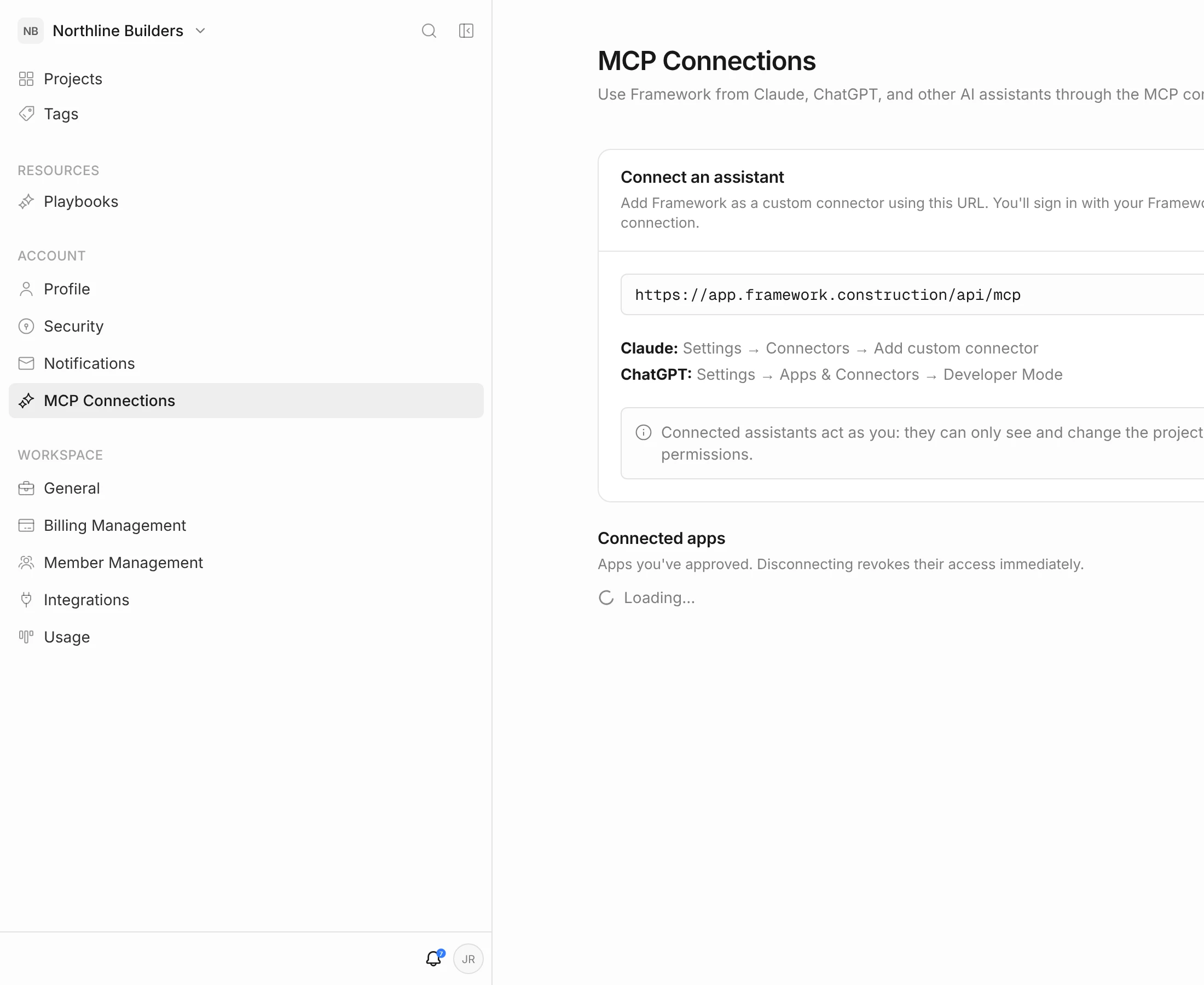
Find your connector URL
- Click your initials in the top-right corner, then Account settings.
- In the left menu, click MCP Connections.
- Under Connect an assistant, click Copy next to the URL.
The URL is https://app.framework.construction/api/mcp.
Connect Claude
- In Claude, go to Settings → Connectors → Add custom connector.
- Paste the connector URL and add it.
- When Claude sends you to Framework, sign in with your Framework account.
- Review what it’s asking for and click Approve connection.
Connect ChatGPT
- In ChatGPT, go to Settings → Apps & Connectors and turn on Developer Mode.
- Add a new connector and paste the connector URL.
- Sign in with your Framework account and click Approve connection.
The exact steps inside Claude and ChatGPT are set by those apps and may change. If you can’t find the option, check their help pages for “custom connectors”.
What a connected assistant can do
A connected assistant acts as you. It can only reach the projects you’re a member of, with the same role you have in each. If you’re a Viewer on a project, it can only read that project.
- Read project details, documents and drawings, notes, sheets, schedules, logs such as RFIs and submittals, takeoffs, and the project Directory.
- Create and update notes, sheets, schedules, log entries and takeoffs. Changes are recorded under your name.
- Upload documents to a project’s Files.
It can’t delete anything, and it can’t change account, billing or workspace settings.
See and disconnect connected apps
Every assistant you’ve approved is listed under Connected apps on the MCP Connections page, with the date you connected it.
- Go to Account settings → MCP Connections.
- Click Disconnect next to the app.
Its access is revoked immediately. To use it again, add the connector and approve it again.


