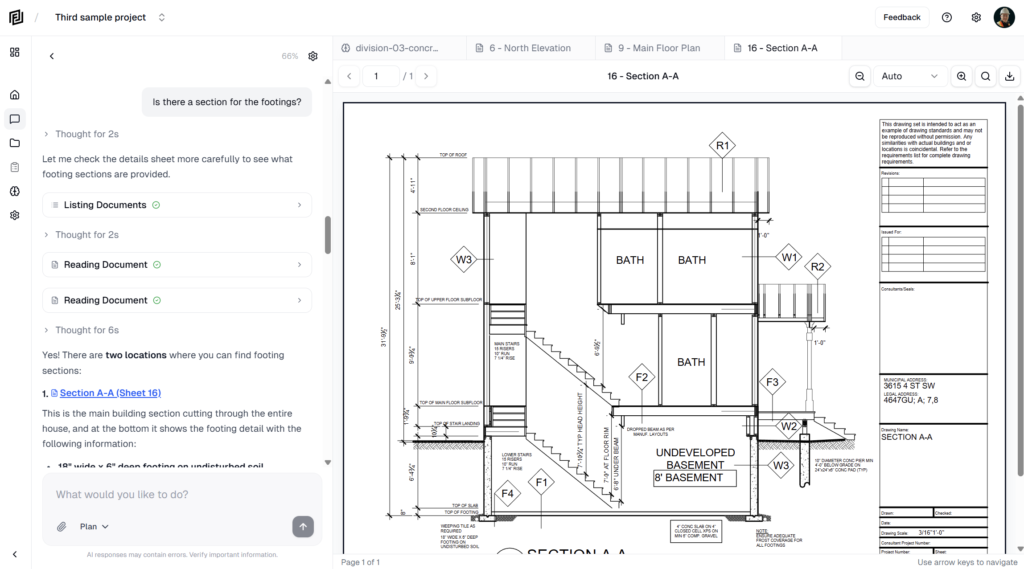
The agent is Framework’s built-in project assistant. It reads your drawings and specs, answers questions with sources, and builds estimates, schedules, notes and logs. Every chat belongs to one project, so the agent always works from that project’s documents.
Start from the project home
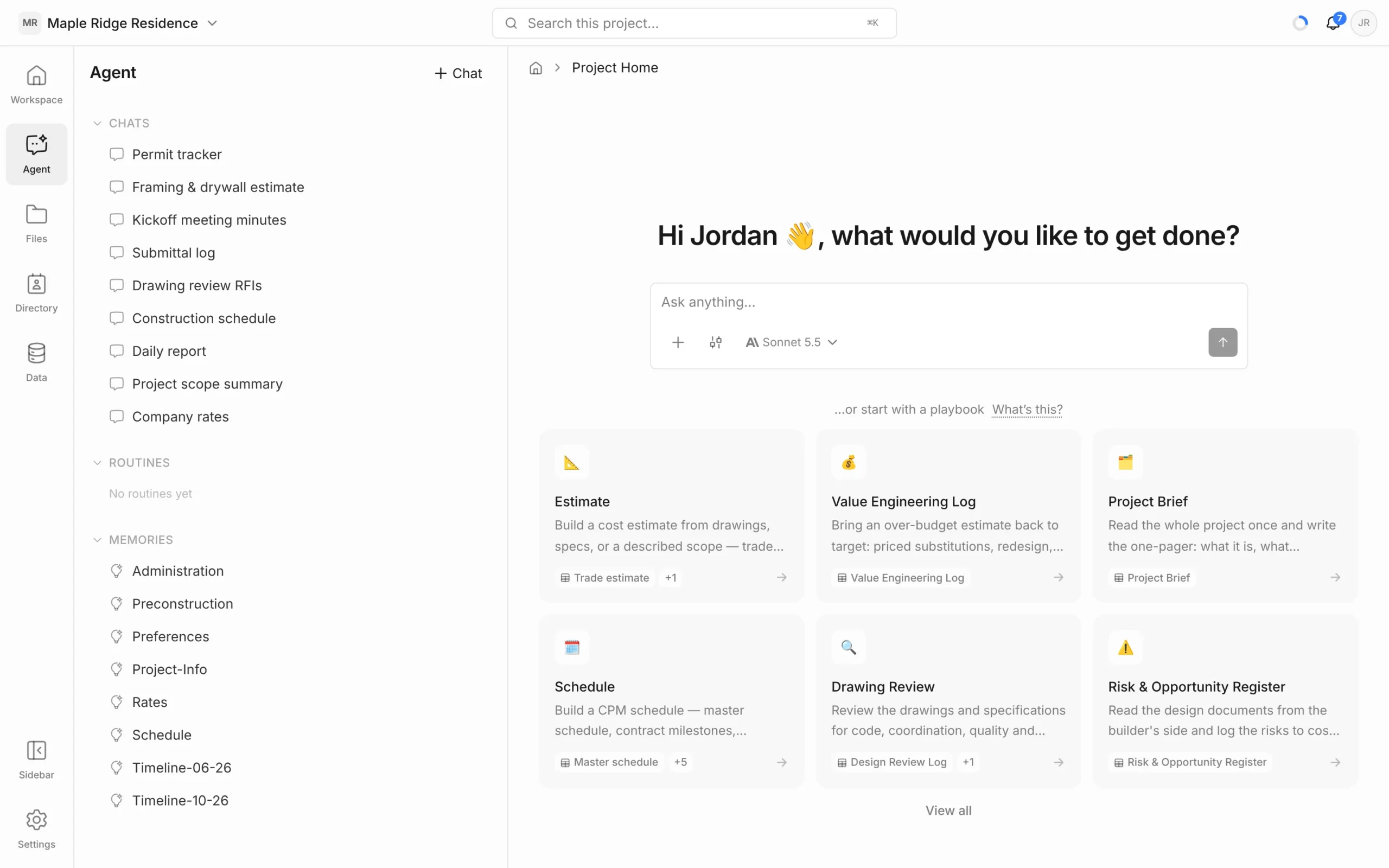
- Open a project. The home screen asks what would you like to get done?
- Type in the Ask anything… box — a question or a task, in plain language.
- Press Enter or click the send arrow.
The chat opens in the Agent panel so you can keep working beside it. Below the box, …or start with a playbook offers ready-made jobs such as an estimate or a drawing review — see Playbooks.
Start from the Agent panel
- Click Agent in the left rail.
- Click + Chat at the top of the panel.
- Type your message in the box at the bottom and send it.
The Agent panel has three sections: Chats, Routines and Memories. Click a section heading to collapse or expand it.
Show or hide the agent with ⌘J
Press ⌘J (Ctrl+J on Windows) to open or close the agent beside whatever you’re working on — a drawing, an estimate, a schedule. Your conversation, draft and scroll position stay where you left them.
Go back to an earlier chat
- Earlier chats are listed under Chats, most recently active first. Click one to reopen it and carry on.
- Framework names each chat from what you asked, so you can find it later.
- Use the back arrow at the top left of a chat to return to the list.
The message box

- + — attach documents, notes, estimates or playbooks. See Adding Context (+ and @).
- Mode (the sliders button) — choose Ask, Review or Auto. See Ask, Review & Auto Modes.
- Model — the model answering, for example Sonnet 5.5. See Choosing a Model.
- Send — turns into a stop button while the agent is working, so you can stop it mid-answer.
You can keep typing while the agent works. Press Enter and your message is marked Queued; the agent reads it before its next step, so you can add a detail or change direction without stopping it. If it finishes before reading the message, the message is sent as your next turn. Pressing stop puts anything still queued back in the box.
You can’t upload a file directly into a chat. Upload it to Files first, then ask about it.
On a phone
Tap Agent in the bottom tab bar to see your chats and start a new one.