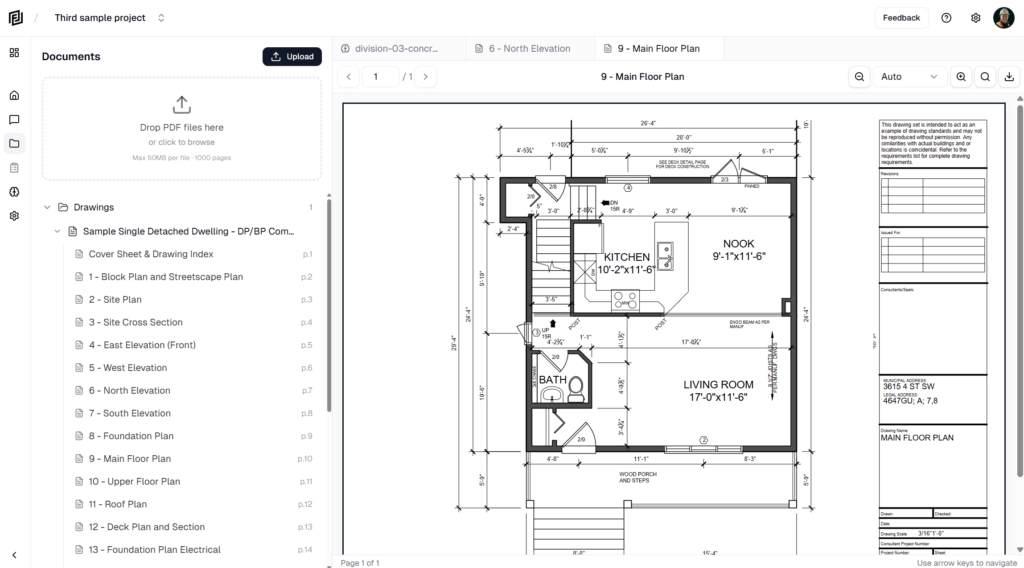
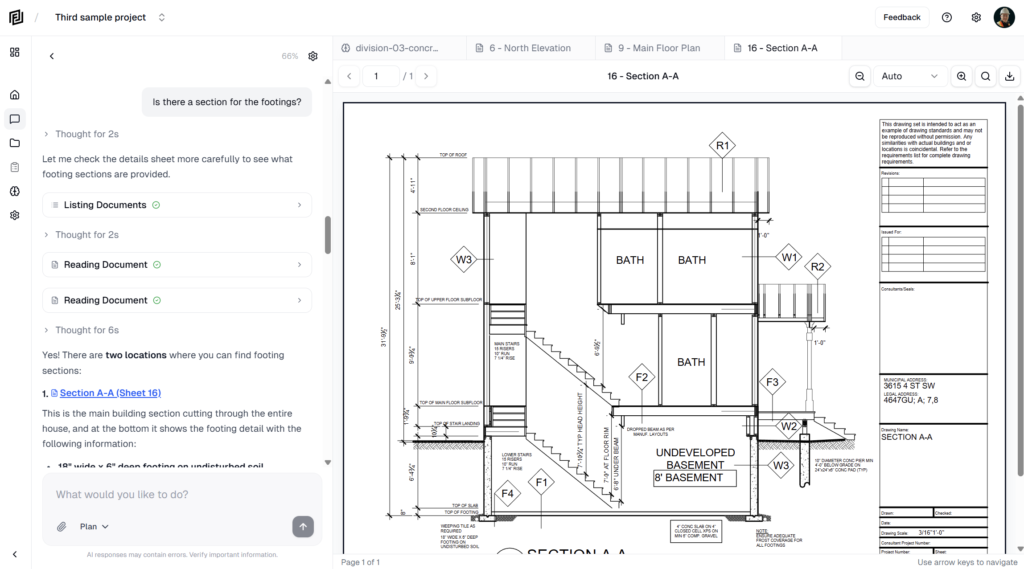
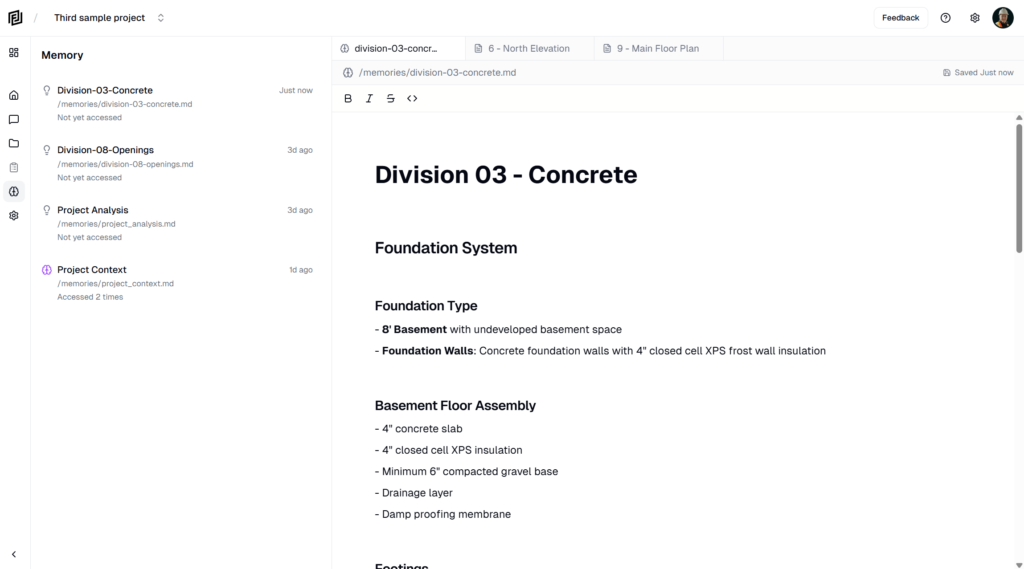
Project Details holds the facts about the job itself: where the site is, when the work runs and what it’s worth. Fill them in once and they’re there for your team to refer to.
Open Project Details
- Inside the project, click Settings at the bottom of the left rail.
- Under Project, click Project Details.
Set the site address
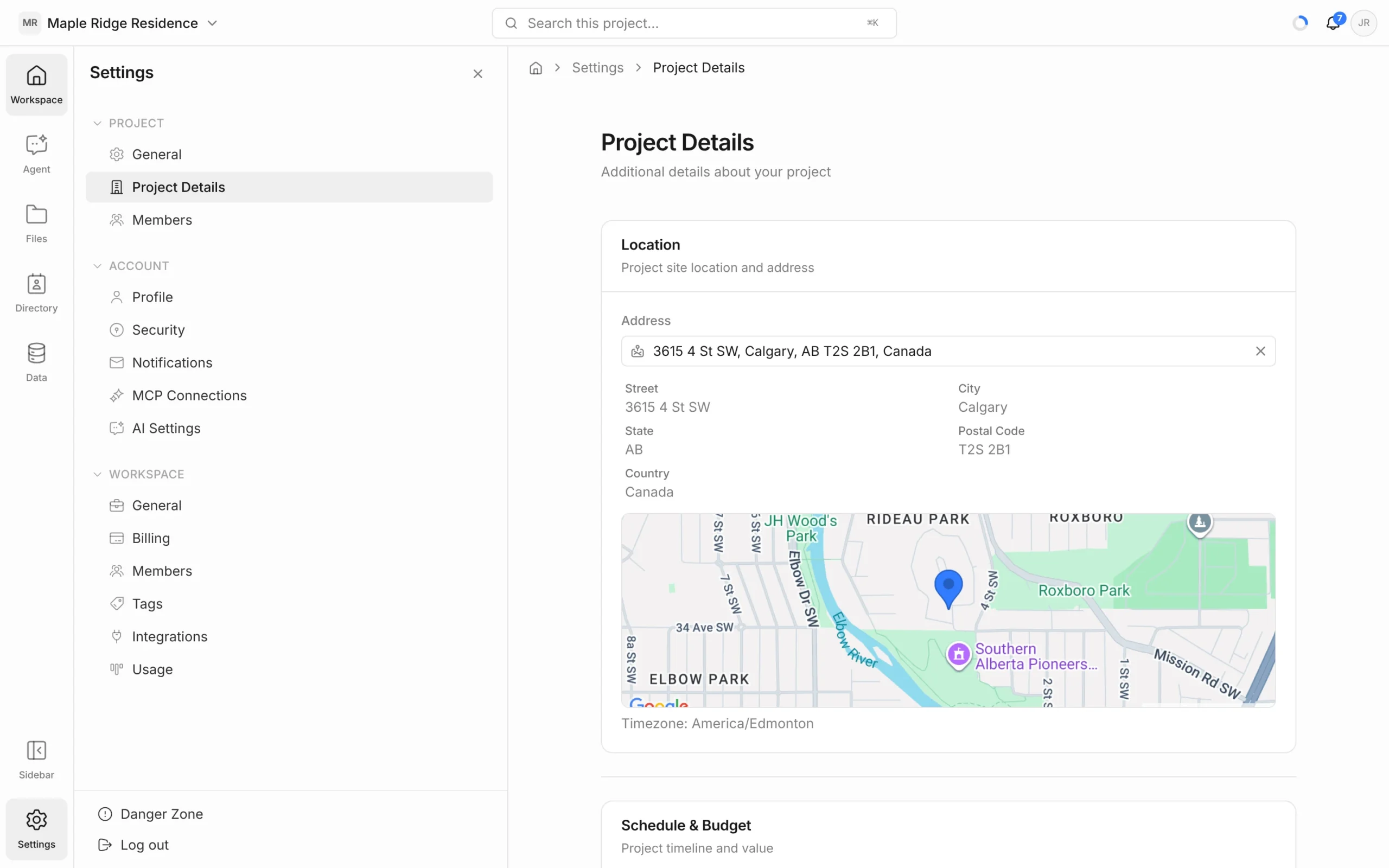
- Under Location, start typing in the Address field.
- Pick the right address from the suggestions.
- Click Save Changes.
Framework fills in the Street, City, State, Postal Code and Country for you, shows the site on a map, and sets the project’s timezone from the address. To change the address, clear it with the × and search again.
If you added a location when you created the project, it’s already here.
Set dates and value
Under Schedule & Budget:
- Project Value — the total project budget or contract value, as a whole number.
- Start Date and End Date — the planned start and finish of the work.
Click Save Changes when you’re done.
Who can change details
Project Owners and Admins can edit Project Details. Everyone else on the project can view them.