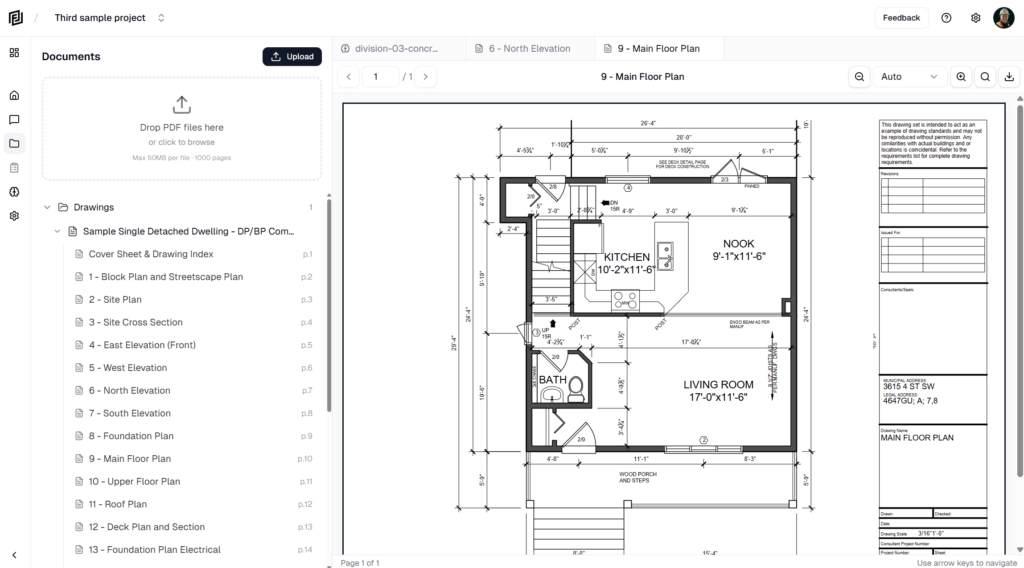
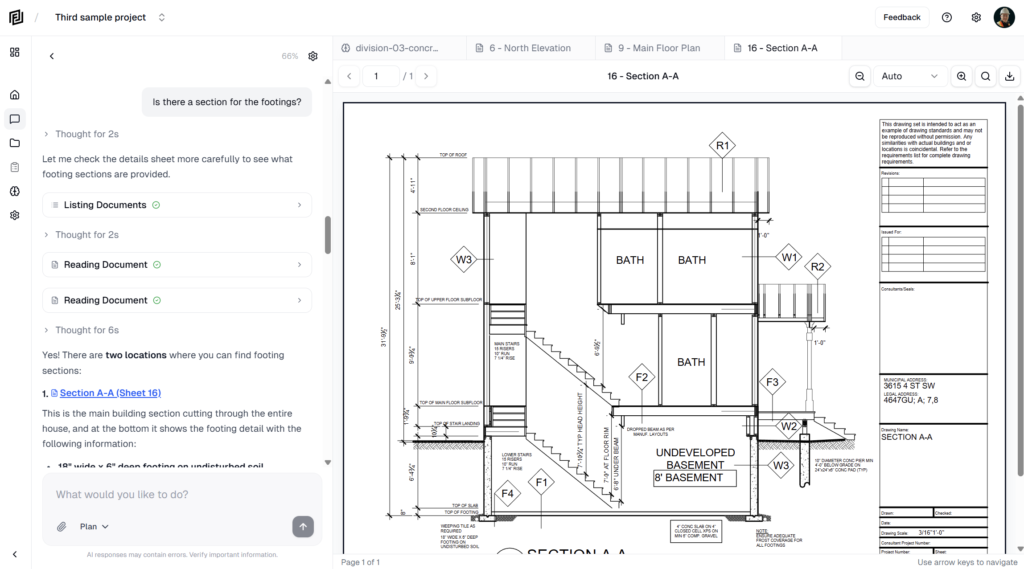
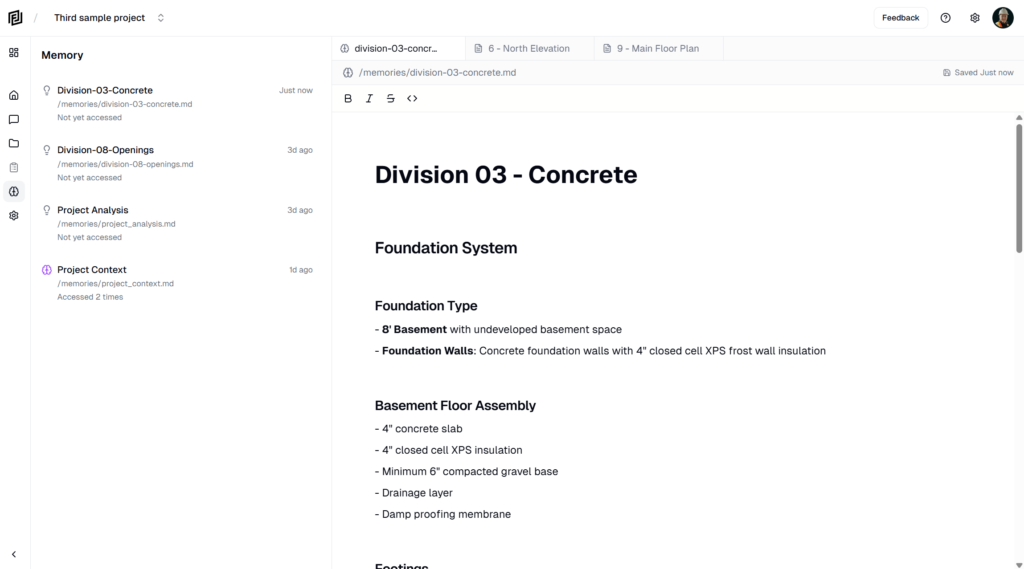
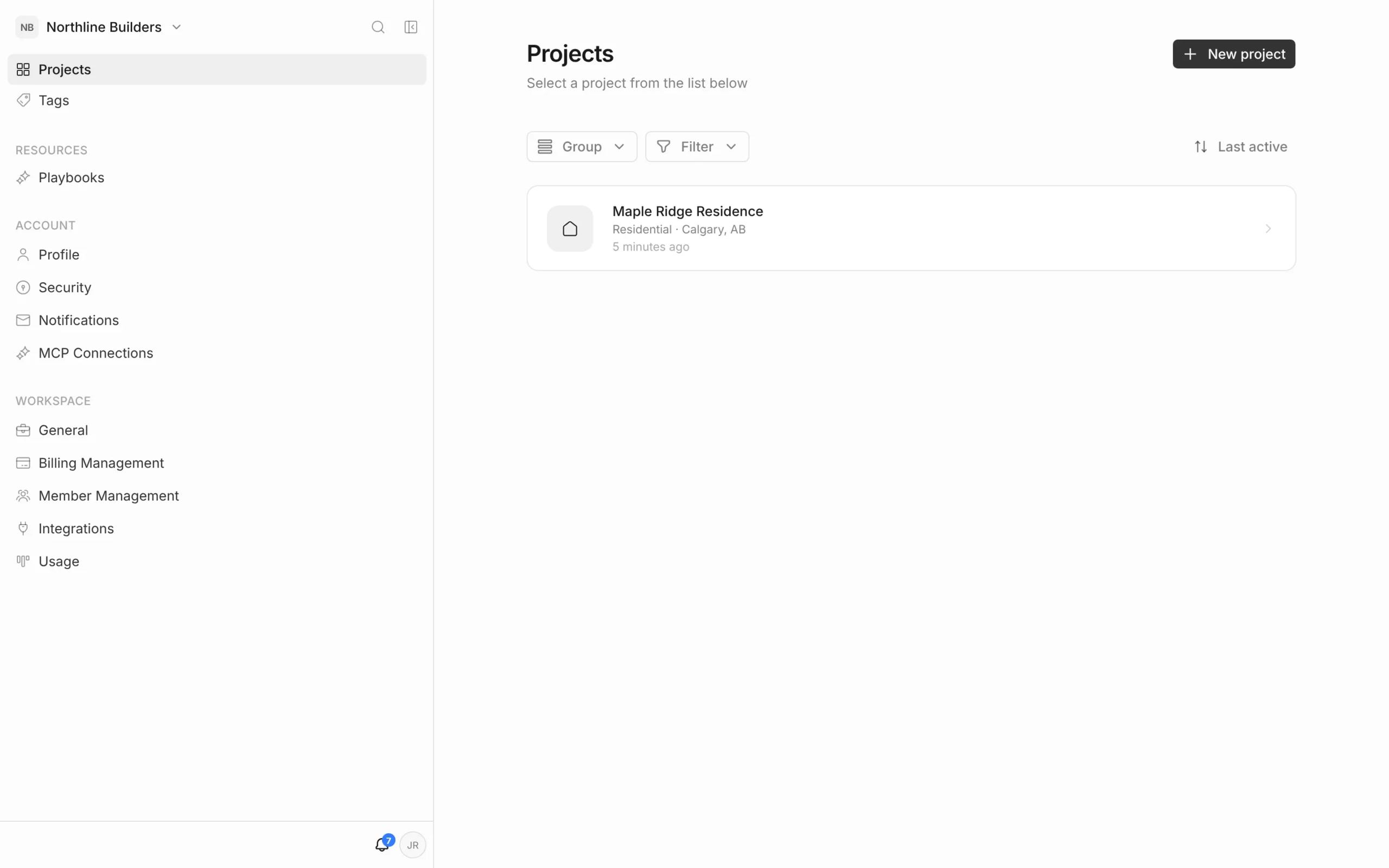
The Projects page lists every project you can open in your workspace. Use it to open a project, start a new one, or keep a long list in order with sorting, tags and groups.
Get to the Projects page
- From inside a project, click the project name in the top-left corner, then All Projects (or Go to workspace).
- Or click Projects at the top of the left menu on any account or workspace settings page.
What’s on the page
- Projects you own — listed first. Each card shows the project type, location and when it was last active. Click a card to open it.
- Shared with you — projects someone else owns that you’re a member of, with your role on each.
- Archived — projects that have been archived. They’re read-only and don’t open from here until they’re unarchived.
Long lists are split into pages of 12 — use the arrows under the list to move between them.
Sort the list
Click the sort button on the right (it shows the current order, such as Last active) and choose Last active, Name (A–Z) or Date created.
Filter by tags
- Click Filter.
- Tick one or more tags.
- With two or more ticked, choose Match any (projects with at least one of the tags) or all (projects with every tag).
Group the list
Click Group and pick how to group your projects:
- A tag group, such as Phase or Region — one heading per tag in that group.
- Every tag — one heading per tag.
- Project type — Residential, Commercial and so on, from each project’s asset class.
- No grouping — back to a single list.
Filters and groups apply to the projects you own. To set up tags and tag groups, see Project Tags.
Project actions
Each project card has two buttons on the right:
- Tags — add or remove tags on that project.
- ⋯ — Settings, Archive or Delete. On an archived project the menu offers Unarchive and Delete.
Only the project owner can archive, unarchive or delete a project.