
Tags help you keep a long projects list in order — by phase, region, client or anything else you track. Tags belong to your workspace, so everyone uses the same set. You can collect related tags into a group, such as a Phase group with Preconstruction, Construction and Closeout.
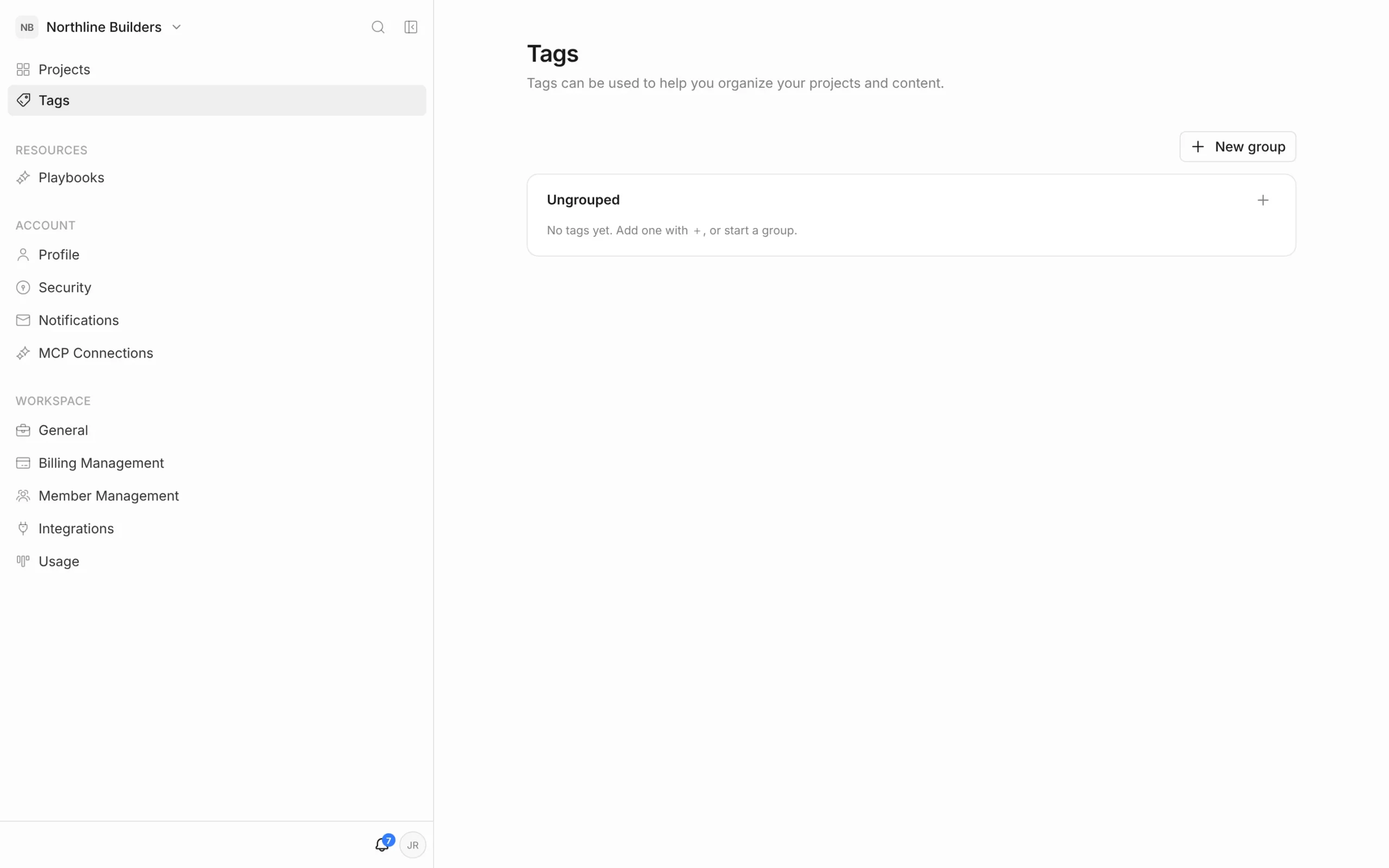
Open the Tags page
- On the Projects page, click Tags in the left menu.
- Or, inside a project, click Settings at the bottom of the left rail, then Tags under Workspace.
Create a tag group
- Click New group.
- Type a name, such as “Phase”, and click Create.
- Click the + on the group’s row to add tags to it. Type a tag name and press Enter — the field stays open so you can add the next one straight away. Press Esc when you’re done.
One tag per group
Each group has a switch on its row: Only one … per project. It’s on for new groups. With it on, a project can carry only one tag from that group — tagging a project “Construction” replaces “Preconstruction” if it had it. Turn the switch off for groups where a project can have several tags, like Trades.
Tags without a group
Tags with no group live under Ungrouped. Click its + to add one. You can drag a tag onto another group to move it.
Edit or delete tags
- Use the controls on a tag’s row to rename it, change its colour or delete it.
- To delete a group, click the bin icon on its row. Its tags aren’t deleted — they move to Ungrouped.
Anyone in the workspace can create tags. Renaming or deleting a tag, and changing or deleting a group, is limited to workspace owners and admins, because it affects every project that uses it.
Tag a project
- On the Projects page, click the tag button on the project’s card.
- Tick the tags you want. Type in Search or create… to find a tag, or to create a new one with Create “…”.
Changes save straight away. You need to be an Editor or above on the project to change its tags.
Filter and group by tags
On the Projects page, use Filter to show only projects with certain tags, and Group to list projects under a heading for each tag in a group. See Projects List.


