
Use RFIs to ask the design team a question and keep a record of the answer. Each RFI gets the next number automatically, carries its status, owner, dates and cost and schedule impact, and can be sent to the people who need to answer it — even if they don’t use Framework.
Create an RFI
- Click RFIs in the Workspace panel to open the log.
- Click New RFI. A new RFI opens with the next number — RFI-001, RFI-002 and so on.
- Type the subject as the title, then fill in the Question.
The number is an ordinary field — change it if you need to match an existing sequence. The next new RFI carries on from the highest number in the log.
Or let the agent draft it. It reads the drawings and specs and cites the sheets involved: “Draft an RFI about the footing size conflict between sheets 16 and 17.”
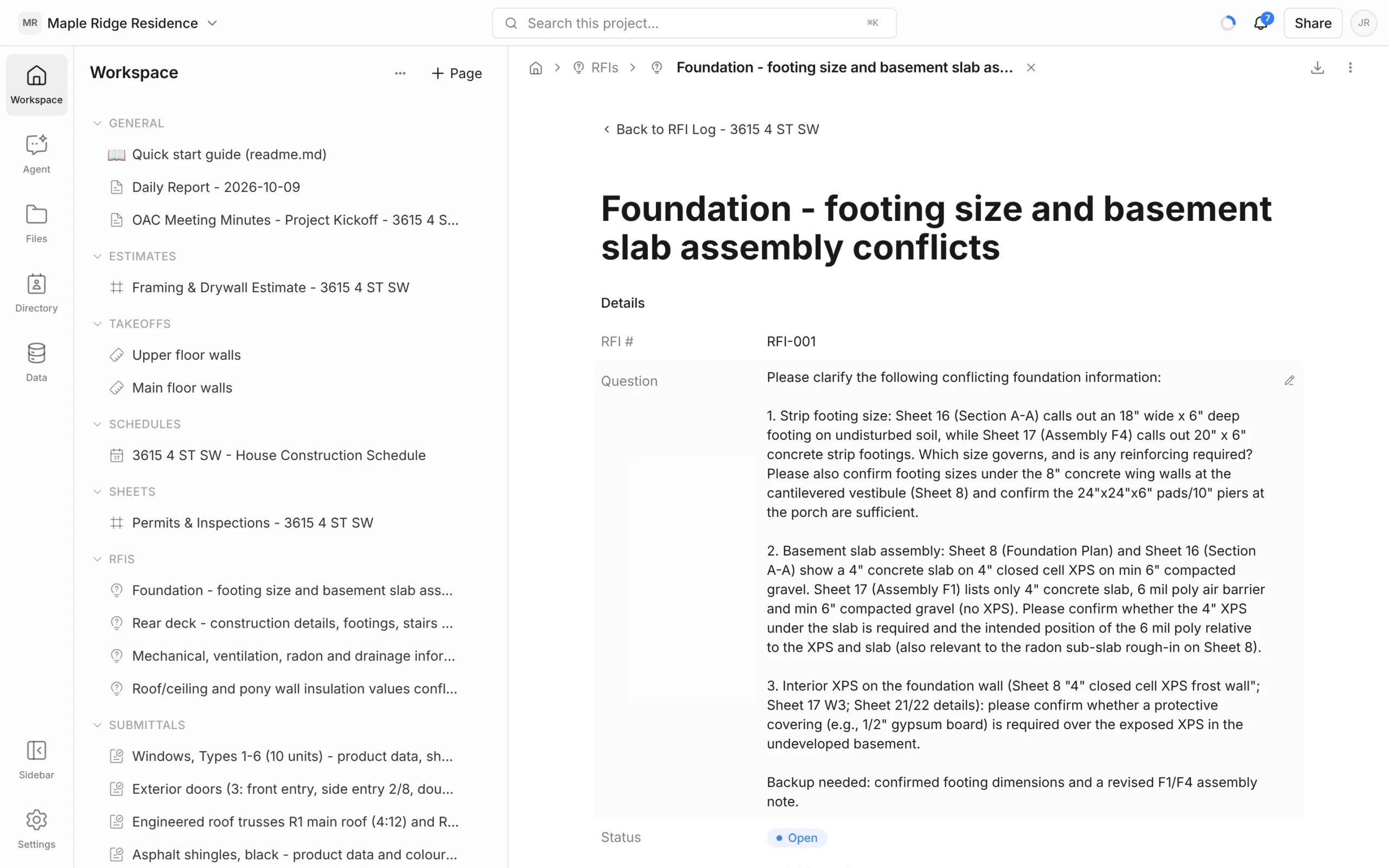
Fill in the details
- Status — Draft, Open, Pending or Closed.
- Assigned To and Ball in Court — who owns it, and whose move it is now.
- Due Date, Date Submitted and Date Returned.
- Cost Impact and Schedule Impact — Yes, No or TBD.
- Spec Section and Drawing Ref — what the question is about.
- Attachments — marked-up sheets, photos, sketches.
Send it for a response
The Workflow section on the RFI lists who has been asked to respond.
- Click the empty row at the bottom of the Workflow table to add a row.
- In Assignee, pick a project member or contact, or choose Create new contact and enter their email.
- Set a Due Date for their reply.
The assignee is emailed a link to the RFI. They don’t need a Framework account: they read the question, write their response, attach files and click Submit response (or No comment). Their row then shows Responded with the date and their answer. Use the bell in the Assignee cell to turn notifications off or Send now to resend the link.
Responses can be updated until you set the RFI to Closed. After that the link is read-only. You can also type in a response that arrived by email.
Track the log
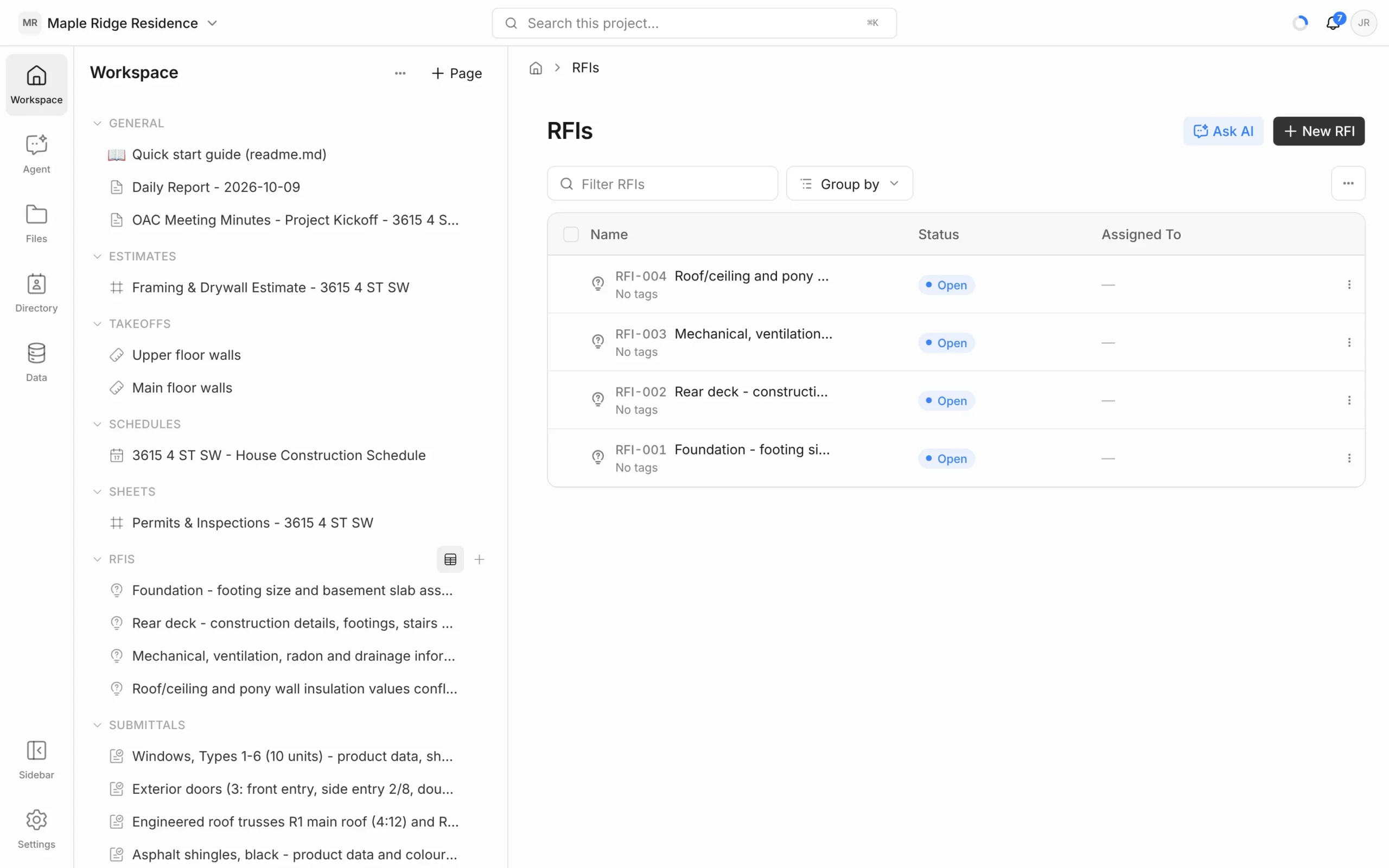
The RFIs log shows every RFI with its number, subject, tags, Status and Assigned To. Use Group by → Status to see what’s open, show or hide columns such as Ball in Court and Due Date from the … menu, and filter by typing. See Logs & List Views.
From an RFI, click Back to RFI Log (or RFIs in the breadcrumb) to return to the list.
Export an RFI to PDF
- Open the RFI and click the download icon (Export) at the top right.
- Under Company branding, choose the company whose logo should head the page.
- Click PDF (.pdf).
The PDF lays out the RFI as a transmittal: number, subject, question, status, people, dates, references and responses.


