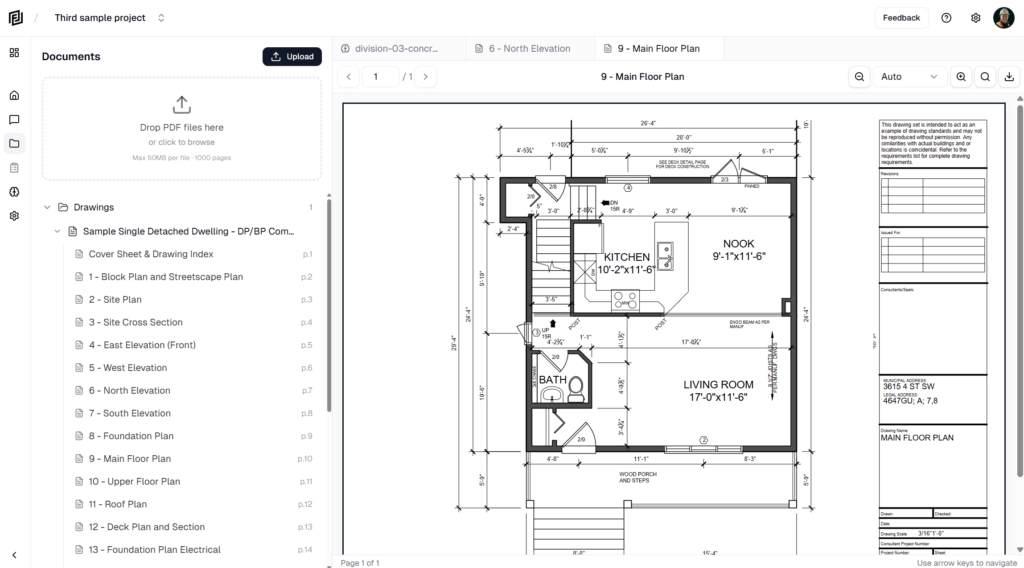
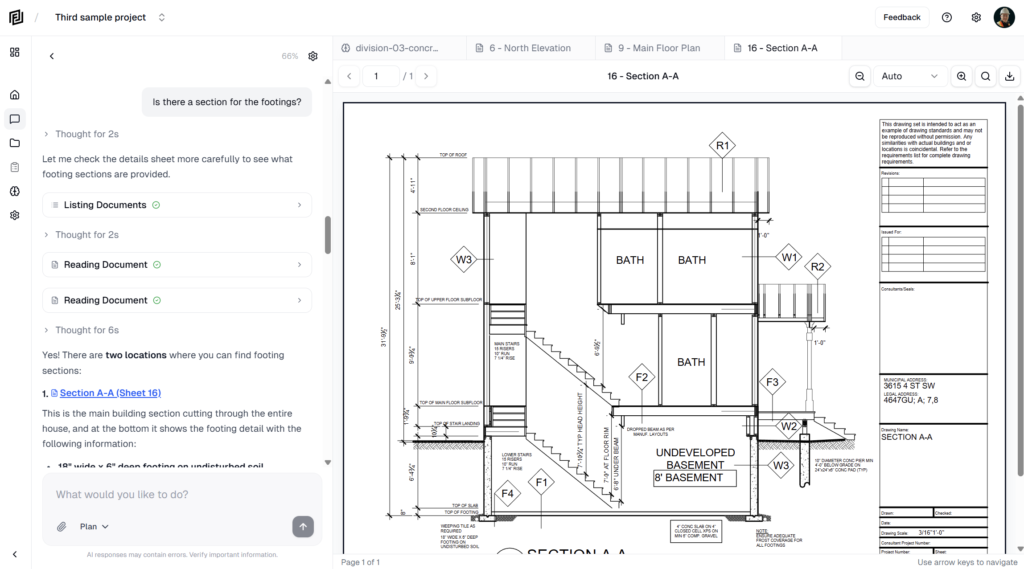
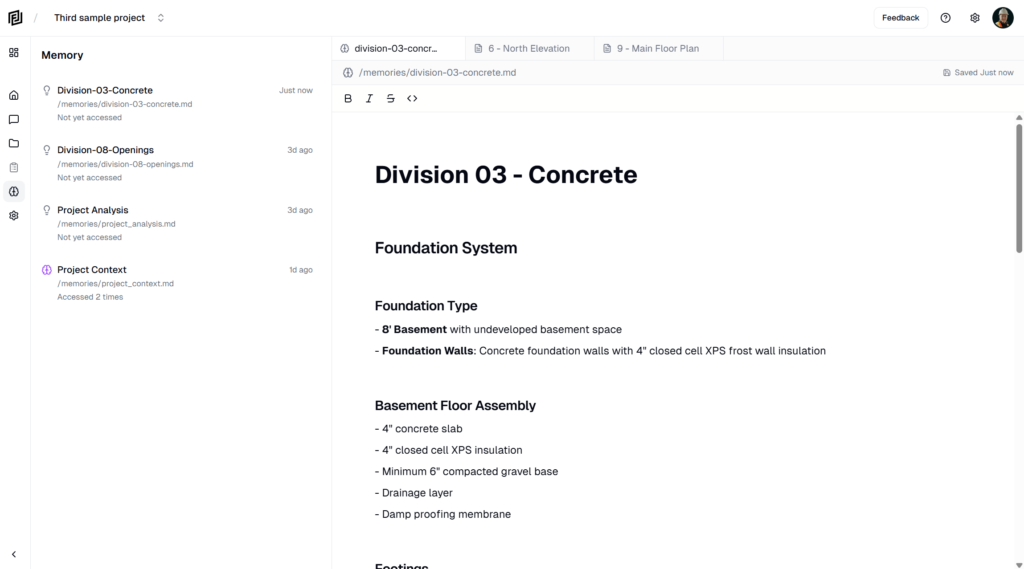
When you open a new project, Framework shows a short checklist: add your documents, then give the agent its first job. It takes a few minutes and leaves you with something real — an estimate, a schedule or a brief — built from your drawings.
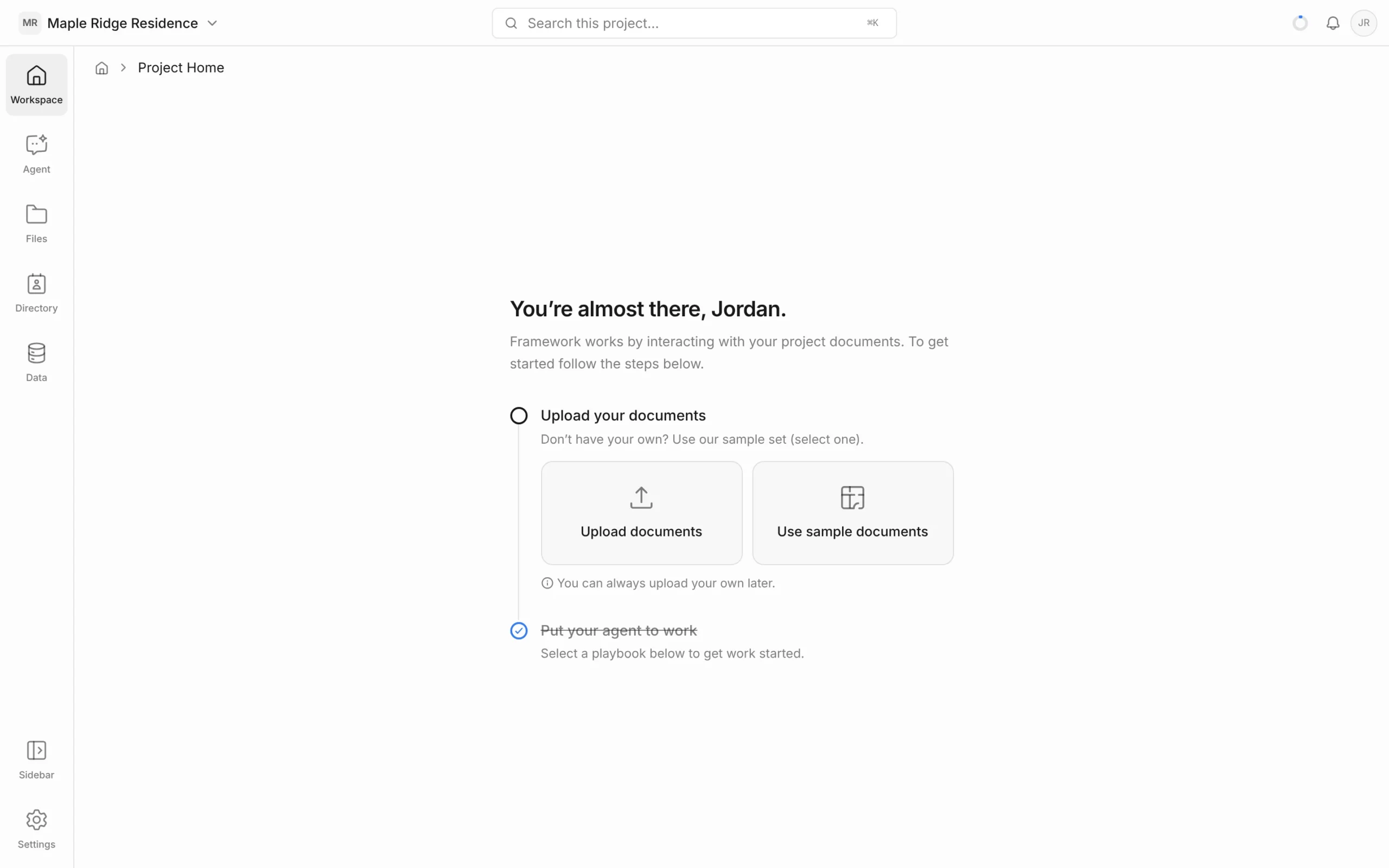
Step 1: Add your documents
The agent works from your project documents, so start there. Choose one:
- Upload documents — pick your drawing set or specs. Framework accepts PDFs, images and CAD drawings (DWG, DXF) up to 250 MB each.
- Use sample documents — load a sample residential drawing set if you just want to try things out. You can always upload your own later.
Uploaded files are read and split into individual sheets and sections. You’ll see each file’s progress, and you can move on once it’s ready.
Picked the wrong option? Click Edit next to the step to change it.
Step 2: Put your agent to work
- Pick one of the suggested playbooks — for example Estimate or Schedule. A playbook is a ready-made set of instructions for a common job.
- Optionally, add anything the agent should know — scope to cover, what stage you’re at, what to leave out.
- Click Proceed.
Not what you need? Type your own request in the …or type what you need box and press Enter.
The agent opens a chat and starts working. You can watch its progress in the chat, and it tells you what it made when it’s done.
Step 3: Open your first deliverable
Whatever the agent builds — an estimate, a schedule, a note — is saved to the Workspace panel as a page you can open, check and edit. Click the link in the chat, or find it under the matching heading in the Workspace panel.
When both steps are ticked, you’ll see You’re all setup. Click Go to the project to reach your Project Home.
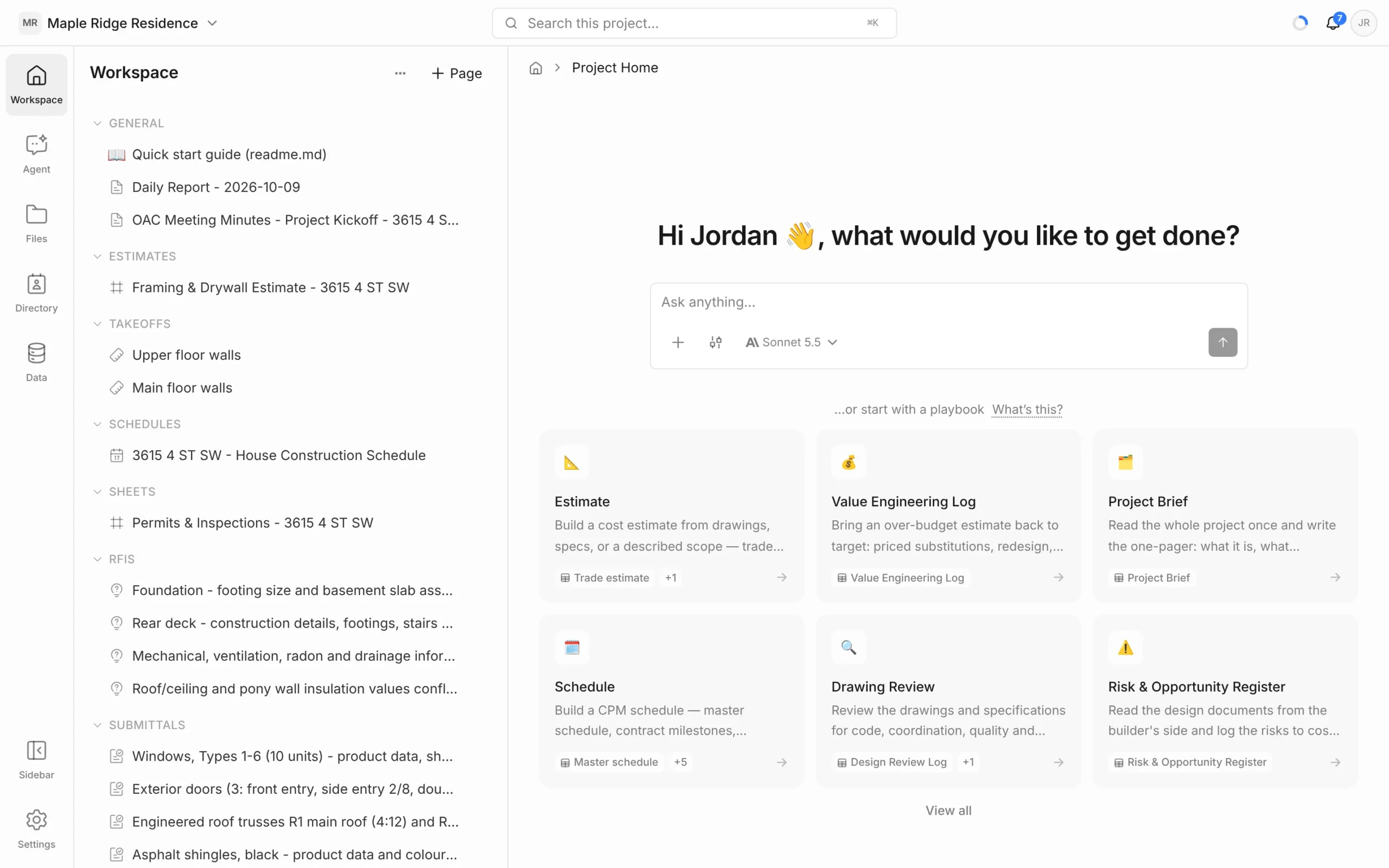
What to try next
- Ask a question about your drawings from the Ask anything… box on Project Home, then click a citation to open the sheet.
- Browse your sheets in Files.
- Invite your team from Settings → Members.