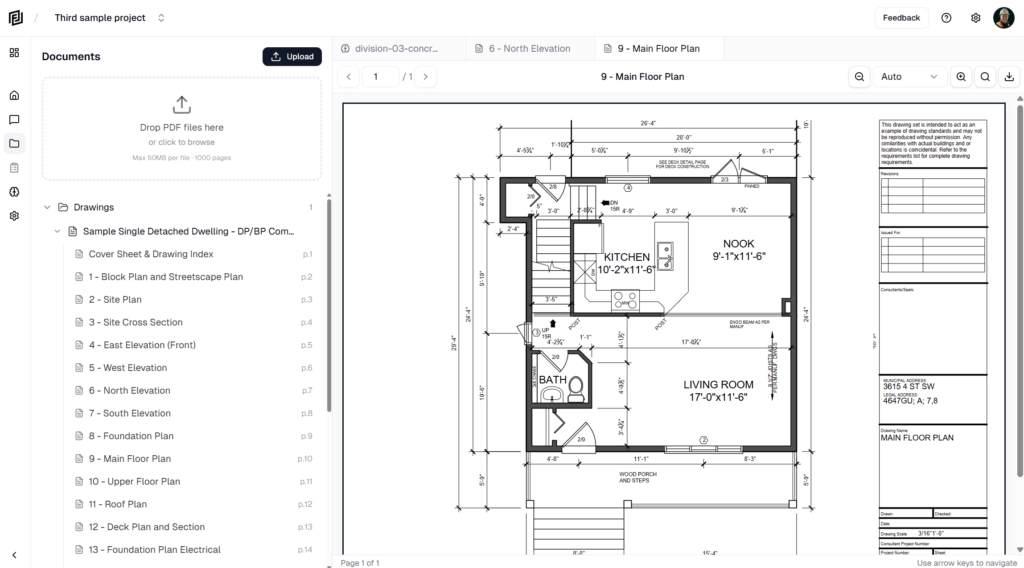
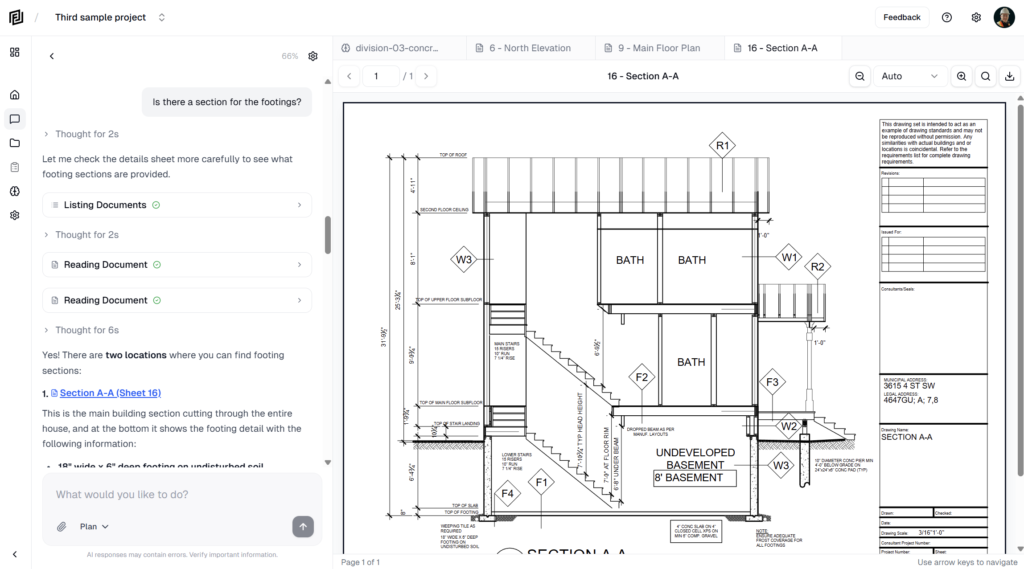
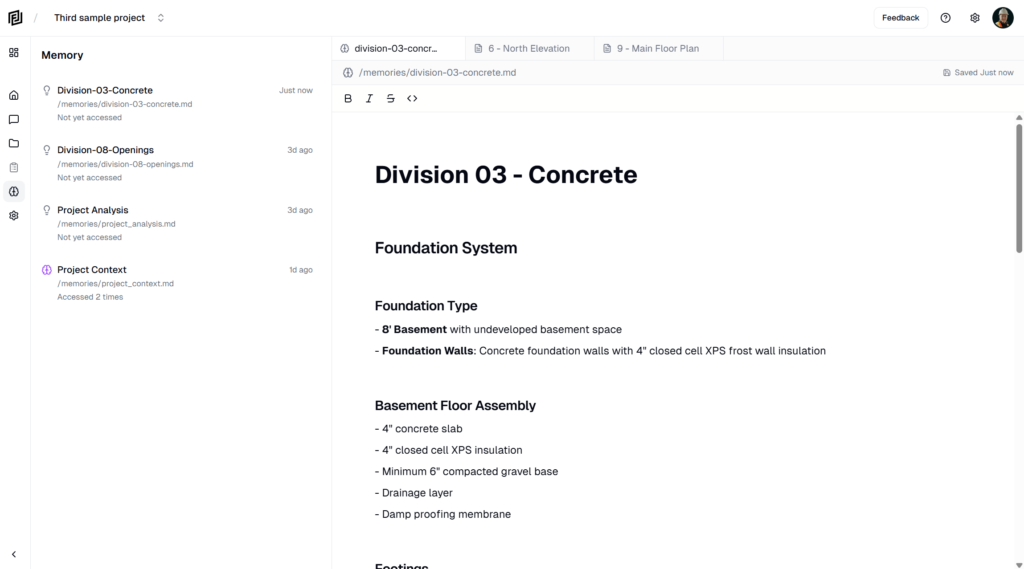
Every document and sheet opens in Framework’s built-in viewer, in the main window. It’s built for drawings: fast zoom, sheet-to-sheet navigation, and tools for markups and measurements.
Open a drawing
- Click a sheet or document in the Files panel.
- Click a row in the Contract Documents Register.
- Click a citation in one of the agent’s answers — the viewer opens on the page it refers to.
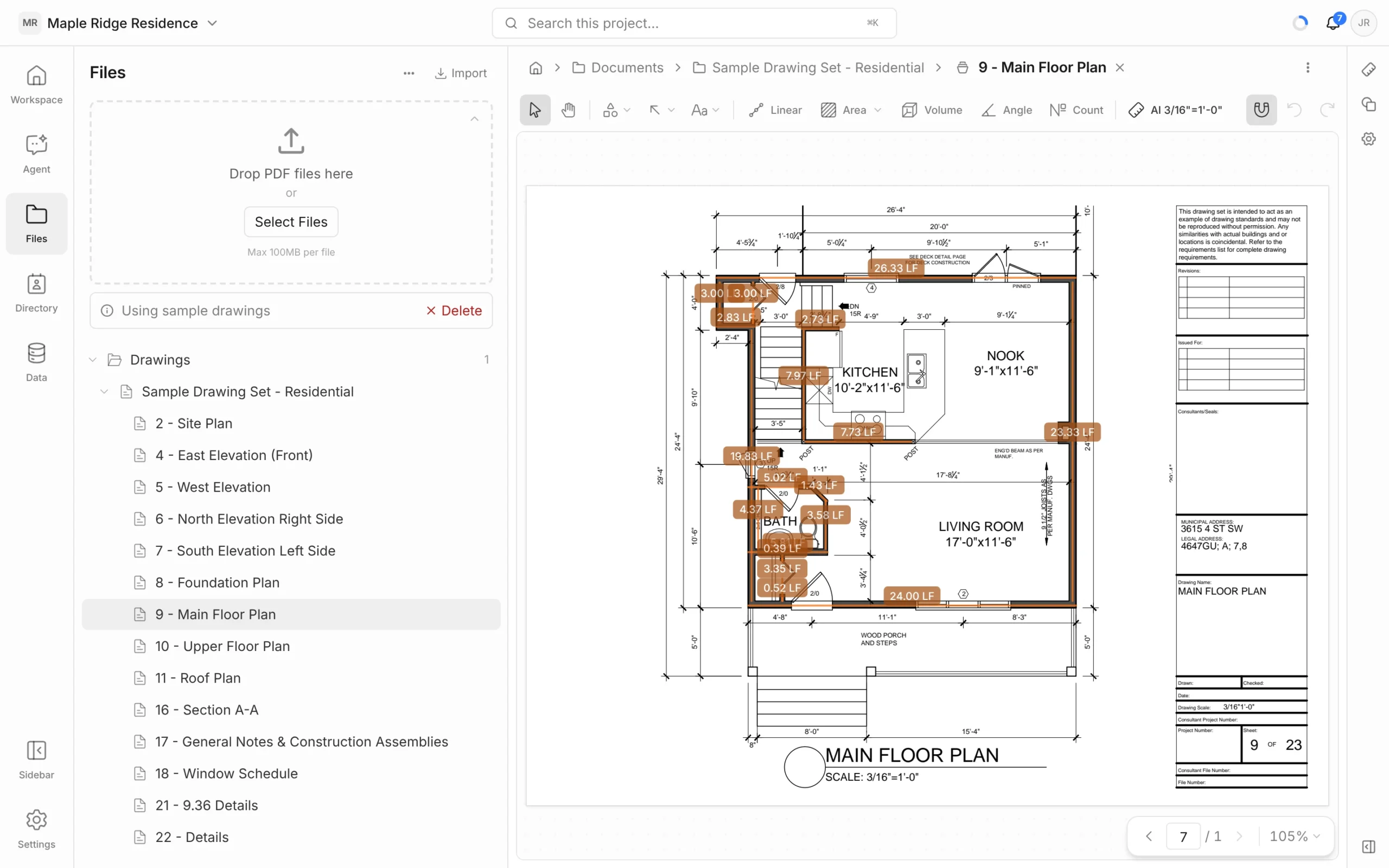
Move around
- Pan: choose the hand tool in the toolbar (or press H), then drag. Press V to go back to the select tool.
- Pages: use the arrows at the bottom right, or type a page number and press Enter.
- Other sheets in the set: click the drawing set’s name in the breadcrumb above the drawing and pick another sheet.
Zoom and fullscreen
Click the zoom percentage at the bottom right to open the zoom menu:
- Zoom in and Zoom out
- Fit Width and Fit Page
- Fixed levels from 50% to 300%
- Fullscreen (and Exit fullscreen), where your browser supports it
On a phone or tablet, pinch to zoom.
Rotate
Use Rotate counterclockwise and Rotate clockwise at the right end of the toolbar.
The toolbar
From left to right:
- Select and Pan tools.
- Markup tools — shapes, arrows and annotations. See Markups & Stamps.
- Measure tools — Linear, Area (with Cutout), Volume, Angle and Count. See Takeoff & Measurements.
- Scale — shows the page’s scale. It reads Scaled once you’ve confirmed one, shows the scale Framework found on the sheet (for example AI 3/16″=1′-0″), or No scale. Click it to calibrate.
- Snapping on or off, and Undo (Ctrl+Z) / Redo (Ctrl+Y).
When the agent has cited the page you’re on, the toolbar also shows how many citations point to it.

Download a copy
- Click the ⋮ (Export) button at the right of the breadcrumb.
- Choose one:
- Download original — the PDF as uploaded.
- Download with markups
- Download with measurements
- Download with both — markups and measurements.
The options with markups or measurements are only available when the drawing has some.