
The document browser is the sidebar panel that appears when you click the Documents icon in the activity bar. It gives you a structured view of all documents in your project.
Document Tree
Documents are organized in a tree view grouped by category (Specifications, Drawings, Submittals, etc.). Each category shows as a collapsible folder.
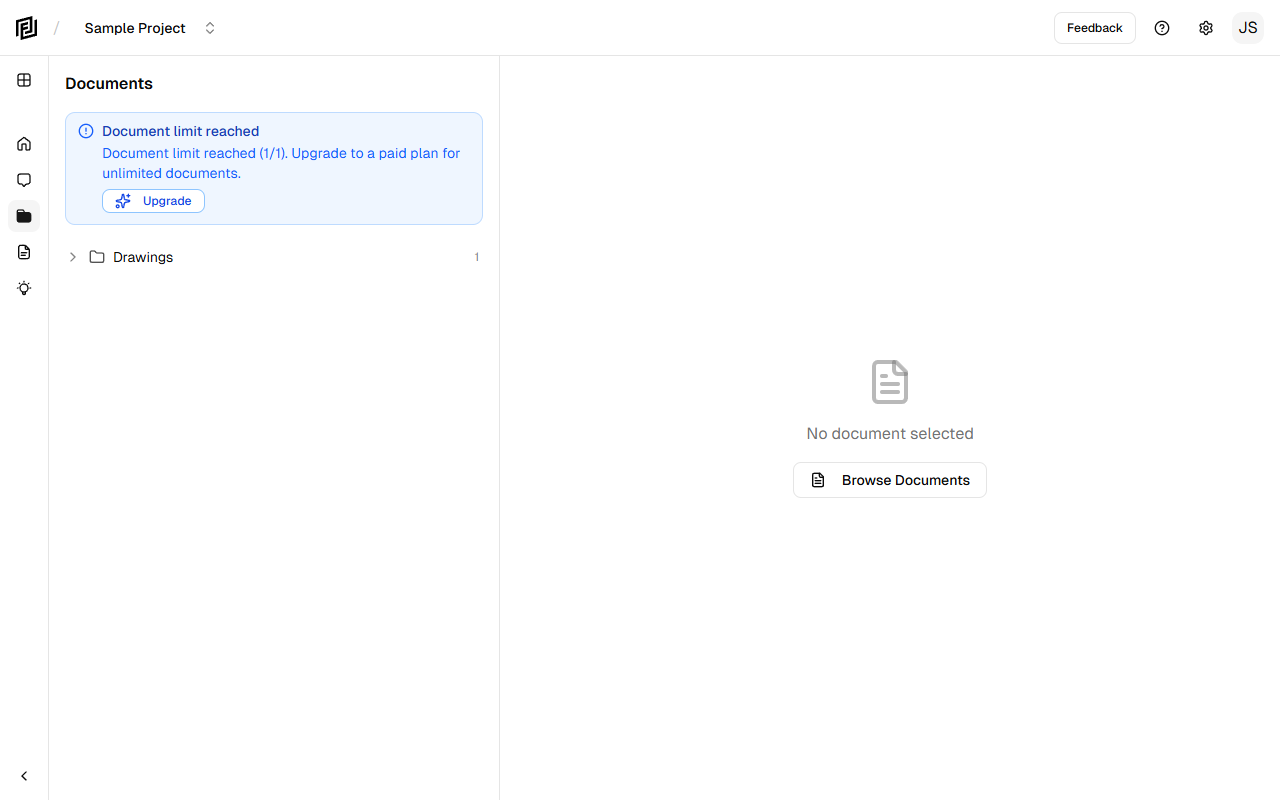
- Click a category to expand or collapse it.
- Click a document to open it in the PDF viewer in the main viewport.
- Each document shows its filename and any relevant metadata.
Document Blocks
Under each document, you may see expandable blocks — these are the searchable sections that the AI extracted during processing. Blocks represent logical sections of the document (e.g., individual specification sections, drawing sheets, or submittal pages).
Click a block to jump directly to that section in the PDF viewer.
File Status Indicators
Documents show visual indicators for their current status:
- Processing — The file is still being analyzed. A progress indicator is shown.
- Ready — The file has been processed and is available for viewing and AI search.
- Error — Something went wrong during processing. You may need to re-upload the file.
Upload Zone
The upload zone sits at the top of the Documents sidebar. Drag and drop files here or click to browse. See Uploading Documents for details.
Opening Documents
Click any document in the tree to open it in a new tab in the main viewport. The document opens in the built-in PDF Viewer. You can have multiple documents open in separate tabs.


