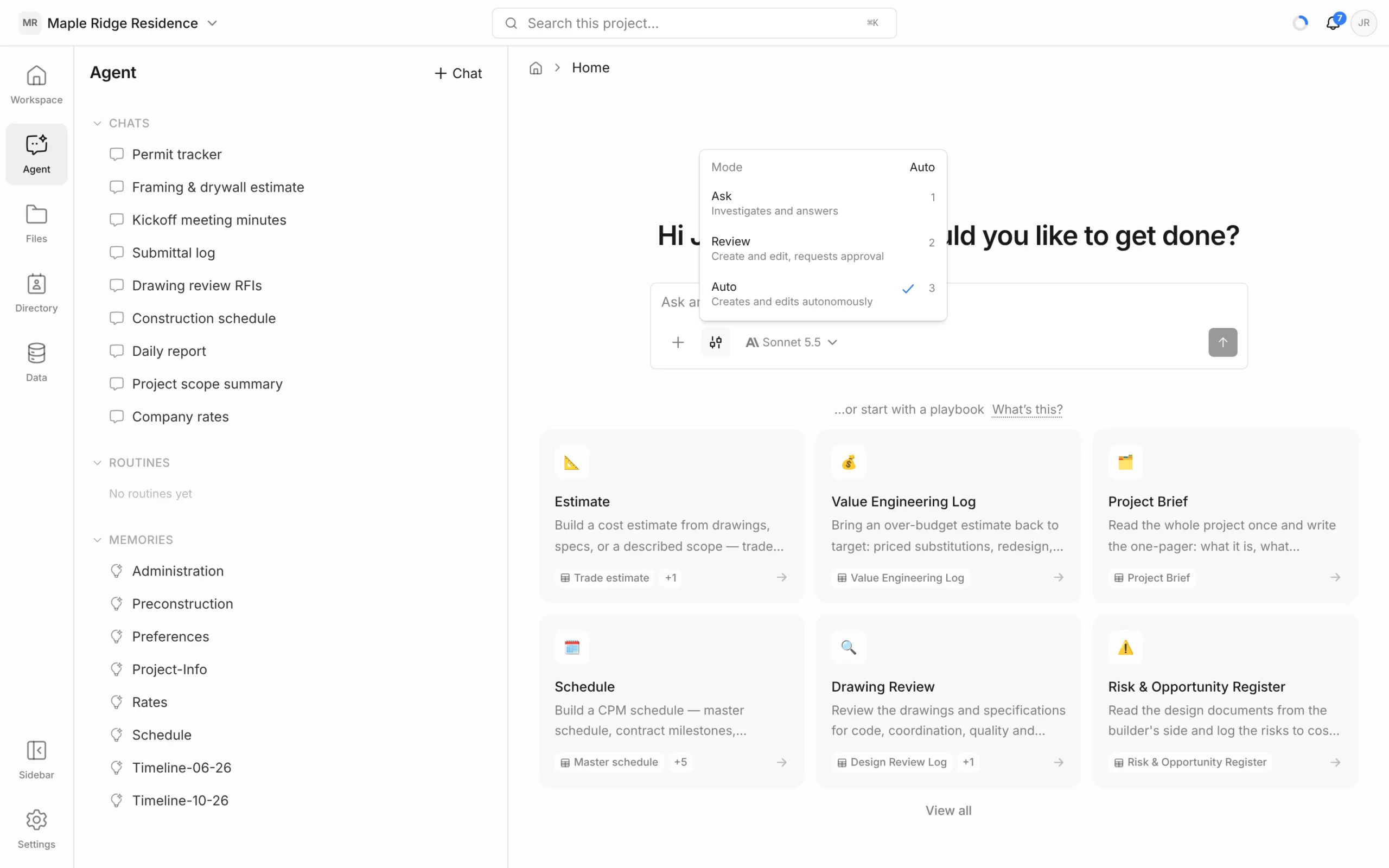
The mode sets how much the agent is allowed to do without you. Pick it per chat, and change it at any point in the conversation.
The three modes
| Mode | What it does | Use it when |
|---|---|---|
| Ask | Investigates and answers. Reads documents and data but creates and changes nothing. | You want answers, research or a second opinion, with no risk of anything being edited. |
| Review | Creates and edits, but shows you its plan and waits for your approval first. | The job is big or important — an estimate, a schedule, a batch of RFIs — and you want to agree the approach before it starts. |
| Auto (default) | Creates and edits on its own, start to finish. | You’ve described the job clearly and want the result without stopping to approve. |
Change the mode
- In the message box, click the Mode button (the sliders icon, beside +).
- Choose Ask, Review or Auto. While the menu is open you can also press 1, 2 or 3.
The current mode is shown at the top of the menu, and when you hover the button. You can’t change it while the agent is mid-answer — wait for it to finish, or stop it.
How Review works
- Ask for something, such as “Build a framing estimate for the main floor”.
- The agent investigates, then shows its plan with Approve this plan?
- Click Approve & continue to let it go ahead, or Request changes, type what should change, and click Send changes.
More on plans and approvals in Plans, Approvals & Questions.
Switching mid-conversation
- A common pattern: research in Ask, then switch to Auto and say “Now build it.”
- If you ask for something to be created while in Ask mode, the agent explains what it would make and may offer a Switch to Auto mode button.
Things to know
- Permissions still apply. Chatting with the agent, in any mode, needs the Editor role or higher on the project. Viewers have read-only access and can’t send messages.
- Routines run on their own schedule and create and edit like Auto mode.