Every charge for your subscription, your team’s seats and any overage comes with an invoice. Your recent invoices are listed on the Billing Management page, ready to download for your records or your accountant.
Find your invoices
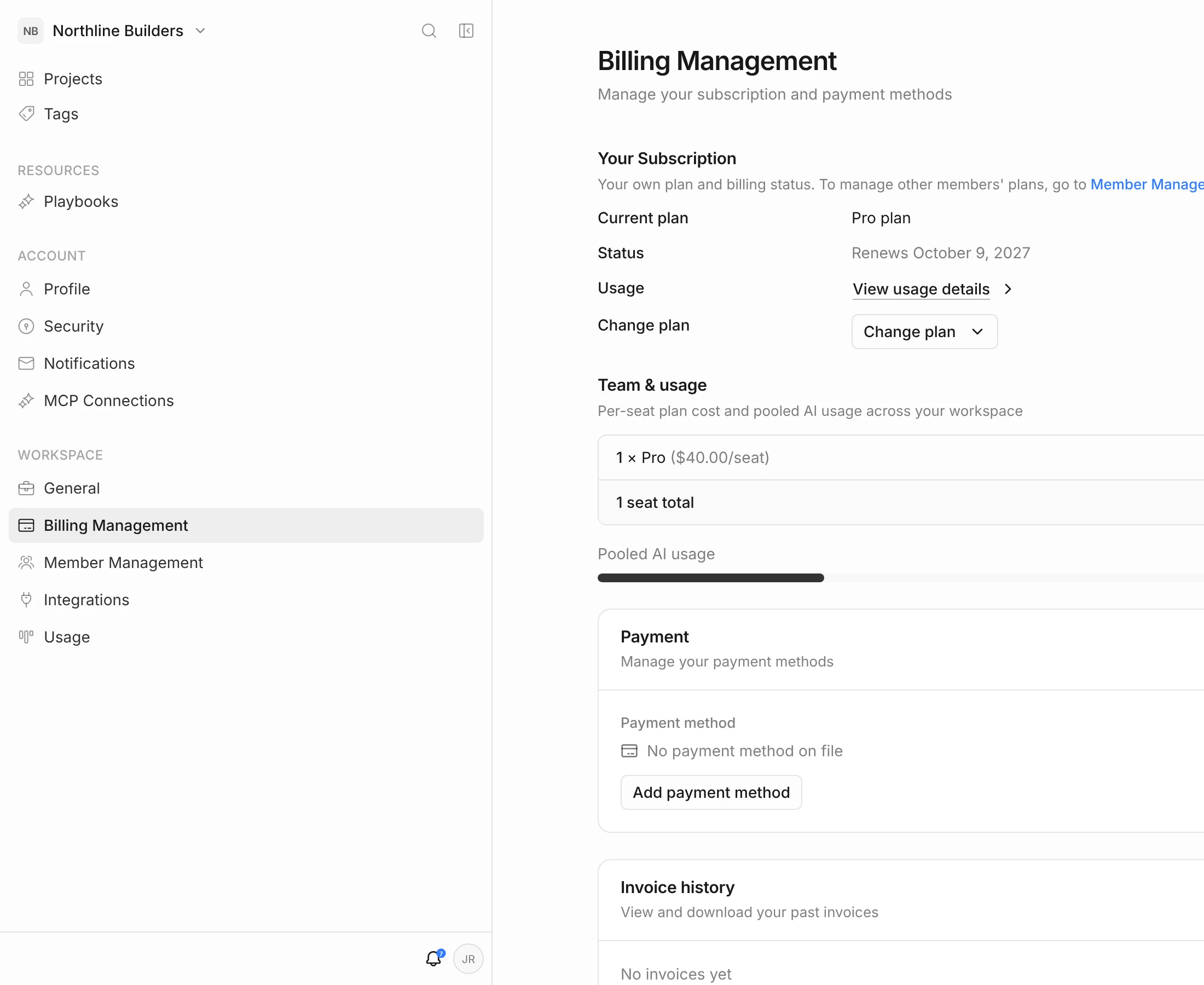
- Click your initials in the top-right corner, then Billing settings.
- Scroll to Invoice history.
The list shows your five most recent invoices, with the Date, Amount and Status of each. If you haven’t been billed yet — during a free trial, for example — it shows No invoices yet.
Download or pay an invoice
- Download — appears on paid invoices. Opens the invoice PDF in a new tab.
- Pay now — appears on invoices that haven’t been paid. Opens a secure payment page in a new tab where you can pay it.
You also get an email receipt for each successful payment. Check your spam folder if you can’t find one.
Invoice statuses
| Status | What it means |
|---|---|
| Paid | Payment went through. Nothing to do. |
| Pending | Not paid yet — either still processing or the charge failed. Use Pay now, or update your card. |
| Draft | Being prepared and not yet final. |
| Failed | Couldn’t be collected. Contact support. |
| Void | Cancelled. Nothing to pay. |
What’s on an invoice
- Seats — one line per plan in use, with the number of members on it.
- Prorations — adjustments when you upgrade, add or remove a member, or change someone’s plan part-way through a period.
- Overage — AI credits used beyond your allowance, if overage is on. See Overage.
Your workspace name appears on invoices. To change it, go to Workspace settings → General.
Need an older invoice or have a billing question?
Click your initials, then Help and feedback → Get help. Include the invoice date or amount so we can find it quickly. If you can’t send a request, email support@framework.construction.