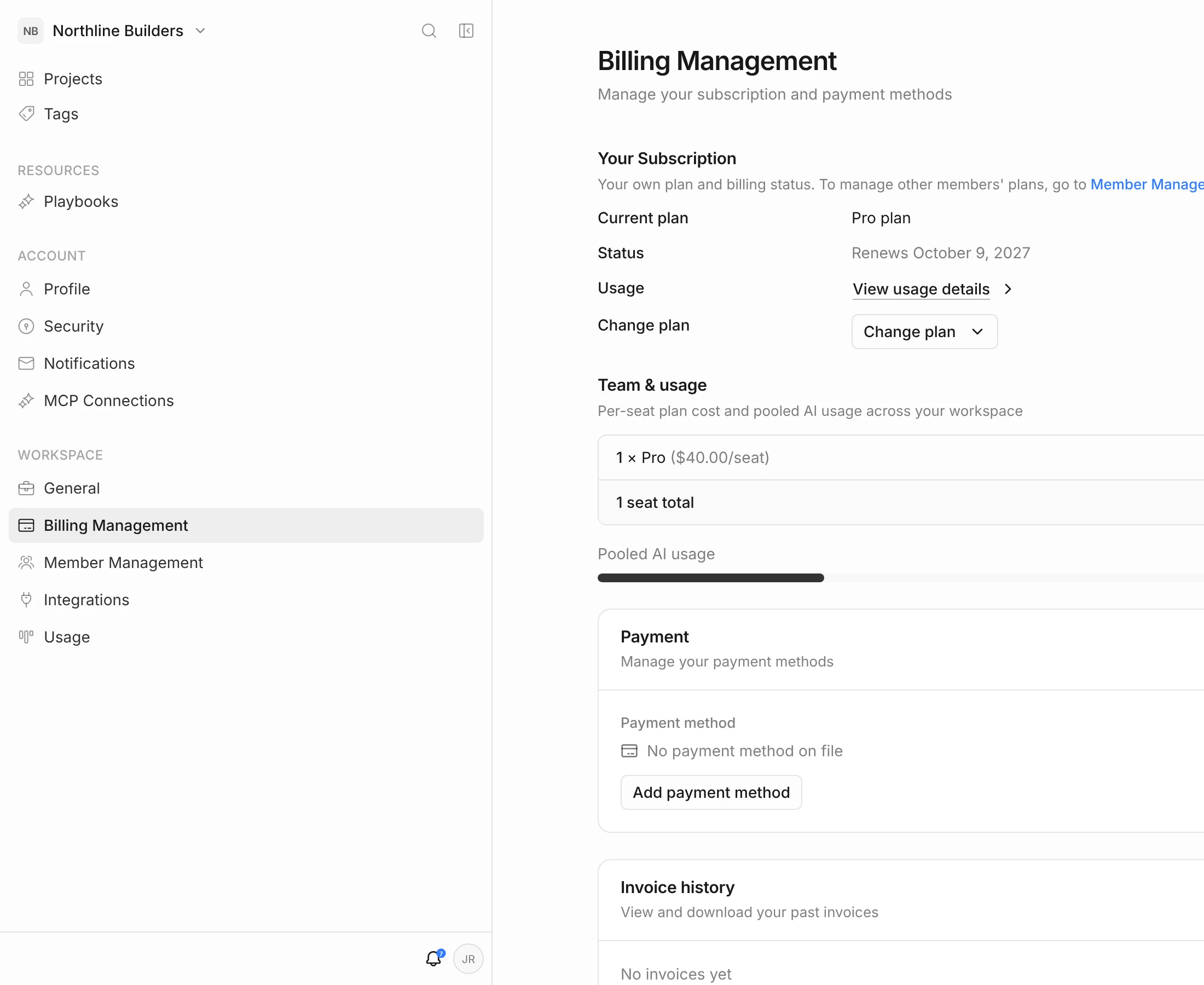
Your card on file pays for your subscription, your team’s seats and any overage. You add it when you subscribe or start a trial, and you can replace it at any time from Billing Management.
See your card
- Click your initials in the top-right corner, then Billing settings.
- Scroll to Payment.
Under Payment method you see the card brand and its last four digits, or No payment method on file.
Add or replace a card
- In the Payment section, click Add payment method (or Update if you already have a card).
- Enter the card number, expiry date and security code.
- Click Add Payment Method.
Set as default payment method is ticked unless you untick it. The default card is used for all future charges, including overage.
- Card details are handled by Stripe, our payment processor. Framework never stores your full card number.
- To remove a card without adding a new one, contact support through Help and feedback.
When a payment fails
If a charge doesn’t go through — an expired card, say — a banner appears at the top of the app: Your last payment didn’t go through.
- Click Pay invoice in the banner to pay the outstanding invoice in a new tab, or Go to billing to update your card first.
- Once the payment is complete, return to Framework. The banner clears on its own.
While a payment is overdue, the agent, uploads, new projects and new member invites are paused, with the message Payment overdue. Update your payment method to keep using Framework. Your existing work stays available. Everything resumes once the invoice is paid.
Who can manage payment
Only the workspace owner adds or changes the payment method. Members’ seats are charged to the owner’s card.