
Framework lets you know when something needs your attention — a document has finished processing, an upload failed, the agent made something, or someone assigned you to an item. You’ll see these under the bell in the top bar, and by email if you want them.
Check your notifications
- Click the bell in the top bar. The number on it is how many you haven’t read.
- Click a notification to go straight to the document or page it’s about.
- To clear one, hover it and click the × (Dismiss). To clear the count, click Mark all read.
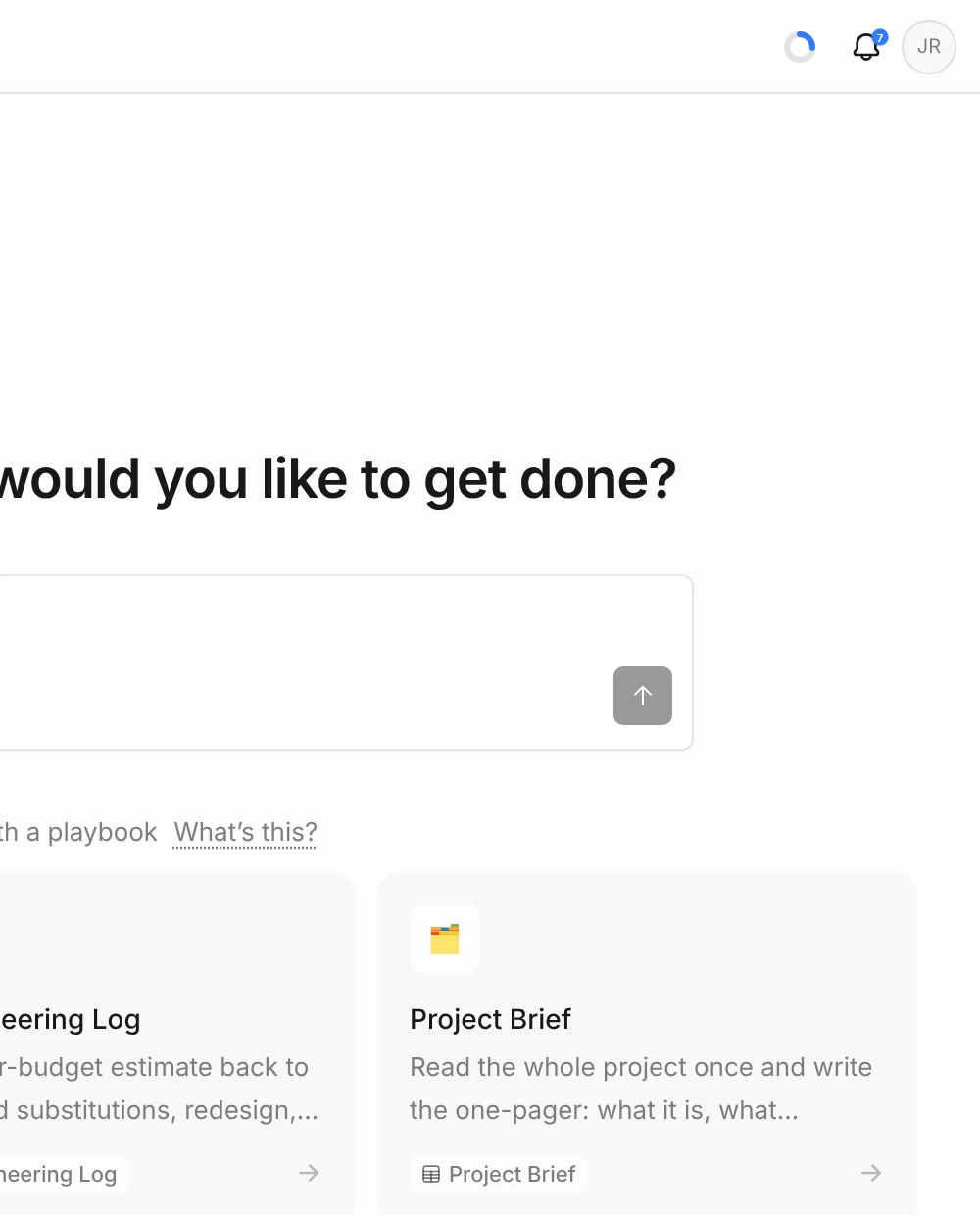
When there’s nothing new, the panel says You’re all caught up.
What you’re notified about
- Document ready — a file you uploaded has finished processing and is ready to use.
- Document failed — a file you uploaded couldn’t be processed. Open Files to retry it.
- Assigned to me — someone assigned you to a row in a log or sheet, in a column that has notifications turned on.
- Created by the agent — the agent made a note, sheet or schedule for you.
- Access changes — your role on a project changed, or you were removed from one.
Choose what you get
You can turn the document and assignment notifications on or off separately for email and for the app.
- Click your initials in the top-right corner, then Account settings.
- Click Notifications.
- Under Email and In-app, switch Document ready, Document failed and Assigned to me on or off.
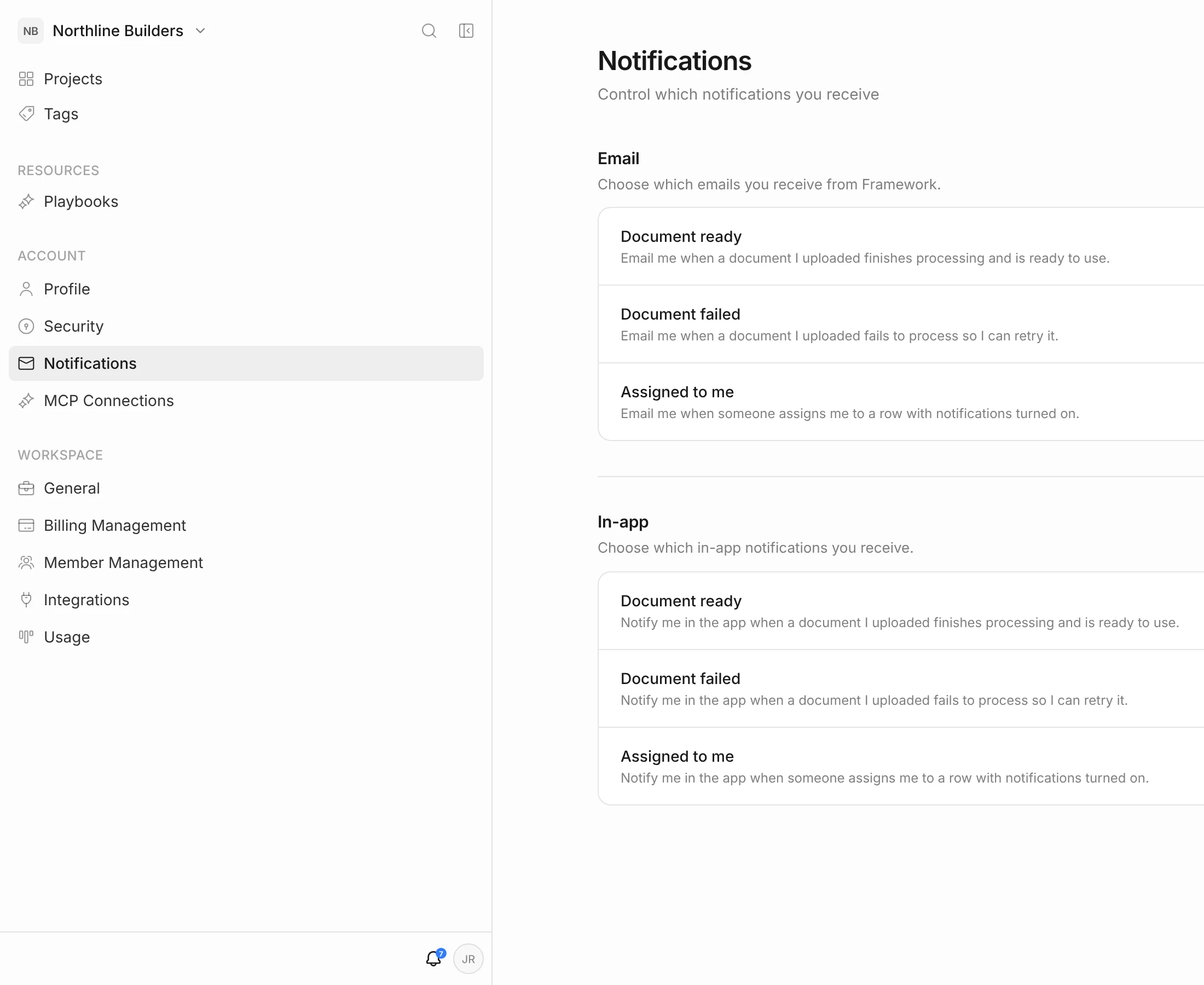
These settings are yours alone — they don’t change what anyone else on the project receives.


