
A routine is a job you hand the agent once and it repeats on a schedule: a three-week lookahead every Monday, a daily check for overdue RFIs, a Friday progress summary. Each run works like a chat in Auto mode, and you can read exactly what it did.
Create a routine
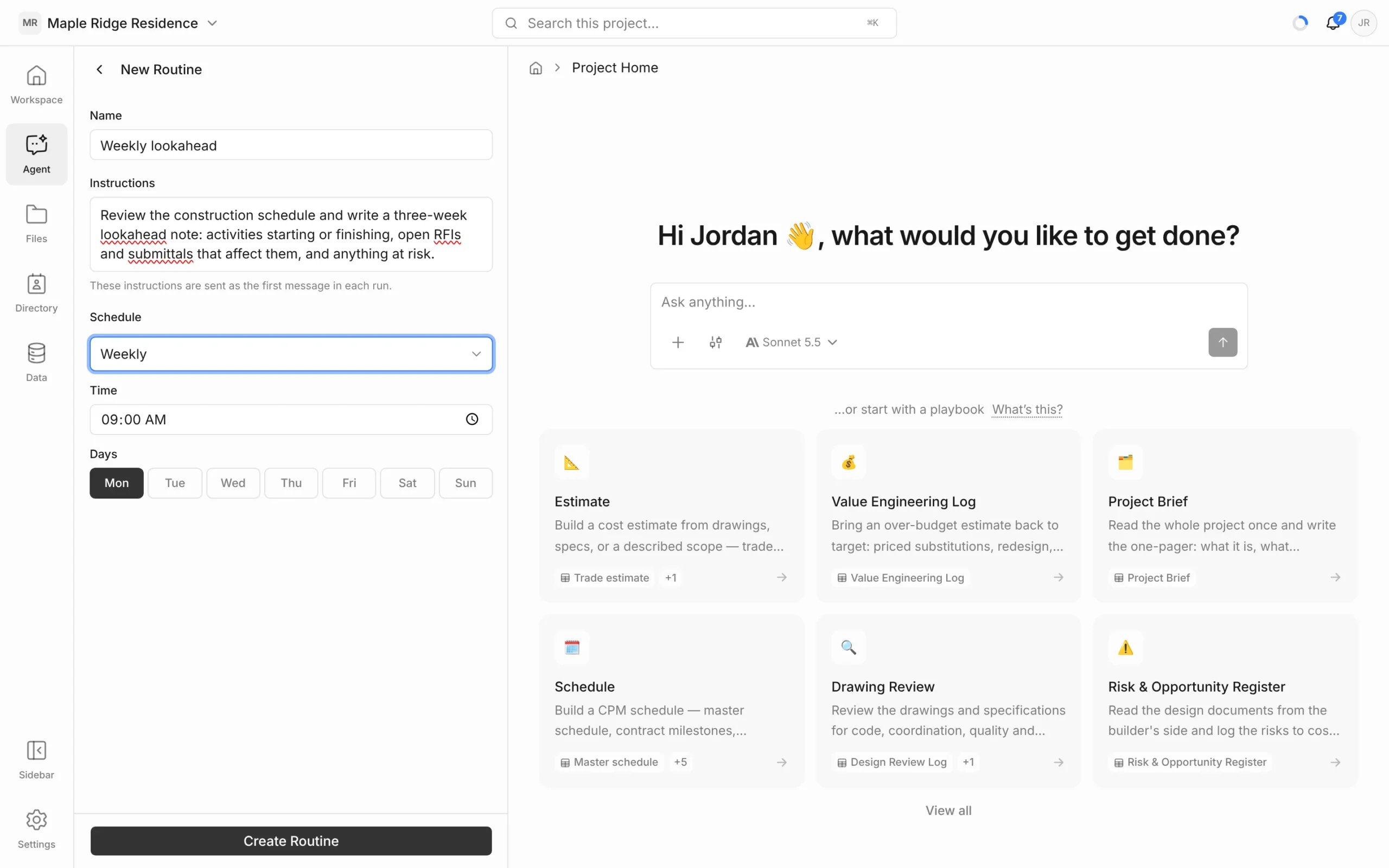
- Click Agent in the left rail.
- Next to Routines, click +.
- Enter a Name, such as Weekly lookahead.
- Write the Instructions — what the agent should do each time. These are sent as the first message in each run, so write them as you would a chat message.
- Choose a Schedule:
- Manual only — runs only when you click Run Now.
- Every hour
- Daily — at a set Time.
- Weekdays — Monday to Friday at a set Time.
- Weekly — at a set Time on the Days you pick (one or more).
- Click Create Routine.
Times are in your computer’s timezone when you save the routine. A routine set up before October 2026 runs on UTC time until you change its schedule and save it again.
Check on a routine
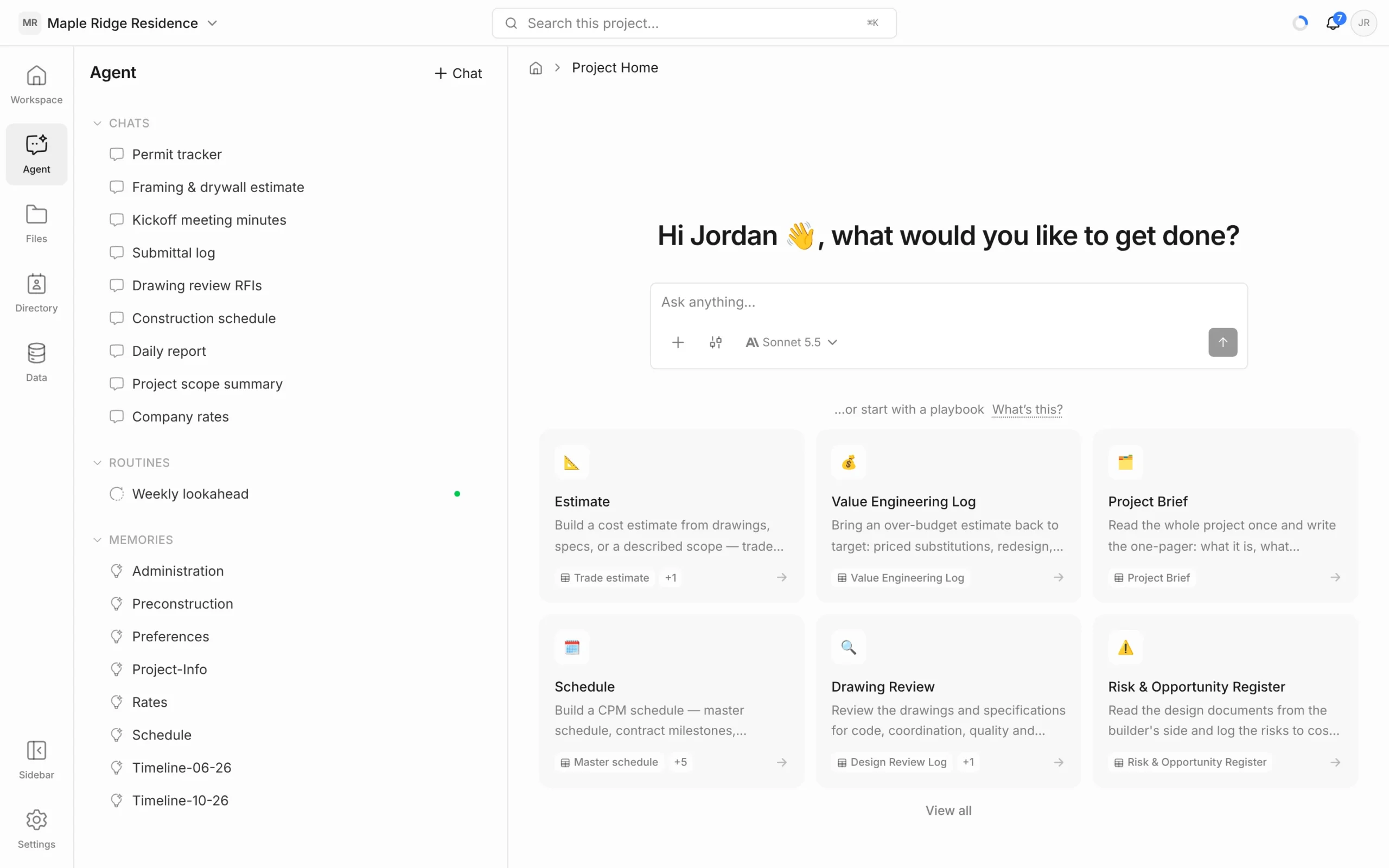
Routines are listed under Routines in the Agent panel. A green dot means the routine is enabled; a yellow dot means it’s turned off. Click one to see its details:
- Schedule, Status (Active, Running or Disabled), Last run and Created by.
- Instructions
- Run History — each run with its status, when it ran and how long it took. Click a run to open the full conversation and see what the agent did and created.
Run, pause, edit or delete
- Run Now — run it straight away, whatever the schedule. A routine can’t run twice at the same time.
- Enabled switch — turn it off to pause the schedule without losing the routine. Turn it back on to resume.
- Edit — click the pencil in the routine’s details (or Edit in its ⋮ menu in the list), change anything, and click Save Changes.
- Delete — the bin icon in the details, or Delete in the ⋮ menu. The routine and its schedule are removed; its run history is kept.
Good to know
- You need the Editor role or higher on the project to create, edit, run or delete routines.
- Each run uses AI credits, just like a chat. An hourly routine adds up quickly — pick the least frequent schedule that does the job. See Usage & AI Credits.
- Runs can create and edit. A routine can write notes, update logs and build sheets, so make the instructions specific about what to create and what to leave alone.
- Write instructions that stand alone. Each run starts fresh. Say which schedule, log or document to use, and what format you want back.


