
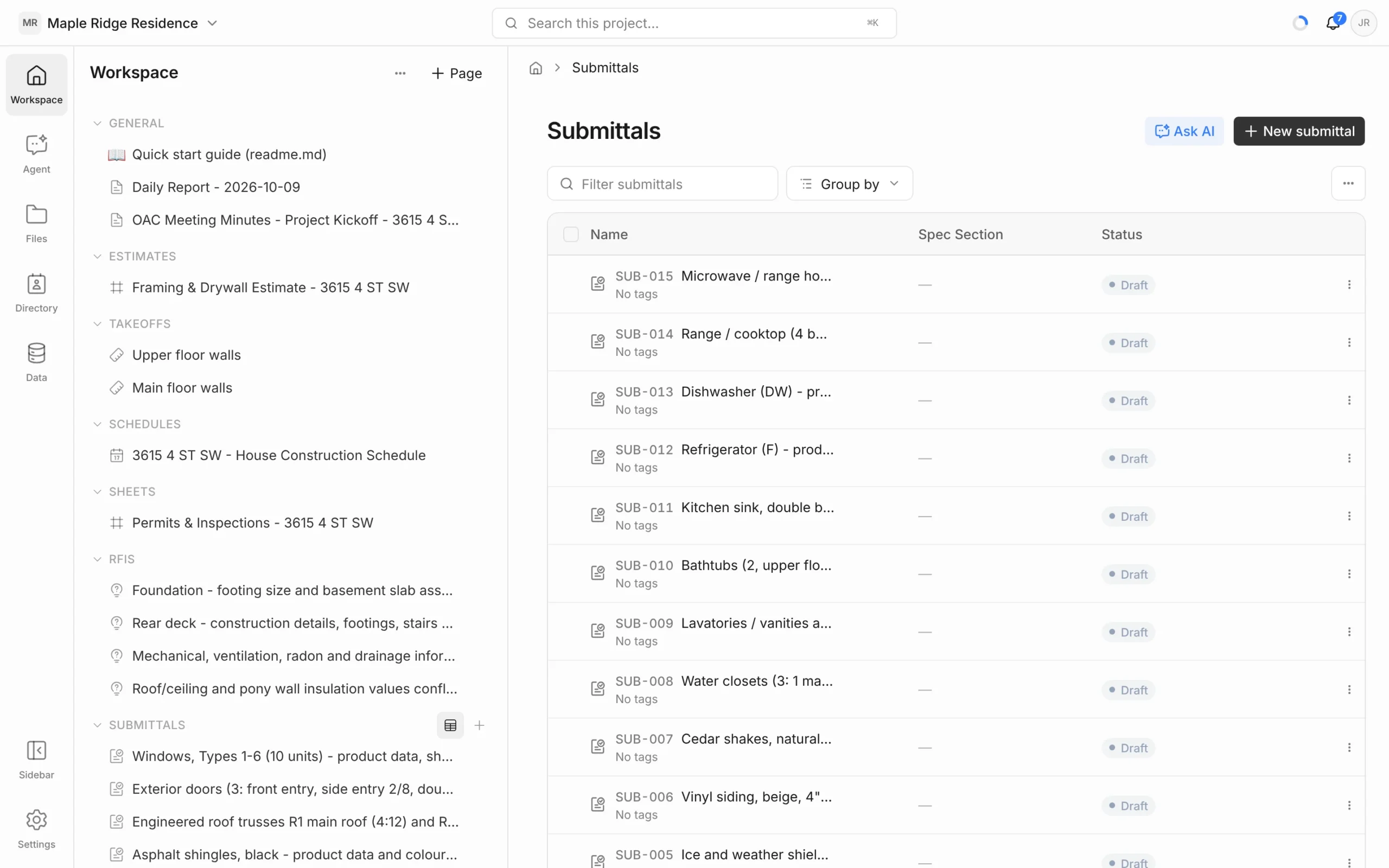
Every kind of item in a project has a log: a table listing all of them, with search, grouping, columns and a New button. Use a log when you want the whole picture — every open RFI, every estimate and its total — rather than one item at a time.
Open a log
- From the Workspace panel (Structured layout): click a heading such as RFIs or Estimates, or hover it and click the table icon (Open log). General opens the Notes log.
- From search: press ⌘K (Ctrl+K on Windows) and type the log’s name. This is also how you reach logs that have no Workspace heading: Minutes, Daily reports, Progress reports, Bid packages and Directory.
- From an open item: click the log’s name in the breadcrumb at the top, e.g. Submittals.
Find what you need
- Filter — type in the search box (e.g. Filter RFIs). It matches names, tags and the values shown in the columns, so a date or a location works too.
- Group by — group rows by a field such as status or type. Each group can be collapsed.
- Type filter — where a log mixes kinds (a memo and a letter in Notes, say), a filter for the kind appears beside the search box.
- Sort — click a column heading. Drag a heading’s edge to resize it.
- Clear — resets the search and filters.
The Estimates log adds filters for status (Any status) and source (AI generated or Created by hand), and shows each estimate’s line count and total. See Estimates.
Choose columns
Click … at the right of the toolbar to tick the columns you want — for example Tags, Created or Last modified. Reset to default puts them back. Tags also show under each item’s name; add or remove them on the item itself.
Act on one item
Click a row to open it. Click ⋮ at the end of a row for:
- Open (e.g. Open RFI)
- Duplicate — makes a copy in the same log.
- Share… — invite someone or create a link. See Members, Roles & Sharing.
- Delete
On the Estimates log the same menu also lets you change the estimate’s Status.
Delete several at once
- Tick the checkbox on each row, or the checkbox in the header to select them all.
- Click Delete beside the filters (it shows how many are selected).
- Confirm. Deleting can’t be undone.
Ask AI
Ask AI at the top of a log starts a new chat with the agent about that area. It opens with the start of a sentence — “Draft an RFI about…” — for you to finish, plus a few suggestions for this project. Click Ask and the chat opens in the Agent panel.
Create a new item
Click the New button (New RFI, New estimate and so on). RFIs, submittals and bid packages are created straight away with the next number in the log. Other logs open a short list of templates when there’s more than one to choose from.


