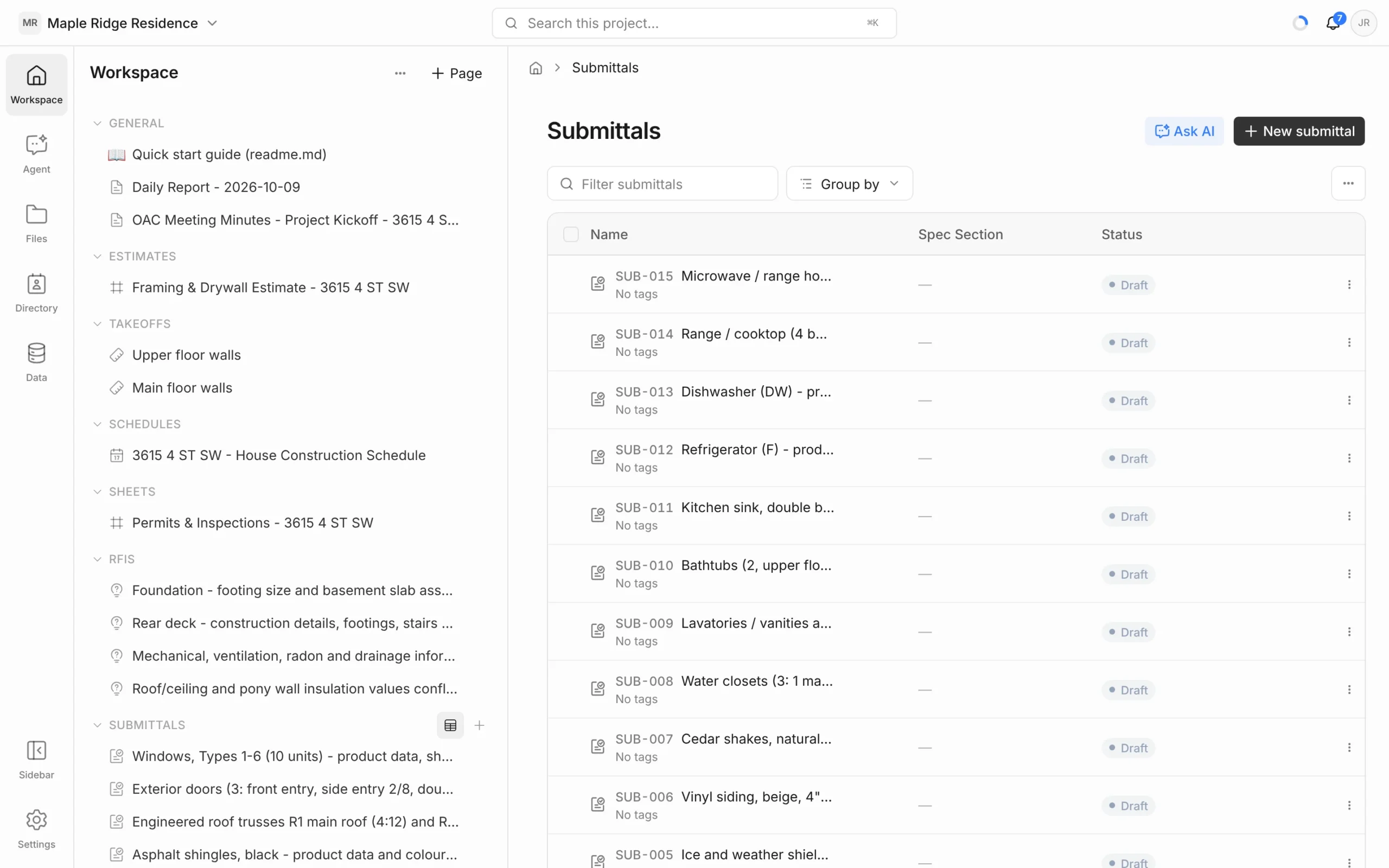
Use submittals to track the shop drawings, product data, samples and certificates that need approval before work goes ahead. Each submittal is numbered automatically, tied to a spec section and sent to one or more reviewers, who record their decision online.
Create a submittal
- Click Submittals in the Workspace panel to open the log.
- Click New submittal. It opens with the next number — SUB-001, SUB-002 and so on.
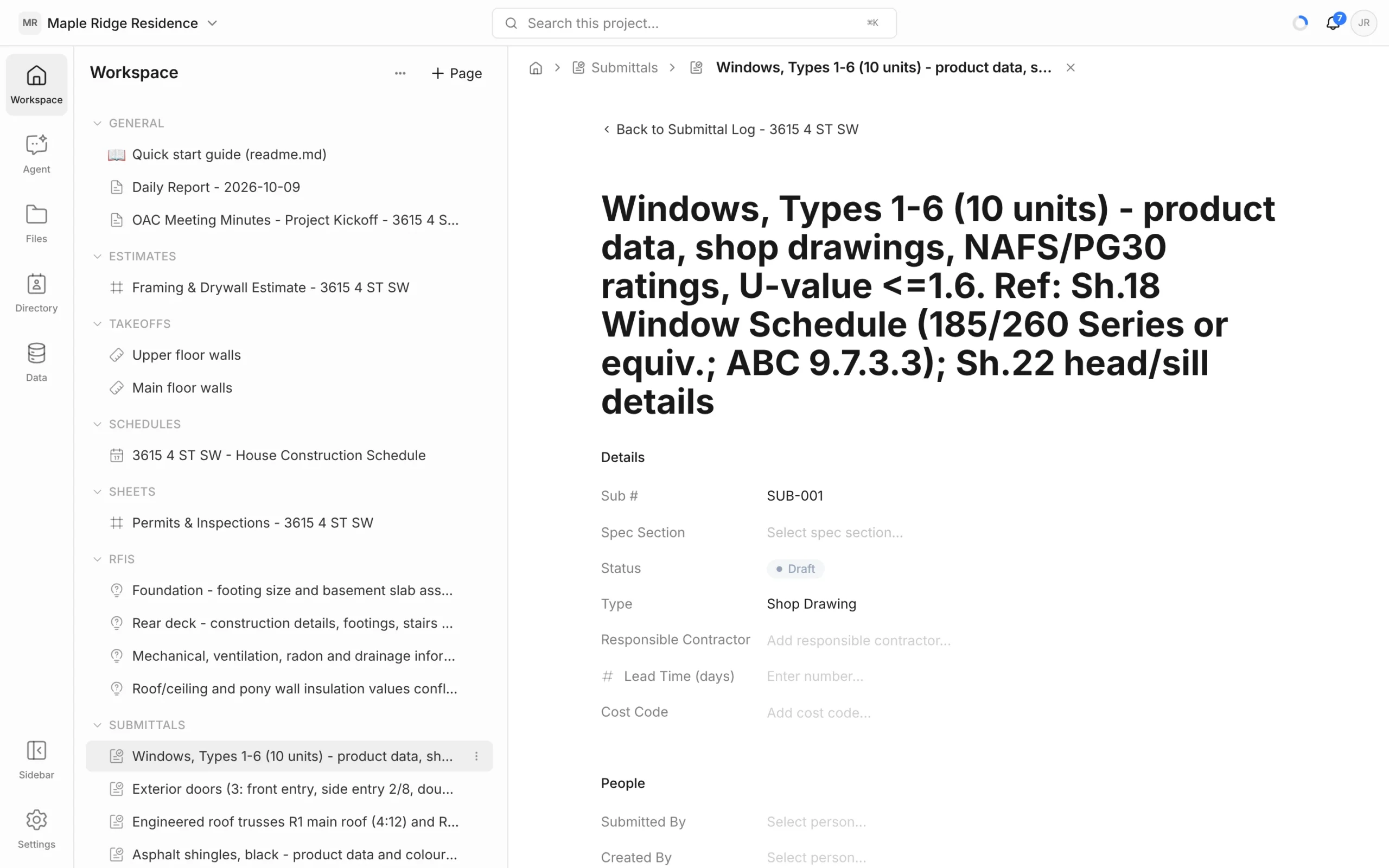
- Type a description as the title, e.g. “Windows, Types 1–6 — product data and shop drawings”.
Or ask the agent to work through the specification: “Draft submittals for every product data requirement in Division 08.”
Fill in the details
- Spec Section — pick the section the submittal answers.
- Type — Shop Drawing, Product Data, Sample, Certificate, Mix Design, Test Report or Other.
- Status — see below.
- Responsible Contractor, Lead Time (days) and Cost Code.
- People: Submitted By, Created By and Ball in Court.
- Dates: Submit By, Date Required, Required On Site and Date Returned.
Set Lead Time and Required On Site on long-lead items so it’s clear which submittals have to move first.
Review statuses
- Draft — still being put together.
- Submitted — sent for review.
- Under Review — with the reviewers.
- Approved or Approved as Noted — go ahead (following any notes).
- Revise & Resubmit — changes needed; send it again.
- Rejected — not accepted.
Send it to reviewers
The Workflow section lists the reviewers, numbered in the order you add them.
- Click the empty row at the bottom of the Workflow table to add a reviewer.
- In Reviewer, pick a project member or contact, or choose Create new contact and enter their email.
Each reviewer is emailed a link. They don’t need a Framework account: they open the submittal, choose a Decision — Approved, Approved as Noted, Revise & Resubmit or Rejected — add a Comment and attachments, and click Submit response. Their row shows the decision and the Reviewed date. Use the bell in the Reviewer cell to turn notifications off or Send now to resend the link.
Update the submittal’s own Status once you have the decisions you need. Reviewer links stay open until the submittal is Approved, Approved as Noted or Rejected; on Revise & Resubmit they stay open for the next round.
Track the log
The Submittals log lists every submittal with its number, description, Spec Section and Status. Group by Status or Type, filter by typing, and show or hide columns such as Type, Submit By or Date Required from the … menu. See Logs & List Views.