
Everyone on a project has a role that decides what they can do. You can add people from the project’s Members settings, or share a single page straight from the page you’re on.
Roles
| Role | What they can do |
|---|---|
| Viewer | Open and read everything in the project. Viewers can’t send messages to the agent. |
| Editor | Everything a Viewer can, plus create and edit pages, upload files, and work with the agent. |
| Admin | Everything an Editor can, plus delete content, edit project settings, and manage members and sharing. |
| Owner | Everything, including archiving or deleting the project. The person who created the project is its Owner. |
You can only give someone a role below your own — an Admin can add Editors and Viewers, and only the Owner can make someone an Admin.
Invite someone to the project
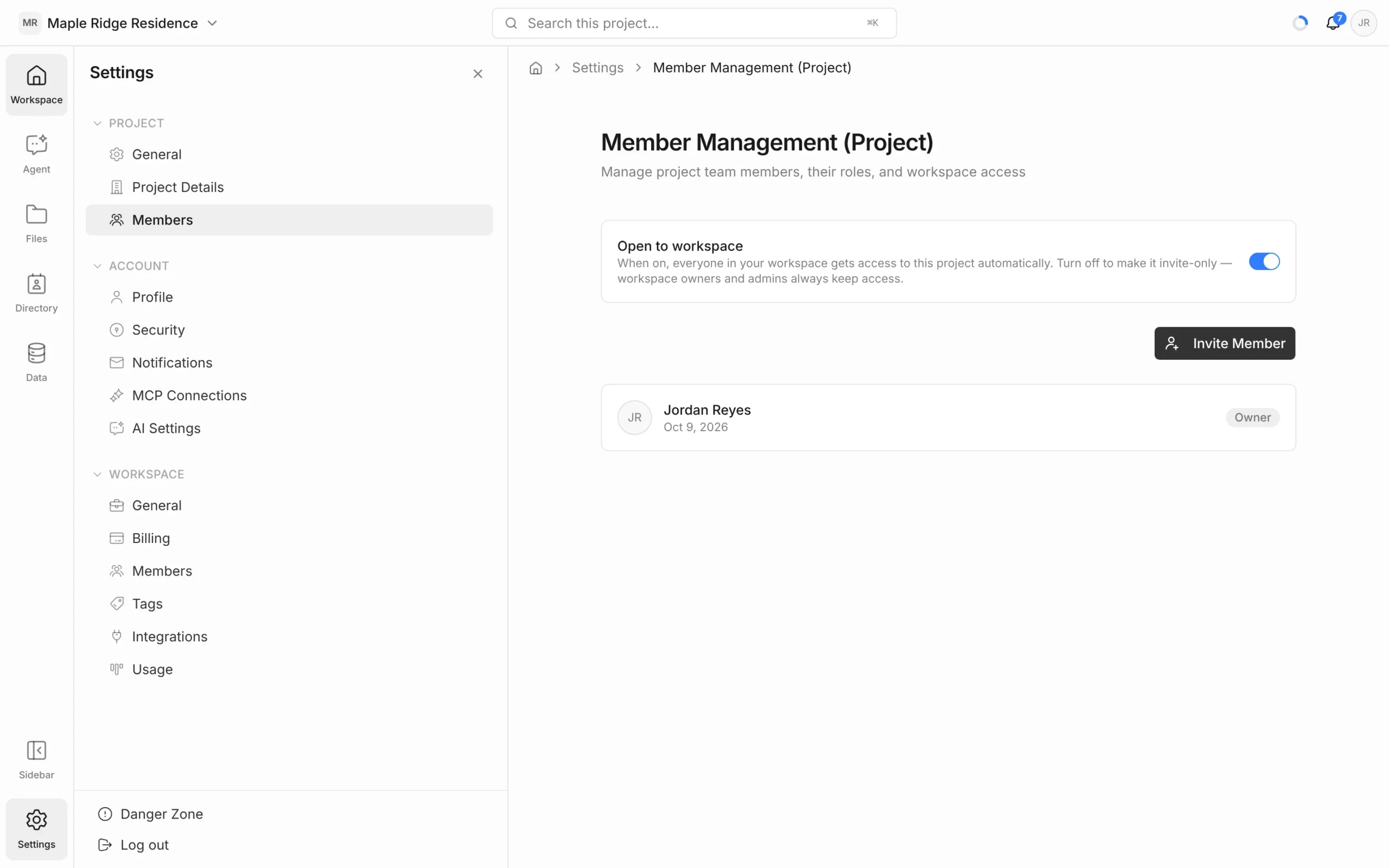
- Click Settings at the bottom of the left rail, then Members under Project.
- Click Invite Member.
- Search your contacts by name or email, or type an email address under Or enter email directly.
- Choose a Role.
- Click Send Invite.
They get an email invitation. Until they accept, they’re listed under Pending Invitations, where the menu next to each invite lets you Resend or Revoke it. People who aren’t part of your workspace are marked External.
Change a role or remove someone
- To change a role, pick a new one from the drop-down next to the person’s name.
- To remove someone, click the ⋮ menu next to their name, then Remove.
Only Owners and Admins can manage members, and only for people with a lower role than their own.
Open to workspace
With Open to workspace on (the default), everyone in your workspace gets access to the project automatically, using the default project role set in your workspace settings. Turn it off to make the project invite-only. Workspace owners and admins always keep access.
Share a page
When a page is open — an estimate, note, schedule or log — click Share in the top bar.
- To invite someone, enter their Email address, choose a role — Can view or Can edit (Owners can also choose Admin) — and click Invite. This adds them to the whole project with that role, not just this page.
- To share by link, change Only people with access to Anyone with the link, then click Copy link. Anyone with the link can view that page — read-only, without signing in.
- Click Done.
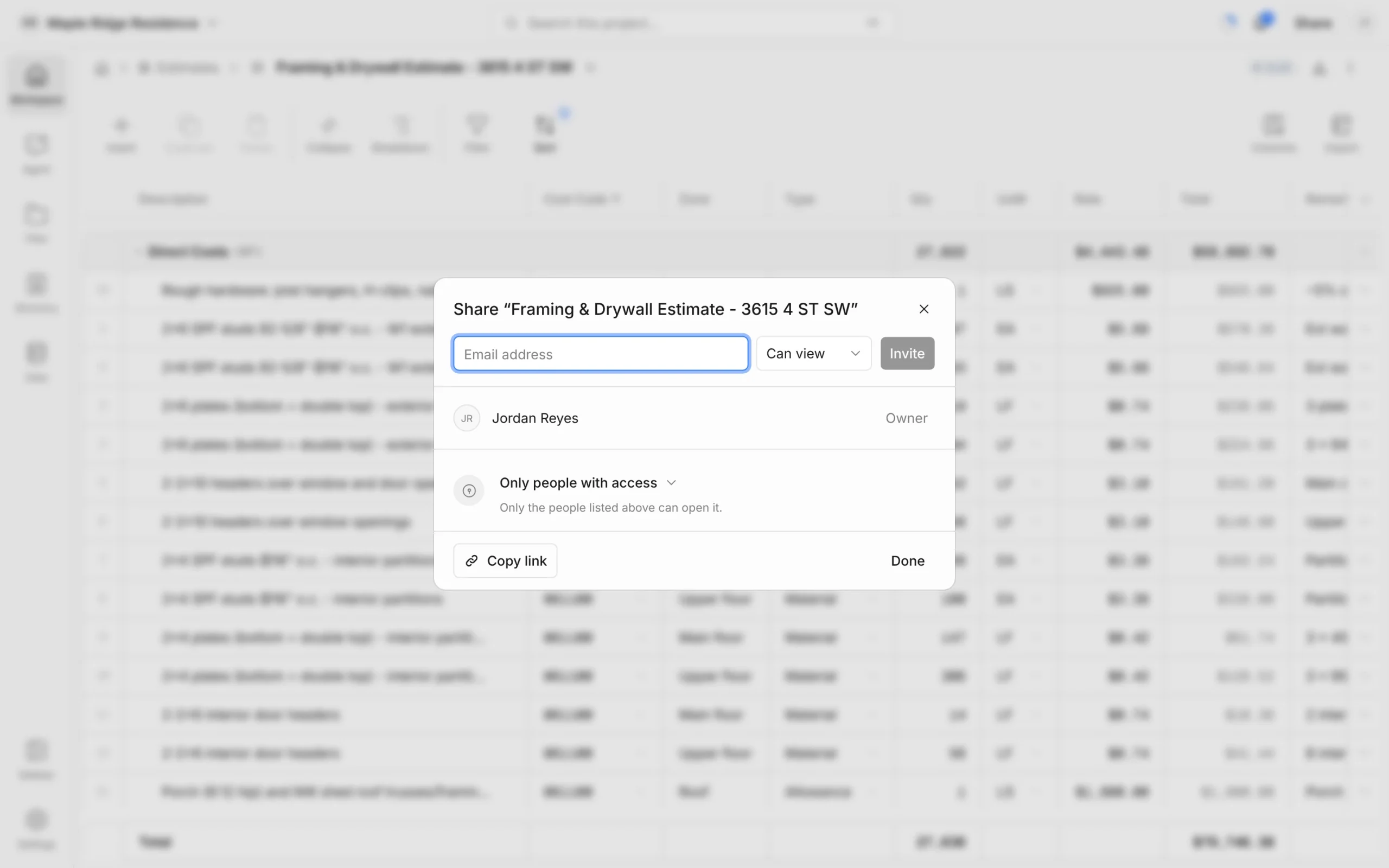
To stop sharing by link, switch it back to Only people with access. Only Owners and Admins can invite people or change link access.


