
An estimate is a priced list of work: one line per item, with a cost code, quantity, unit and rate, adding up to section totals and a grand total. Build one yourself, import quantities from a takeoff, or ask the agent to price a scope from the drawings.
Create an estimate
- Open the Estimates log — click Estimates in the Workspace panel.
- Click New estimate and pick a starting point:
- Trade estimate — organised by MasterFormat trade, for bid roll-ups and buyout.
- Elemental estimate — organised by building element, for early budgets before specs exist.
- Blank estimate — empty, with a Direct costs section to start in.
Or ask the agent: “Build a framing and drywall estimate for the main and upper floors.” It reads the drawings, takes off quantities and prices them, and the estimate is marked AI in the log.
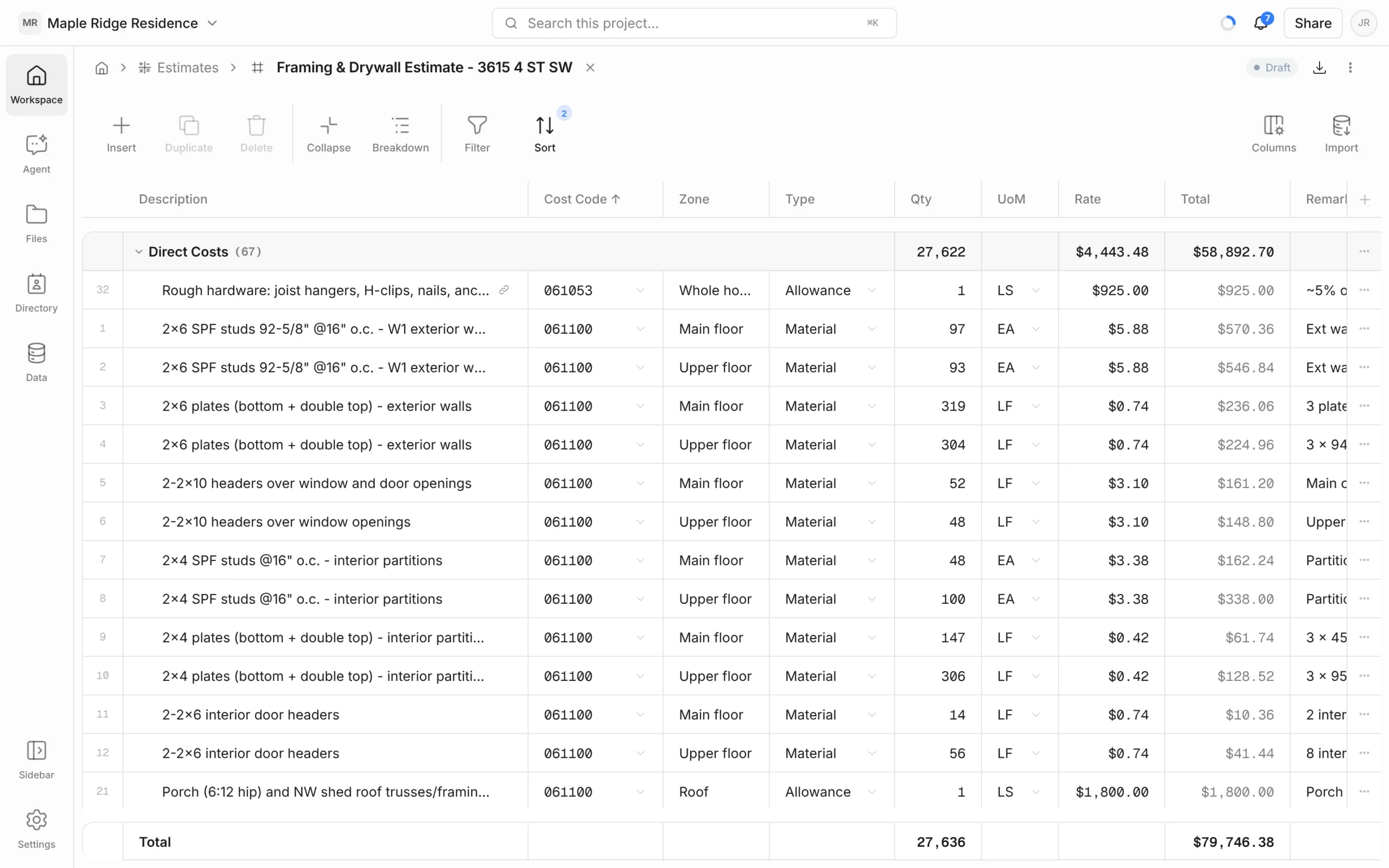
The columns
- Description — what the line is. It stays pinned on the left as you scroll.
- Cost Code — look up a MasterFormat code or type your own office code.
- Type — Material, Subcontract, Labour, Equipment, Fee or Allowance.
- Qty, UoM and Rate — Total is worked out for you.
- Remarks — notes and assumptions.
Some estimates carry extra columns, such as Zone. Use Columns to show or hide columns.
Add and edit lines
- Insert adds a line. Click any cell to edit it.
- Select lines (hover the row number for its checkbox), then Duplicate or Delete.
- Import brings in measurements from a takeoff as linked lines — see Takeoff to Estimate.
Sections and totals
Lines sit in sections — Direct Costs first, then any you add, such as Preliminaries or Fees. Click New section at the bottom of the estimate to add one. Each section band shows its own total, and Total at the foot is the whole estimate.
To see totals by division inside each section, click Breakdown and pick Division (worked out from the cost code). You can also break down by Type, Cost Code or Work group — your own grouping, such as by building or phase. Collapse folds the bands so only totals show. Filter and Sort work as in any sheet.
Set the status
Click the status pill at the top right of the estimate (it starts as Draft) and choose Draft, Current, As bid, Contract, For info or Superseded. You can also change it from the row menu in the Estimates log.
The Estimates log
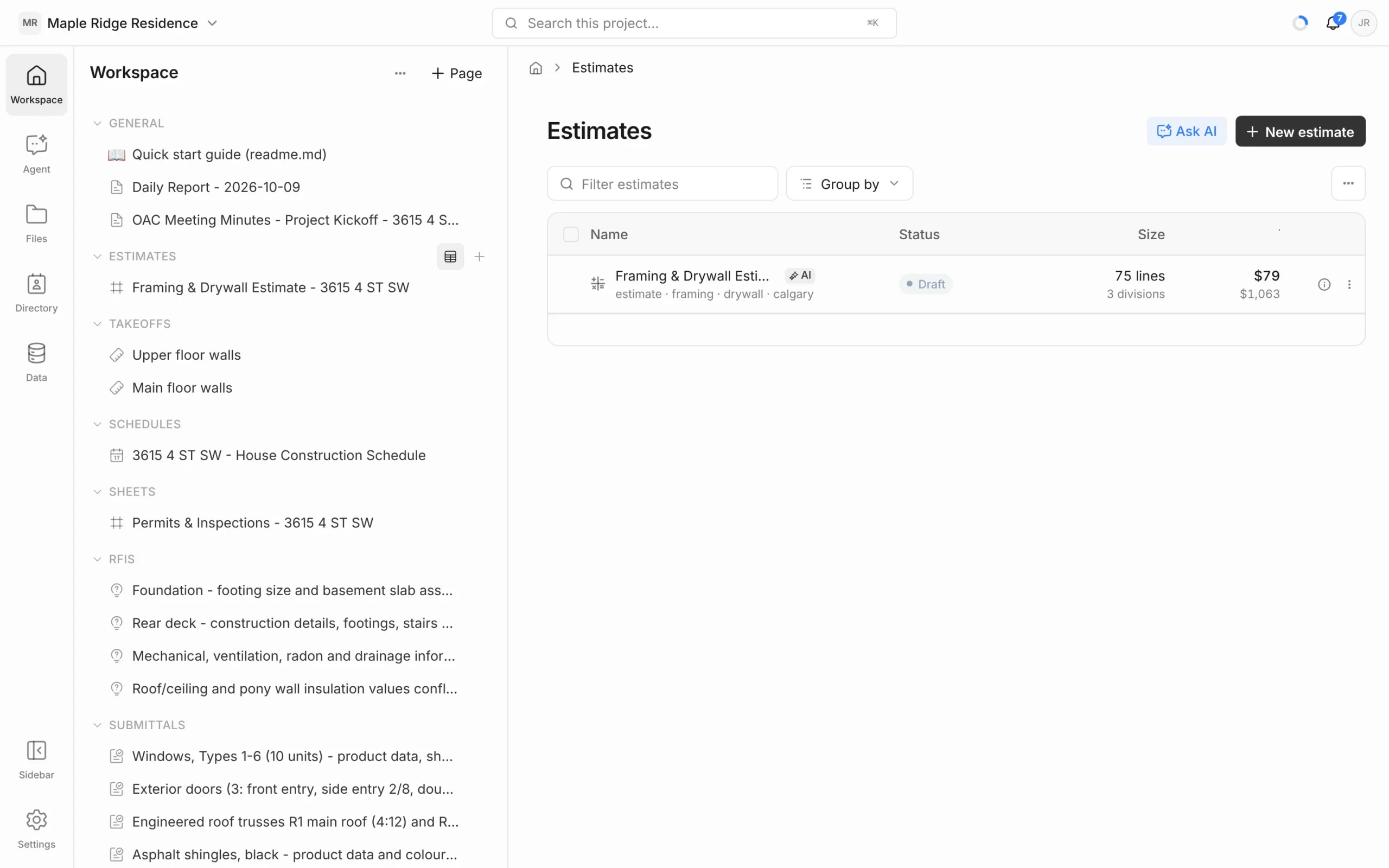
- Each estimate shows its Status, Size (lines and divisions) and Total.
- Filter by status (Any status) or source (AI generated / Created by hand).
- Click the ⓘ on a row to see its properties and a breakdown by division without opening it.
- Row ⋮ menu: Open estimate, Duplicate (for a revision or alternate), Share…, Status, Delete.
Export
Click the download icon (Export) at the top right, choose Company branding if you want it, then Excel (.xlsx), PDF (.pdf) or CSV (.csv). Excel exports keep the Total formulas.


