
The agent can search the whole project on its own, but you can point it straight at what matters. Attaching a document, sheet, note or estimate tells the agent exactly where to look. Attaching a playbook tells it how to do the job.
Attach documents, notes or estimates
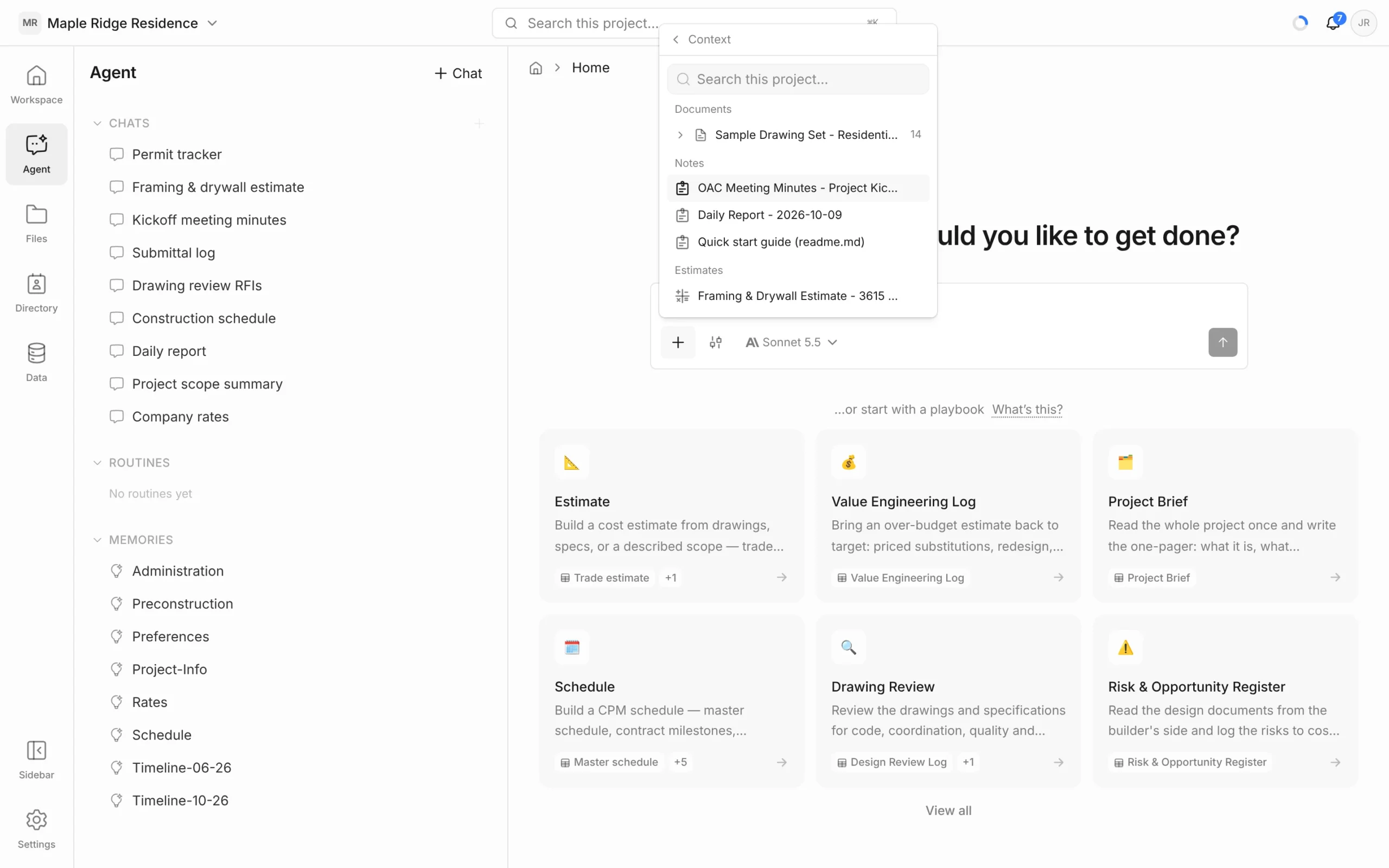
- In the message box, click + and choose Context. Or just type @ — the same list opens.
- Search, or browse the groups:
- Open tabs — whatever you have open right now.
- Documents — click the arrow beside a document to pick a single sheet or section.
- Notes — notes, minutes and reports.
- Estimates
- Click an item to attach it. It appears as a chip above your message.
- Type your request and send.
To remove an attachment before sending, click the × on its chip. Repeat the steps to attach more than one item.
Attach a playbook
- Click + and choose Playbooks.
- Click one or more playbooks to select them. Selected playbooks are ticked.
- Describe the job and send.
The agent follows the playbook’s steps and templates. See Playbooks.
When to add context
- You know the sheet. “Check the stair on this sheet against code” with the sheet attached is faster and cheaper than letting the agent hunt for it.
- Several documents look alike. Attach the right revision or the right spec so the agent doesn’t pick the wrong one.
- You’re building on earlier work. Attach the estimate or meeting minutes you want updated or summarised.
You don’t have to attach anything — the agent searches the project by itself when you don’t.
What you can’t attach
There’s no file upload in the chat. To give the agent a new PDF, upload it in Files first and wait for it to finish processing; it then appears under Documents in this list. If nothing shows yet, the menu says Nothing to reference yet. Upload a drawing or make a note first.


