
Your workspace is your company’s home in Framework. It holds your projects, your team and your billing. The workspace owner invites members, picks the plan each person is billed at, and removes people who leave.
Rename the workspace and set the default role
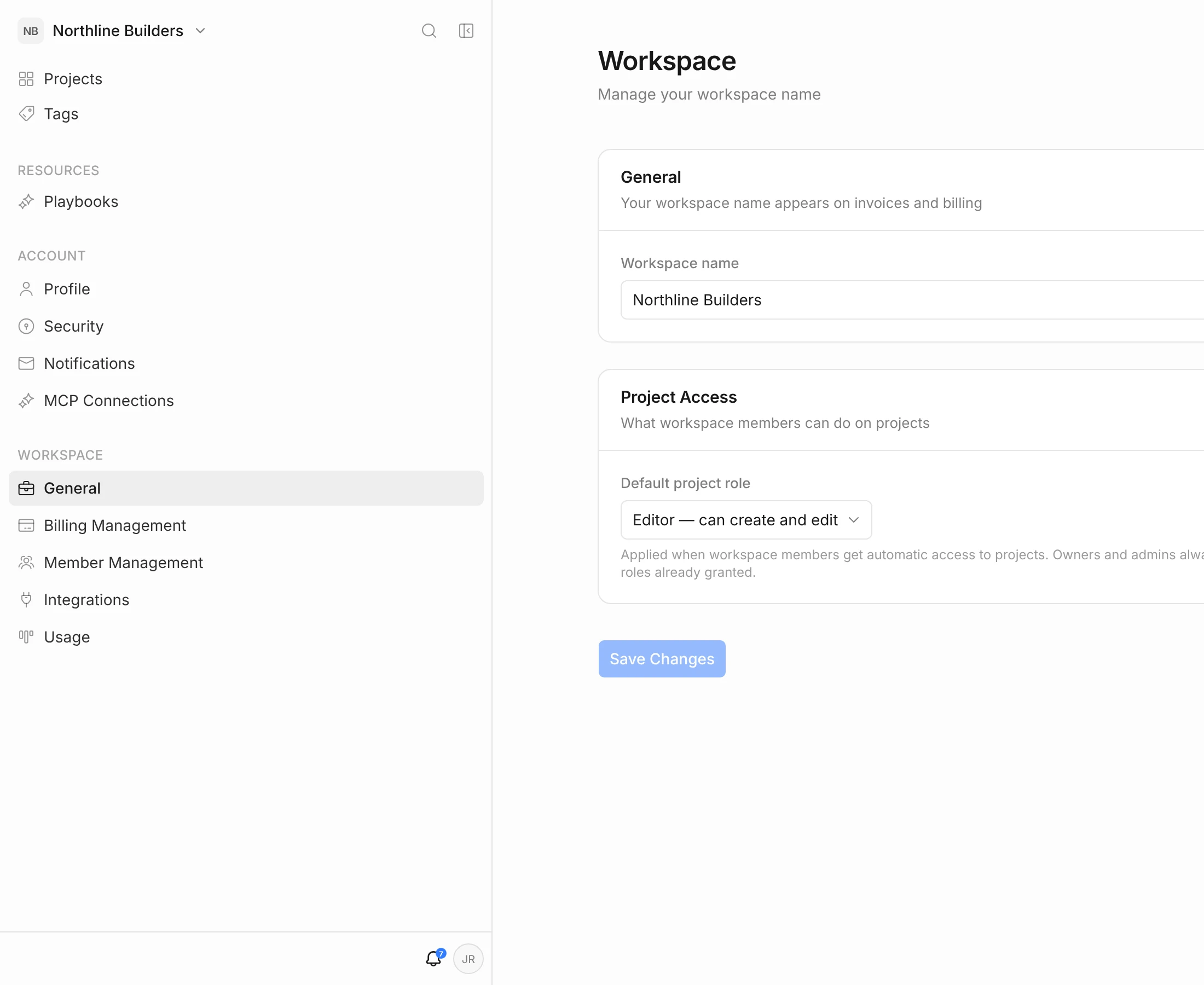
- Click your initials in the top-right corner, then Workspace settings.
- Under General, edit the Workspace name and click Save Changes. The name appears on your invoices.
- Under Project Access, choose a Default project role: Editor — can create and edit or Viewer — read-only. This saves as soon as you pick it.
The default role is what workspace members get on projects that are open to the whole workspace. Owners and admins always get full access. Changing it doesn’t change roles people already have. To open a project to the workspace or invite someone to a single project, see Members, Roles & Sharing.
Invite team members
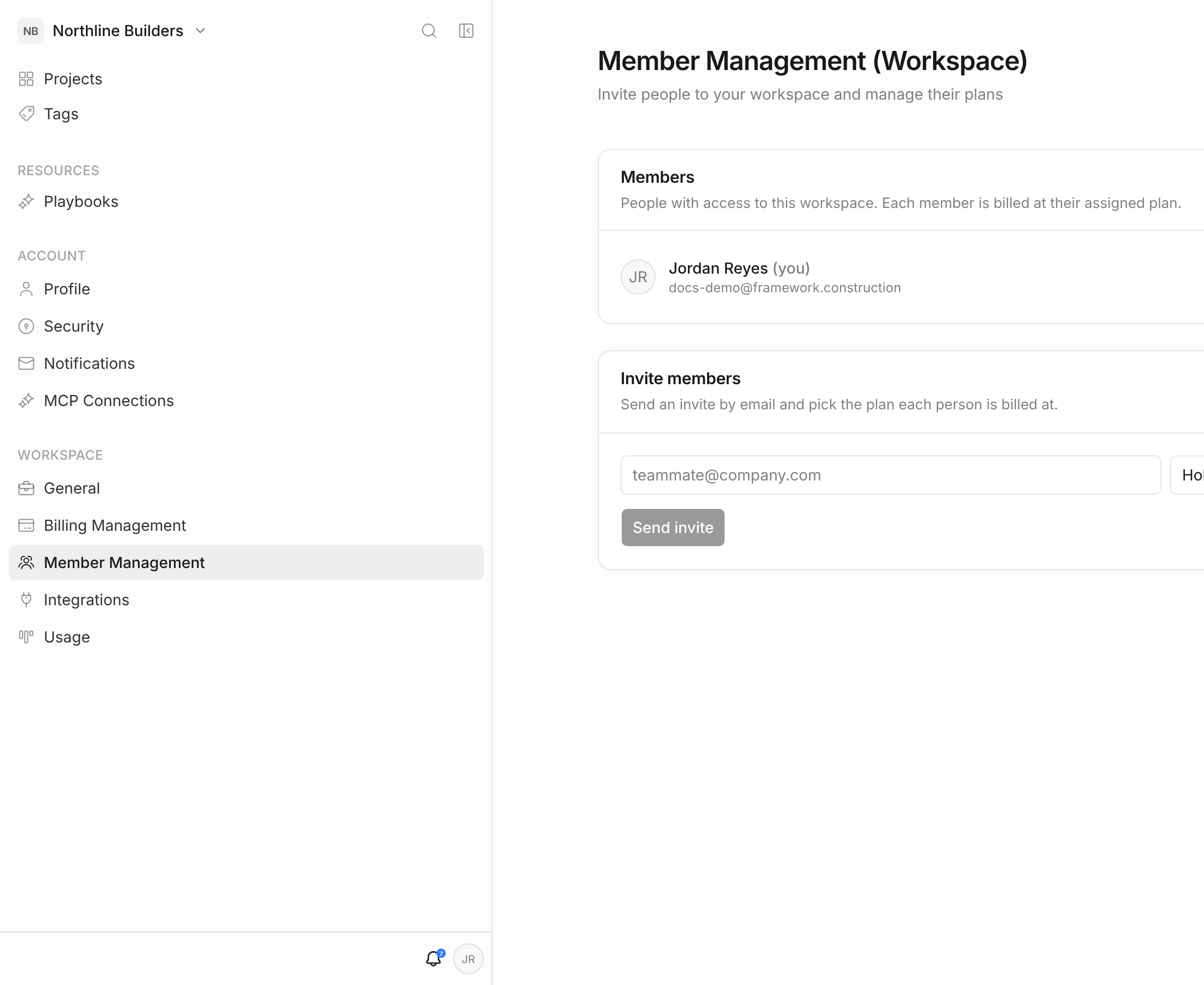
- Go to Workspace settings and click Member Management in the left menu.
- Under Invite members, enter the person’s email address.
- Pick the plan they’ll be billed at. New rows default to the free Hobby plan.
- To invite several people at once, click + to add a row (− removes one).
- Click Send invite.
Each person gets an email to join. Until they accept, they’re listed under Pending invitations — click the × beside an invitation to cancel it.
How seats are billed
- Each member has their own plan. You can put your estimator on one plan and a site lead on another. The owner’s own plan is managed on the Billing page.
- A seat is billed once the person accepts. Paid seats are added to your bill, prorated for the rest of the period. Hobby seats are free.
- AI credits are pooled. Each member’s plan adds credits to one shared workspace allowance. See Usage & AI Credits.
Plan prices and credit allowances are on the pricing page.
Change a member’s plan
In the Members list, use the plan picker beside the person’s name. The change is applied straight away and reflected on your bill.
Per-member plans need one of the current per-seat plans. If you’re on an older plan, the page says so — switch plans from Billing Management first.
Remove a member
- In the Members list, click the × at the end of the person’s row.
- Click Remove to confirm.
They lose access to the workspace and their seat comes off your bill. The workspace owner can’t be removed.
Who can manage members
Only the workspace owner can rename the workspace, change the default project role, invite members, change their plans and remove them.


