
Getting started with Framework takes just a few minutes. The signup process walks you through four steps: creating your login, setting up your profile, choosing a plan, and entering your workspace. Your first project is created automatically so you can start uploading documents right away.
Step 1: Email & Password
Visit app.framework.construction and enter your email address and a password to create your account.
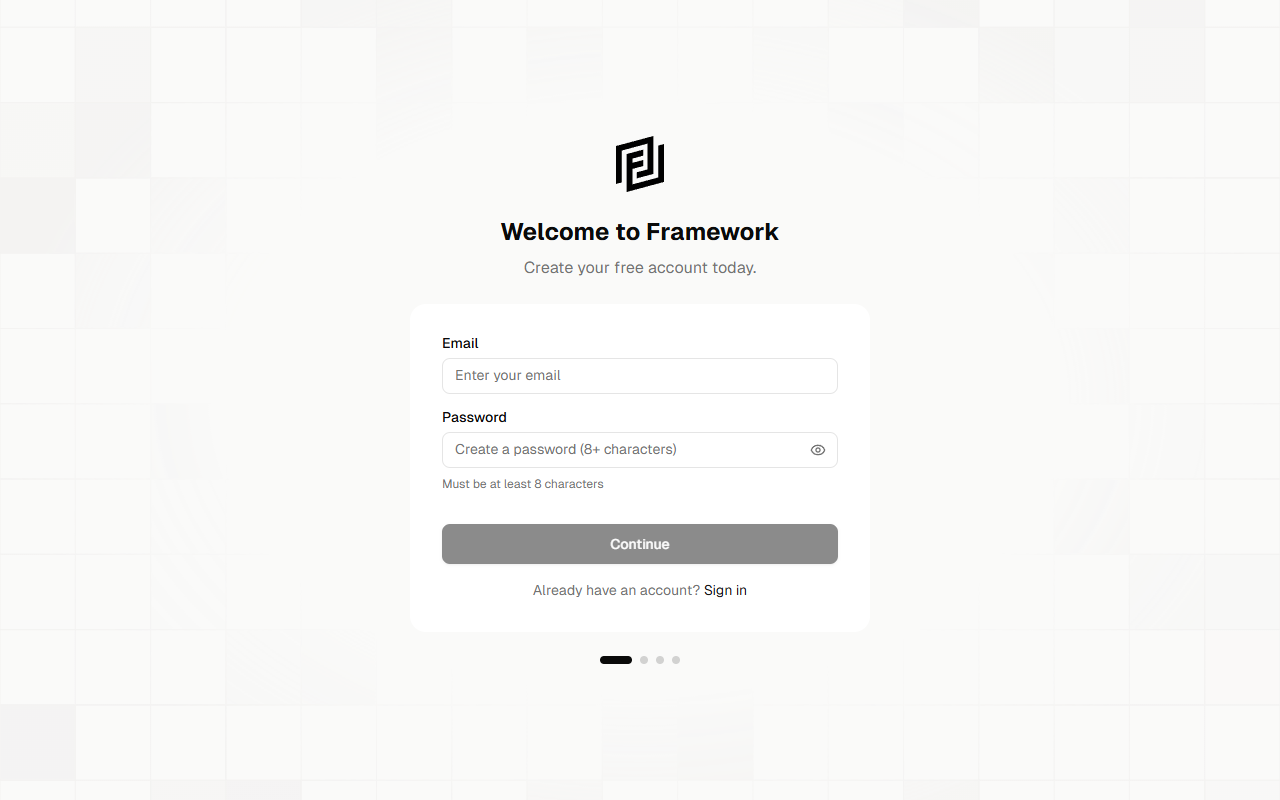
- Enter your email address — this will be your login and where you’ll receive notifications.
- Create a password — must be at least 8 characters.
- Click Continue to proceed.
Already have an account? Click Sign in at the bottom to go to the login page.
Step 2: Your Profile
Tell Framework a bit about yourself. This information helps personalize your experience.
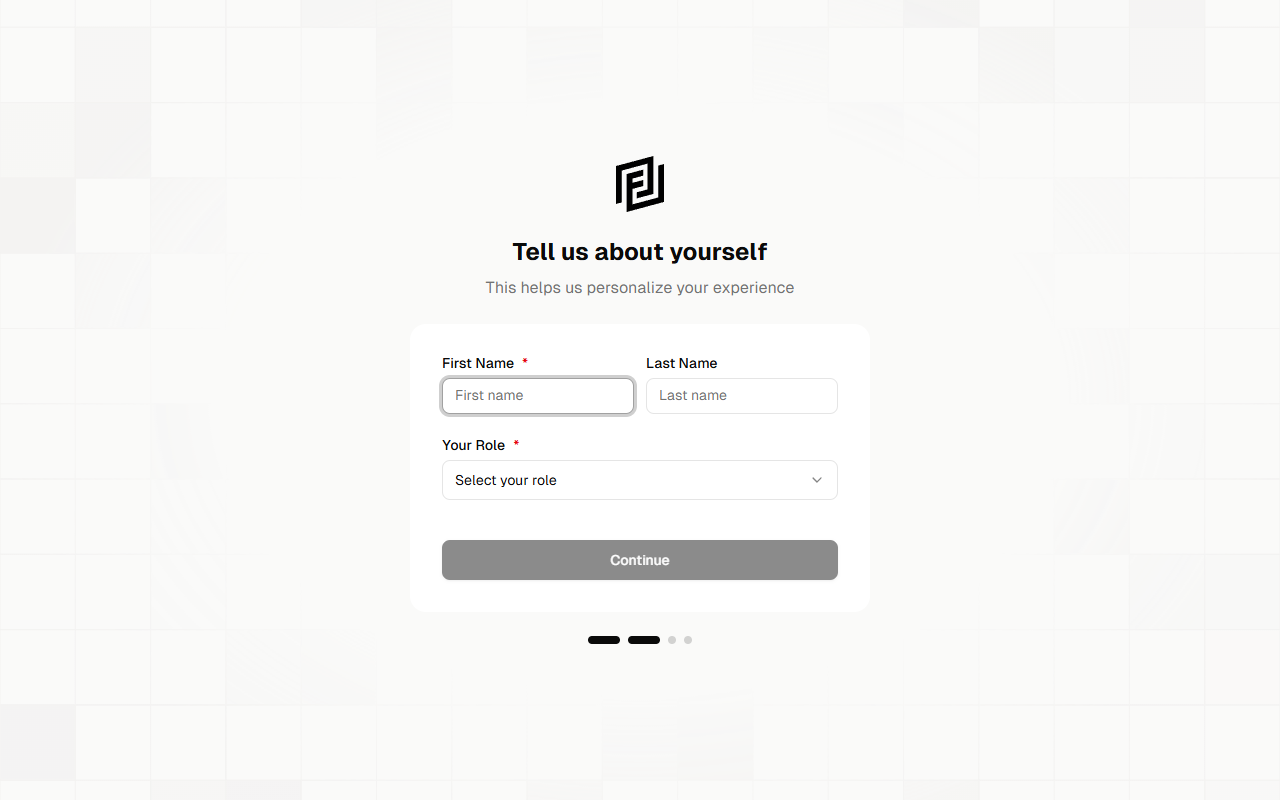
- First Name (required) — Your first name.
- Last Name (optional) — Your last name.
- Your Role (required) — Select your role from the dropdown:
- Project Manager
- Estimator
- Superintendent
- Project Engineer
- Foreman
- Engineer
- Designer
- Architect
- Owner / Executive
- Other (enter custom role)
Click Continue to proceed to plan selection.
Step 3: Choose Your Plan
Framework offers a free Pro trial so you can experience the full platform before committing. On this screen you’ll see the option to claim your trial or skip for now.
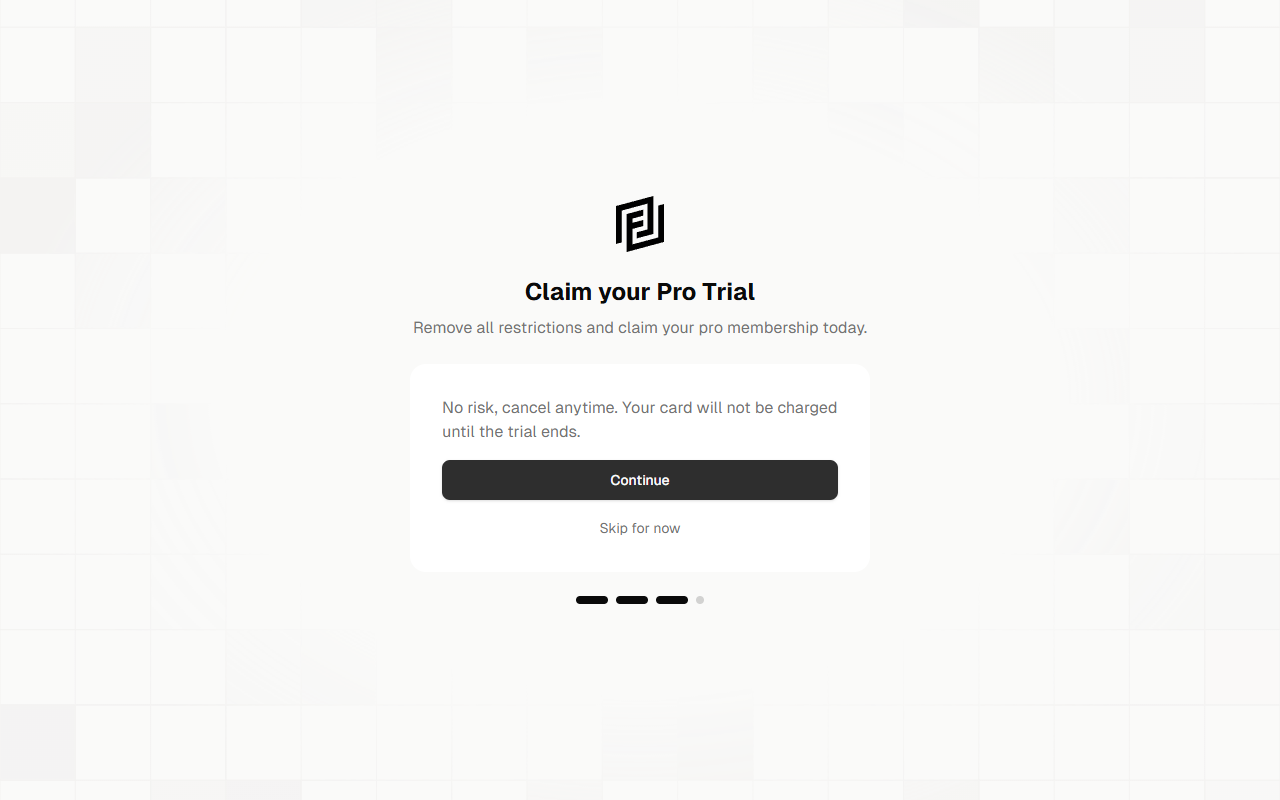
Option A: Start Your Free Trial
Click Continue to claim your Pro trial. You’ll be taken to the checkout page where you can:
- Choose between the available plans — each with different project limits and AI token allowances.
- Review plan features and pricing.
- Enter your payment details via the secure Stripe checkout.
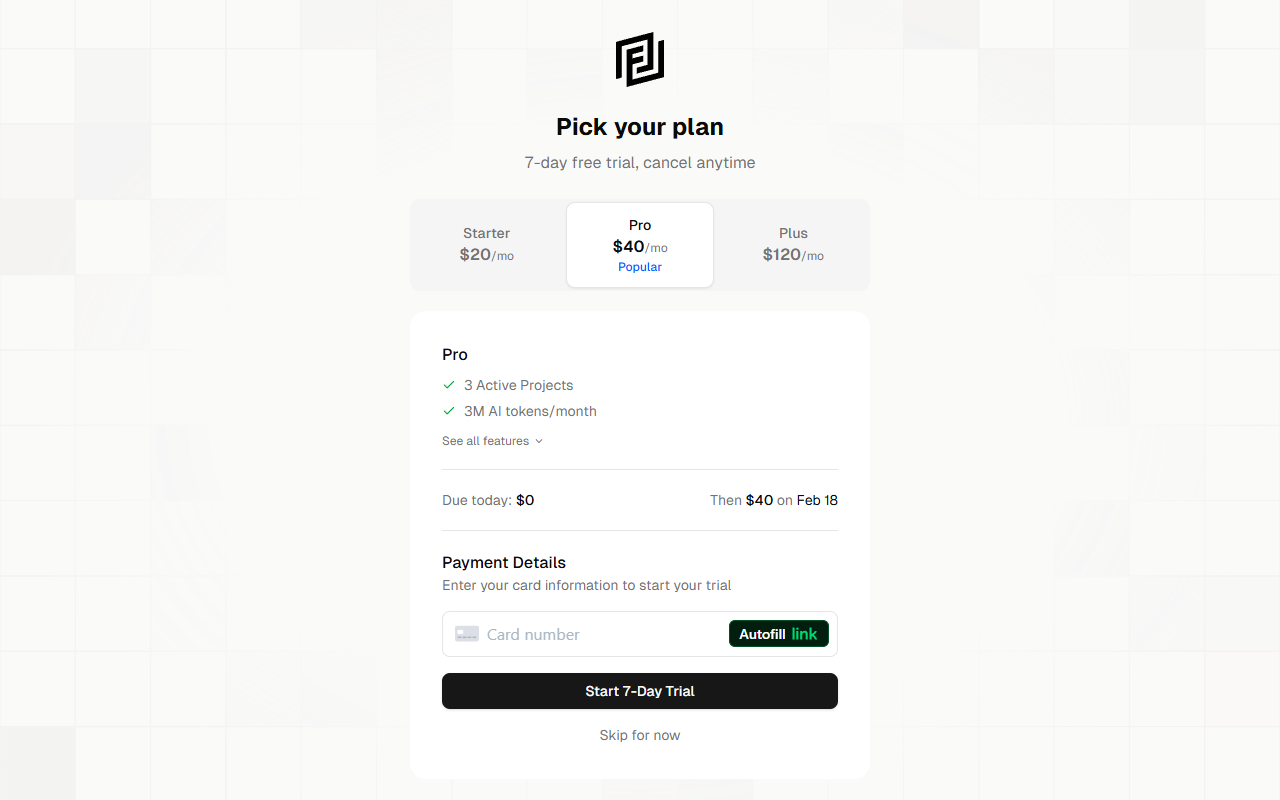
Important: Your card will not be charged today. The 7-day free trial starts immediately and you can cancel anytime before the trial ends. The summary at the bottom shows exactly when your first charge will occur.
Option B: Skip for Now
Click Skip for now to create a free account without a trial. You can always upgrade later from your account settings.
Step 4: Welcome & Workspace Setup
Once your account is created, Framework automatically sets up your workspace:
- A workspace is created for your account.
- Your first project is automatically created — no extra steps needed.
- You’re redirected straight into your project, ready to start uploading documents.
The whole process typically takes under two minutes.
After Onboarding
Once you’re in your project workspace, you can:
- Upload documents — Drag and drop PDFs into the Documents sidebar.
- Start a conversation — Click the Chat icon to ask your first question.
- Explore the interface — See Workspace Layout for a tour of the interface.
For a complete walkthrough of your first session, check out the Quick Start Guide.
Signing In Later
After creating your account, you can sign in anytime at app.framework.construction/login with your email and password.
If you forget your password, click Forgot password? on the login page to receive a reset link via email.


