
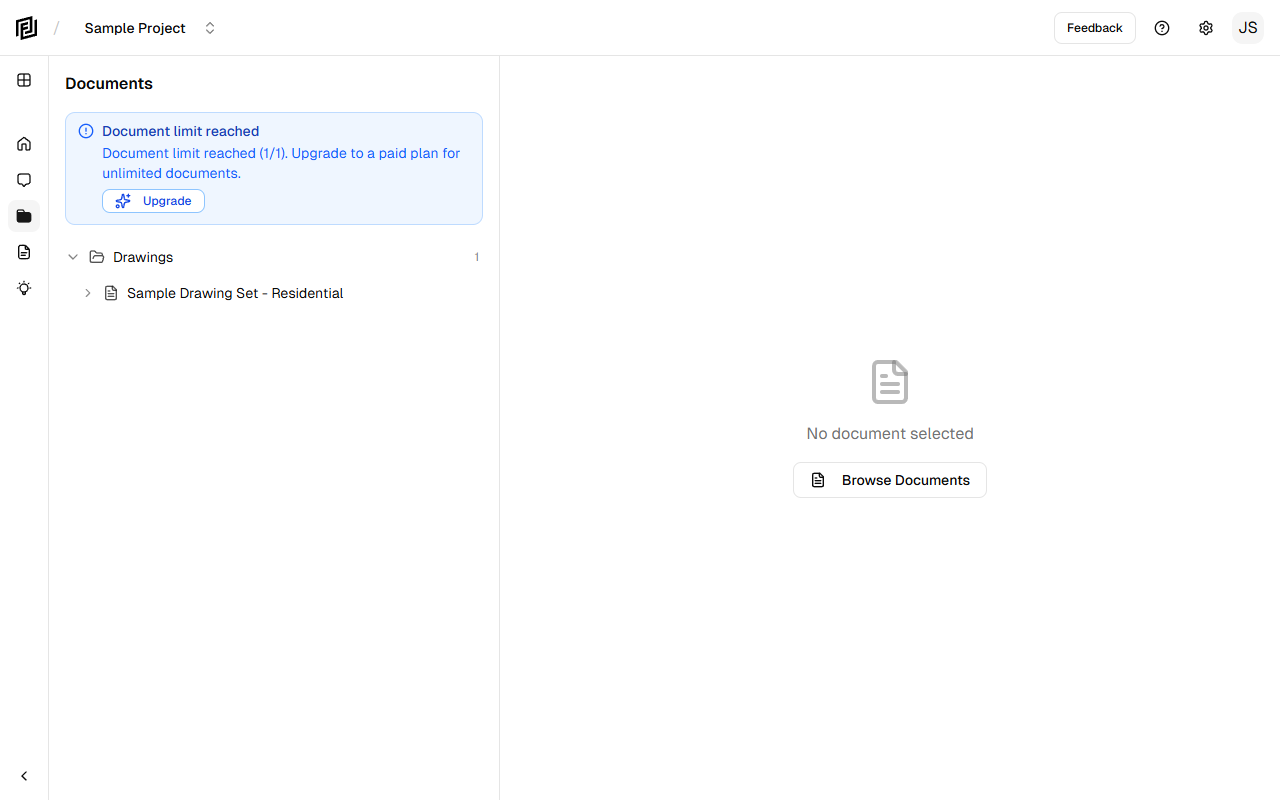
Framework includes a built-in PDF viewer so you can read documents without leaving the platform. The viewer opens in a tab in the main viewport whenever you click a document or a citation in an AI response.
Opening Documents
Documents open in the PDF viewer when you:
- Click a document in the Document Browser sidebar.
- Click a citation in an AI chat response — the viewer jumps directly to the referenced page.
- Click a document block in the document tree.
Navigation
- Page navigation — Use the page controls to jump between pages. The current page number and total pages are shown.
- Scroll — Scroll up and down through the document naturally.
- Zoom — Use the zoom controls to zoom in and out. This is especially useful for reviewing drawings and details.
Working with Citations
When you click a citation in an AI response, the PDF viewer opens to the exact page referenced. This lets you quickly verify the AI’s answer by reading the source material yourself.
You can keep the document tab open and switch between the chat tab and document tabs to cross-reference information as you work.
Multiple Documents
You can open multiple documents simultaneously in separate tabs. Click between tabs in the tab bar to switch between documents, or between documents and chat conversations.
Mobile Viewing
On mobile devices, documents open in a full-screen sheet overlay. You can:
- Pinch to zoom — Useful for reviewing drawing details.
- Swipe — Navigate between pages.
- Close — Swipe down or tap the close button to return to your previous view.


