
Framework uses a workspace-style interface designed to feel familiar if you’ve used tools like VS Code or Figma. Everything you need — documents, chat, notes, settings — is accessible from a single screen without navigating between pages.
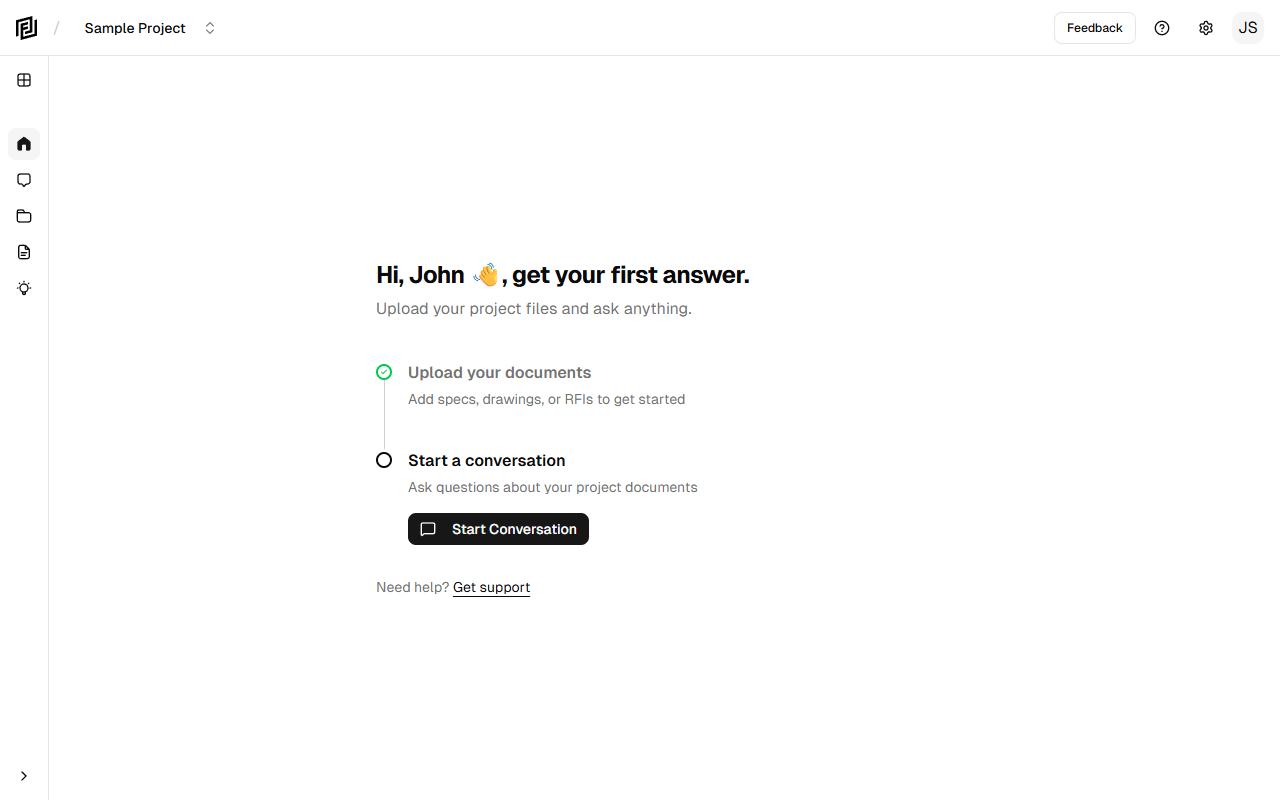
The Four Zones
The workspace is divided into four main areas:
- Top Navigation Bar — Project switching, breadcrumbs, feedback, help, and account access.
- Activity Bar — The narrow icon strip on the far left. Click icons to switch between activities.
- Sidebar — The panel that opens next to the activity bar showing content for the selected activity (chat list, document tree, notes, settings, etc.).
- Main Viewport — The large center area where documents, chat conversations, notes, and settings open in tabs.
Activity Bar
The activity bar is the vertical icon strip on the far left. It controls what appears in the sidebar. The available activities are:
| Icon | Activity | What It Shows |
|---|---|---|
| Grid | All Projects | Navigate to the projects list |
| Home | Project Home | Project dashboard with quick actions (collapses sidebar) |
| Chat bubble | Chat | Conversation list and AI chat |
| Folder | Documents | Document tree, upload zone, and file browser |
| Brain | Memories | AI memory files for this project |
| Notepad | Notes | Project notes list |
| Gear | Settings | Project settings and account settings |
Click an activity icon to open its sidebar panel. Click the same icon again or use the collapse arrow at the bottom to close the sidebar.
Sidebar
The sidebar sits between the activity bar and the main viewport. Its content changes depending on which activity is selected. For example:
- Chat activity — Shows your conversation list with date grouping and a “+ New Chat” button.
- Documents activity — Shows the upload zone and document tree organized by category.
- Settings activity — Shows navigation between project settings sections and account settings.
You can collapse the sidebar by clicking the chevron arrow at the bottom of the activity bar. The Home activity automatically collapses the sidebar to give you a full-width dashboard view.
Main Viewport & Tabs
The main viewport is where you do most of your work. It uses a tab system similar to a web browser:
- Opening tabs — Click a document in the sidebar to open it in a new tab. Click a conversation to open the chat. Click a note or memory file to open the editor.
- Switching tabs — Click any tab in the tab bar at the top of the viewport to switch between open items.
- Closing tabs — Click the × button on a tab to close it.
- Multiple tabs — You can have documents, chats, notes, and settings all open simultaneously and switch between them freely.
Tabs are saved per project — switching between projects restores the tabs you had open in each one.
Keyboard Shortcuts
| Shortcut | Action |
|---|---|
Ctrl + ` | Toggle the context bar (right panel) |
Note: Additional keyboard shortcuts are planned for future releases.
Next Steps
- Top Navigation Bar — Learn about project switching, feedback, and help access.
- Mobile Experience — See how the workspace adapts on phones and tablets.


