Skip to content
Framework
  • Product
    • FeaturesWhat is Framework?
    • CapabilitiesWhat you can do with Framework.
    • PlaybooksStandard deliverables, built by the agent.
    • IntegrationsConnect the tools you already use.
    • Product DemosSee Framework in action.
  • Resources
    • DocumentationLearn how to use Framework.
    • What’s New?Features, enhancements and fixes.
    • Get HelpTalk to our team.
  • Company
    • AboutWho we are.
    • BlogNews and announcements.
    • Contact UsReach out anytime.
  • Pricing
Login Start For Free

framework

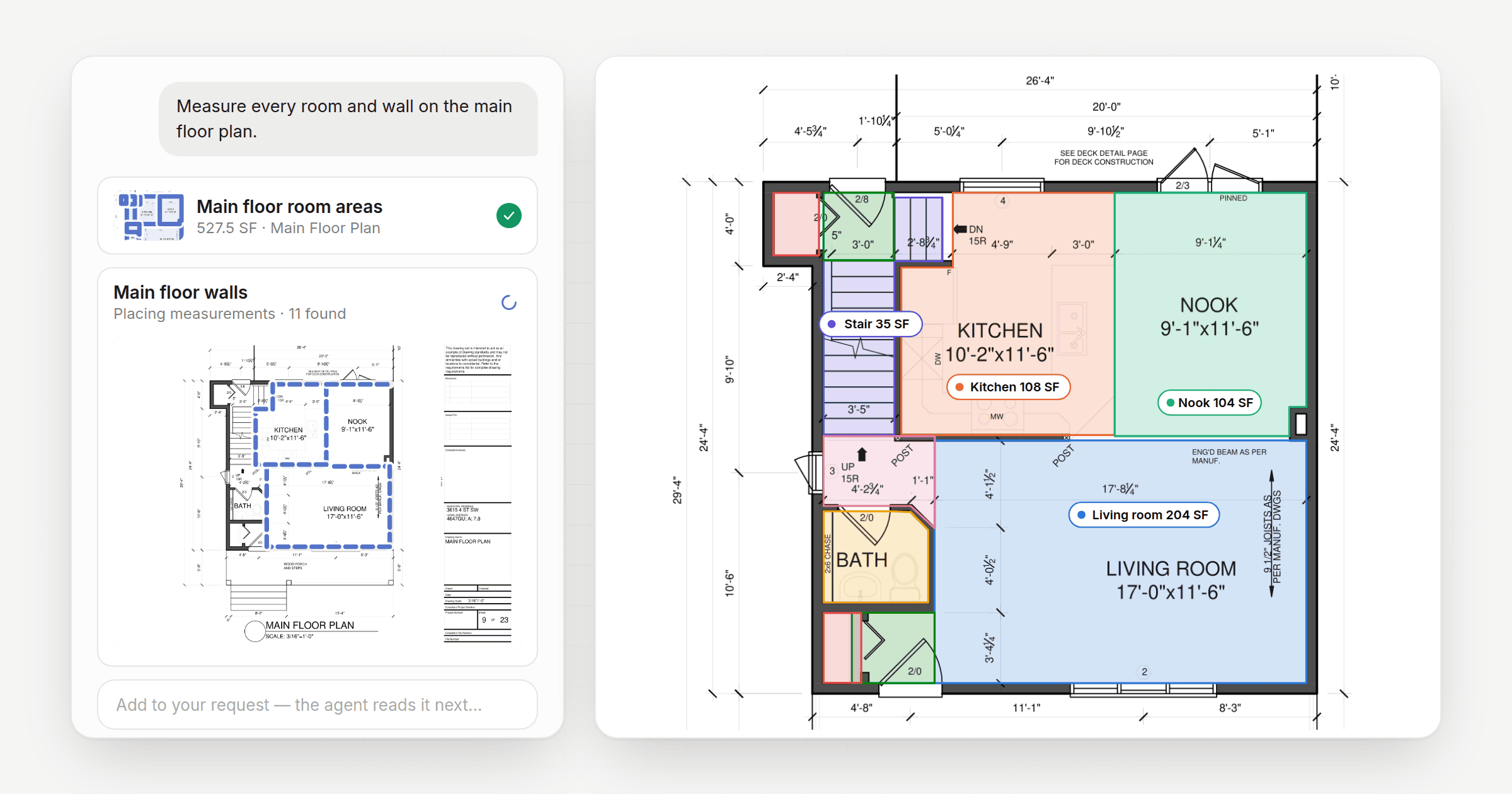
The Framework chat with two Takeoff Agent cards, one finished room-area takeoff and one tracing walls on the sheet, beside the floor plan with every room shaded and labelled with its area

Say hello to the Construction Takeoff Agent

October 13, 2026 by framework

Ask for a takeoff in chat and the Takeoff Agent measures it right on your drawings. Now in beta.

Categories Development, Announcements

Product

  • Features
  • Capabilities
  • Pricing
  • Integrations
  • Playbooks

Company

  • About Us
  • Blog

Support

  • Terms and Conditions
  • Privacy Policy

Legal

  • Support
  • Contact Us

Social

  • Twitter
  • Facebook
  • Instagram
  • Linkedin
  • Youtube

Network

  • Essential Construction
  • Construction Files
  • Construction Tutorials
  • Construction Exchange
  • Construction Fails
  • Construction PDF Editor
  • Construction Consulting and Project Advisory
© 2026 Framework Construction Services Inc
Framework
  • Product
    • FeaturesWhat is Framework?
    • CapabilitiesWhat you can do with Framework.
    • PlaybooksStandard deliverables, built by the agent.
    • IntegrationsConnect the tools you already use.
    • Product DemosSee Framework in action.
  • Resources
    • DocumentationLearn how to use Framework.
    • What’s New?Features, enhancements and fixes.
    • Get HelpTalk to our team.
  • Company
    • AboutWho we are.
    • BlogNews and announcements.
    • Contact UsReach out anytime.
  • Pricing
Login Start For Free
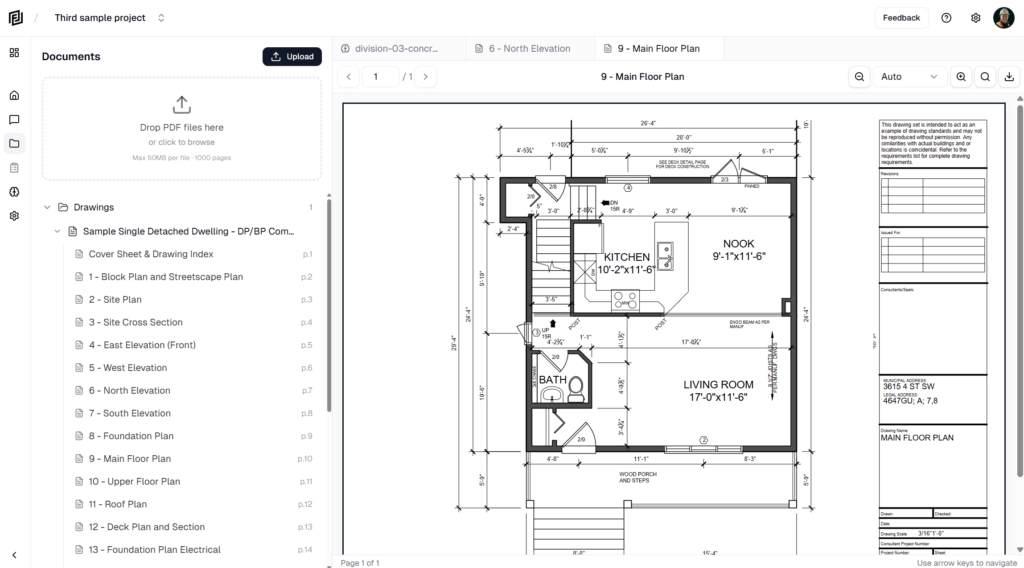
Documents Tab
One of the primary views in the application is the Documents View. From this screen you'll be able to manage and view all of your documents. Clicking a document brings it up in the pdf viewer (right of the screen).
(Click the image to view full screen)
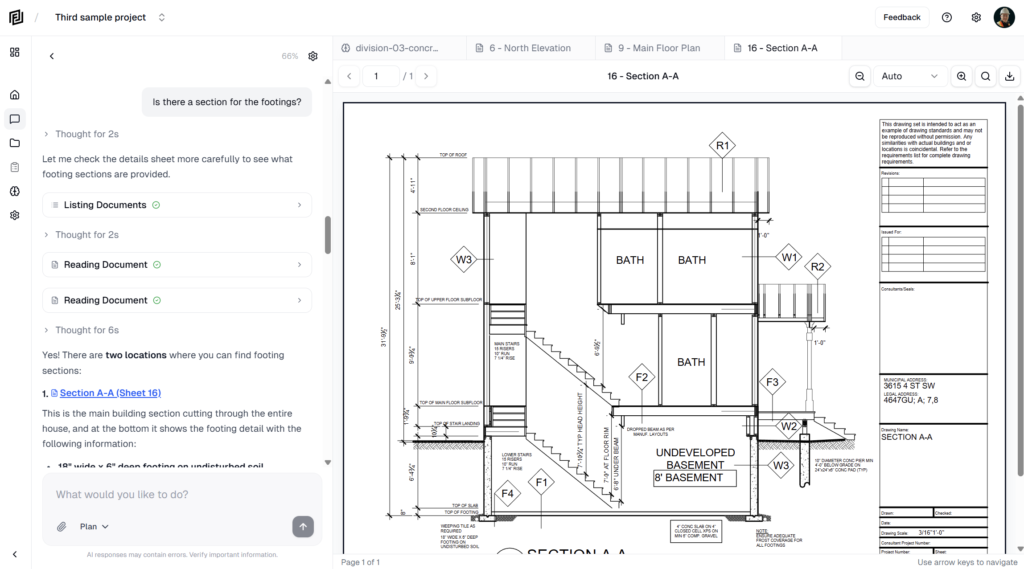
Chat Interface
The chat interface is where you'll interact with the AI models. To the left you'll ask your questions and get responses, to the right you can pull up drawings or information that the AI references in the chat.
(Click the image to view full screen)
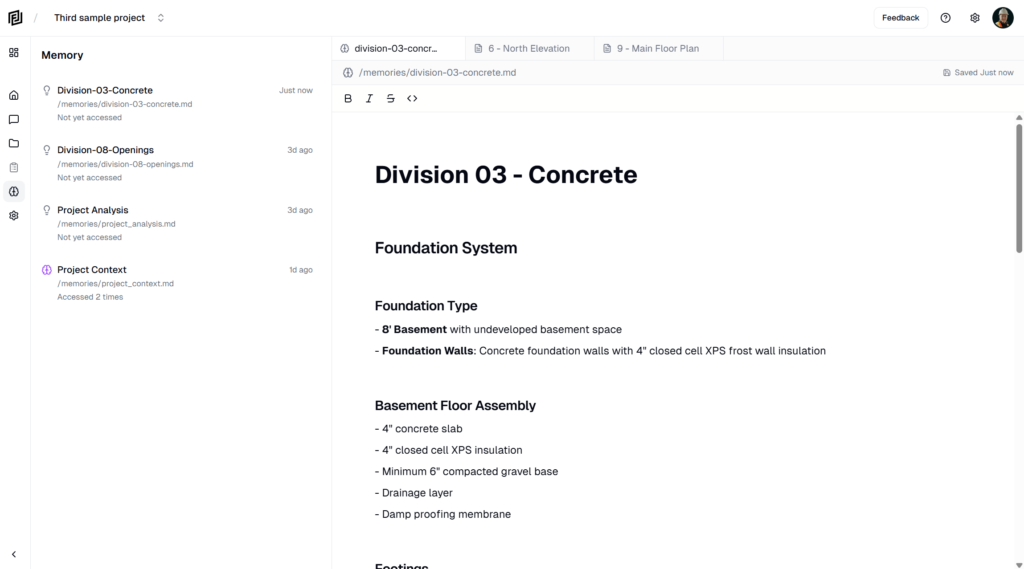
Memory Module
While chatting with the AI models about your documents, they will from time to time create a memory. These memories are used to more quickly retrieve information and form a better understanding of your project. You can edit these memories, incase the AI saves incorrect information or you want to provide hints to help the AI understand better.
(Click the image to view full screen)