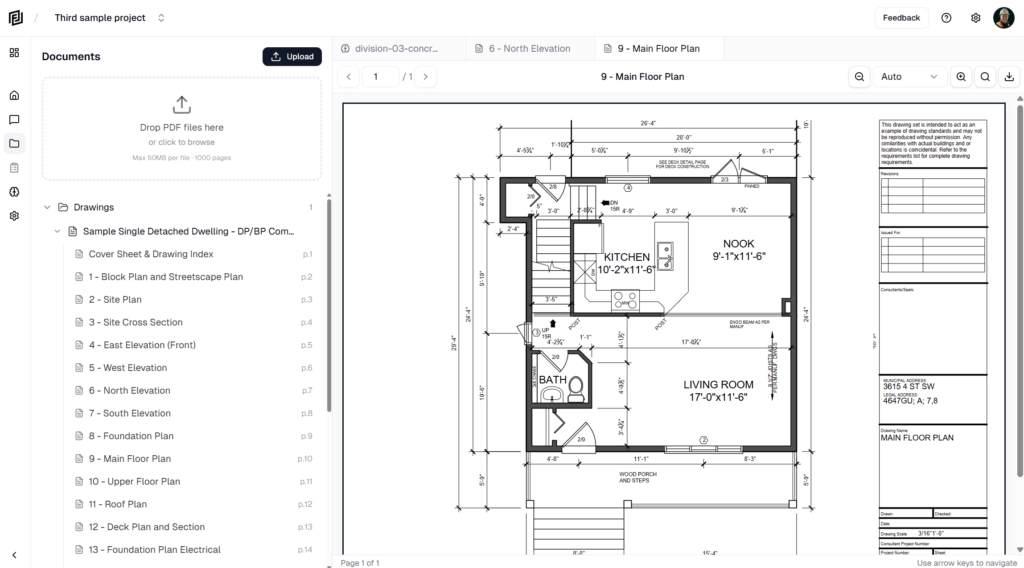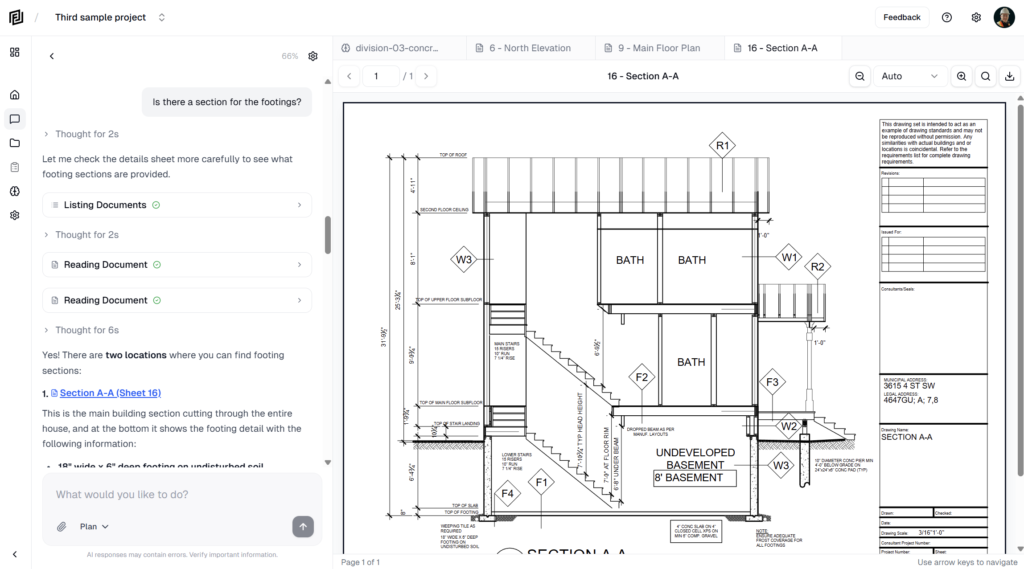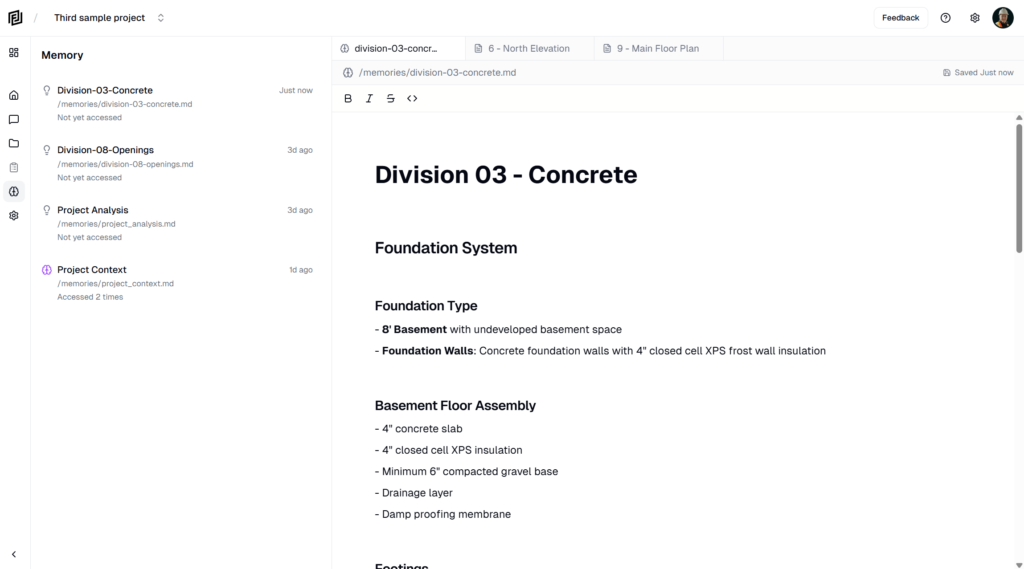
Jobsite photos and checklists from the field. Link the CompanyCam project for the job’s address.
What it brings in
- Photos, grouped by the day they were taken
- Checklists and every item on them
- Documents attached to the project
How to connect
- In a project, click Data in the left rail.
- Click + Connect and pick CompanyCam.
- Click Connect, sign in to CompanyCam and allow access. A workspace admin does this once.
- Tick the CompanyCam project for this job, then click Link to this project. Framework only reads from CompanyCam; it never changes anything there.
Linked data sits in the project’s Data tab as a table you can sort, filter and search, and refreshes automatically every hour. The Framework agent can read it too, so you can ask what was photographed on a given day or which checklist items are still open.