
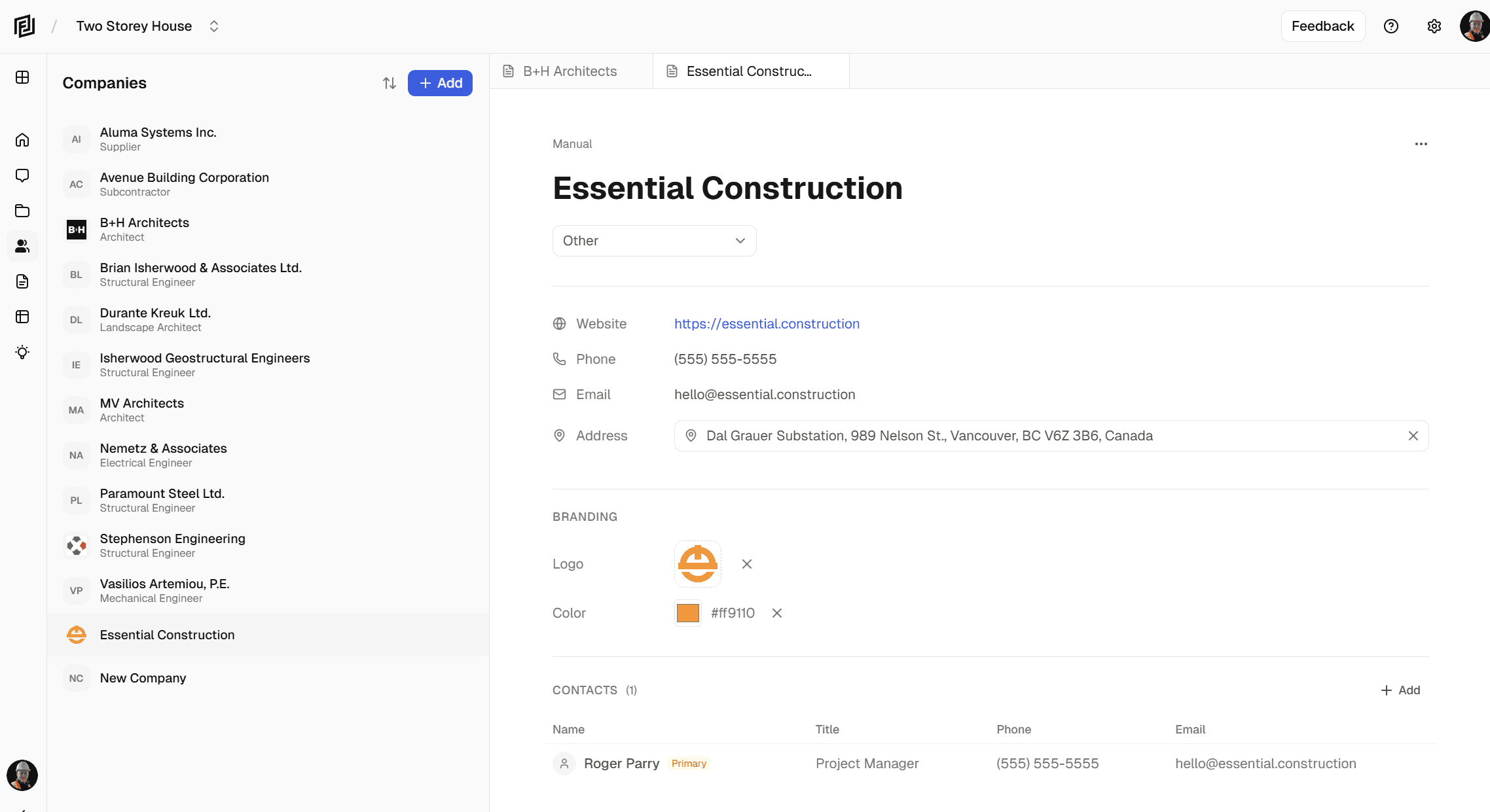
We’re excited to announce Contacts & Companies — a built-in project directory that tracks the companies and people on your construction projects. Add them manually, or let the AI build it for you from your drawings.
The Problem: Directories Take Time Nobody Has
Every construction project starts the same way. You need a list of who’s involved — the architect, the structural engineer, the mechanical consultant, the electrical sub. Their phone numbers, emails, addresses, project roles.
Building that directory means pulling names off title blocks, copying phone numbers from drawing stamps, digging through email signatures for contact details. It’s not complicated work. It’s just slow, repetitive, and easy to put off until you actually need someone’s number.
We built Contacts & Companies to take that busywork off your plate.
AI That Reads Your Drawings And Extracts Contact Information
When you upload documents to Framework, our AI doesn’t just analyze the content — it identifies the companies involved. It pulls names, roles, phone numbers, websites, and addresses from:
- Title pages — the cover sheets that list the full project team
- Title blocks — the company info stamped on every drawing sheet
- Professional stamps and seals — engineer and architect certifications
- Email signatures and letterheads — correspondence included in project packages
The extracted companies appear in a Pending Review section at the top of your sidebar. Review each one, approve the ones that belong, dismiss the rest. No manual data entry required — just a quick review of what the AI found.
And the AI is smart about it. It normalizes company names, structures addresses into a consistent format, and identifies the role each company plays on the project (architect, mechanical engineer, civil consultant, etc.).
Company & Contact Editor
Click any company to open its full editor. At the top, you’ll see the key properties — project role, phone, website, and address — laid out cleanly so you can scan or edit them at a glance.
Below the properties is a rich text notes area. Use it for anything — meeting notes about that firm, scope clarifications, contract details, or just a quick reminder about who your primary contact is.
Each company has a contacts section with a compact table showing everyone associated with that firm. Click any contact to open their detail drawer with full editing — name, email, phone, job title, and their own notes area. Add new contacts, remove old ones, or update details inline.
A Directory That Follows You
Companies you add or approve are saved to a global directory. The next time that same firm shows up on a different project, their information is already there — address, phone, website, contacts — pre-populated and ready to go.
Need to customize something for a specific project? Edit it locally. Your changes stay on that project without affecting the master record. And if you’ve updated information that should apply everywhere — a new phone number, a new address — you can push those changes back to the directory with one click.
Google Maps Integration
Every company address uses Google Maps autocomplete. Start typing and select from structured suggestions. The result is a properly formatted address with latitude, longitude, and all the components broken out — street, city, state, postal code, country. Consistent data across every company, every project.
Branded Reports
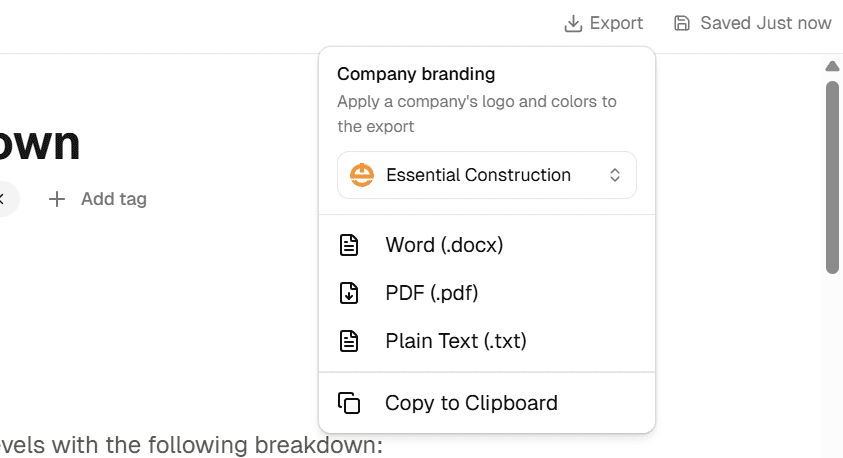
This is one we’re particularly excited about. When you export a note or estimate, you can now brand the output with any company on your project.
Open the export dropdown and you’ll see a company selector at the top. Pick a company — say, the architect — and the export transforms:
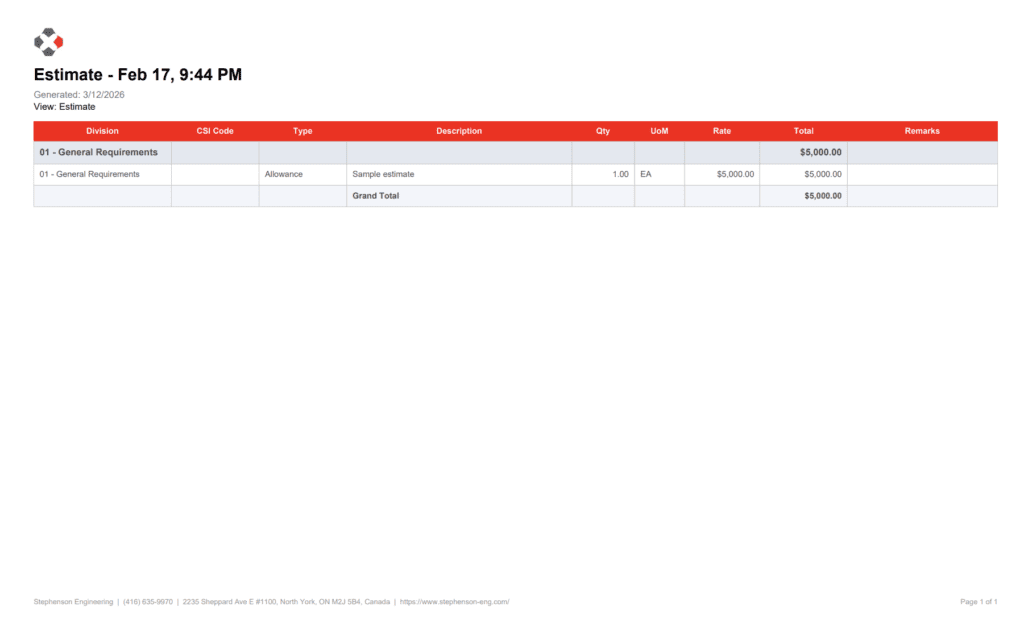
- Their logo appears in the document header
- Their primary brand color styles the heading elements
- Their company name, phone number, address, and website appear in the footer of every page
Your selection persists across exports. Pick a company once, and every subsequent export from that project uses the same branding until you change it. No re-selecting every time you generate a report.
This turns a generic Framework export into a professional, client-ready document that looks like it came from the company’s own letterhead. Whether you’re preparing a note for the architect’s review or an estimate under the GC’s brand, it’s one click to get there.
Ask the AI
Your AI assistant now knows about your project directory. Ask it questions like:
- “Who is the architect on this project?”
- “What’s the mechanical engineer’s phone number?”
- “List all companies on this project with their roles”
- “Show me the contacts for WSP”
The AI pulls from both your project-level data and the global directory to give you complete, accurate answers.
How It Works in Practice
Scenario: You just received a new drawing package for a commercial renovation.
- Upload the drawings to your Framework project
- The AI scans title pages and title blocks, identifying 8 companies involved in the project
- Open the Contacts sidebar — you’ll see 8 pending entries waiting for review
- Approve the ones that belong, dismiss any duplicates or irrelevant firms
- Click into the architect’s entry — their address and phone were pulled from the drawings, and two contacts (the project architect and the junior designer) were identified from the stamp
- Add a note about the upcoming design review meeting
- When it’s time to export your site observation notes, select the architect from the export dropdown — their logo and contact details brand the PDF automatically
What used to take an hour of manual setup happens in about two minutes.
Getting Started
Contacts & Companies is available now for all Framework users.
- Open any project
- Click the Contacts icon in the sidebar (above Notes)
- Upload documents and review AI-extracted companies, or click “+” to add one manually
- Start typing a company name — if it’s in your global directory, it’ll appear as a suggestion
What’s Next
This is the first version, and we’re already planning what comes next:
- RFI integration — link RFIs directly to the responsible company and contact
- Automated project directory reports — generate a formatted directory document for your project team
- Automated notifications – send emails, reports, estimates directly to project contacts.
Ready to stop copying phone numbers off emails and title blocks? Log in to Framework and try Contacts & Companies today.
Framework is the AI-powered construction document assistant that helps you find information, create documentation, and manage your projects smarter.


