
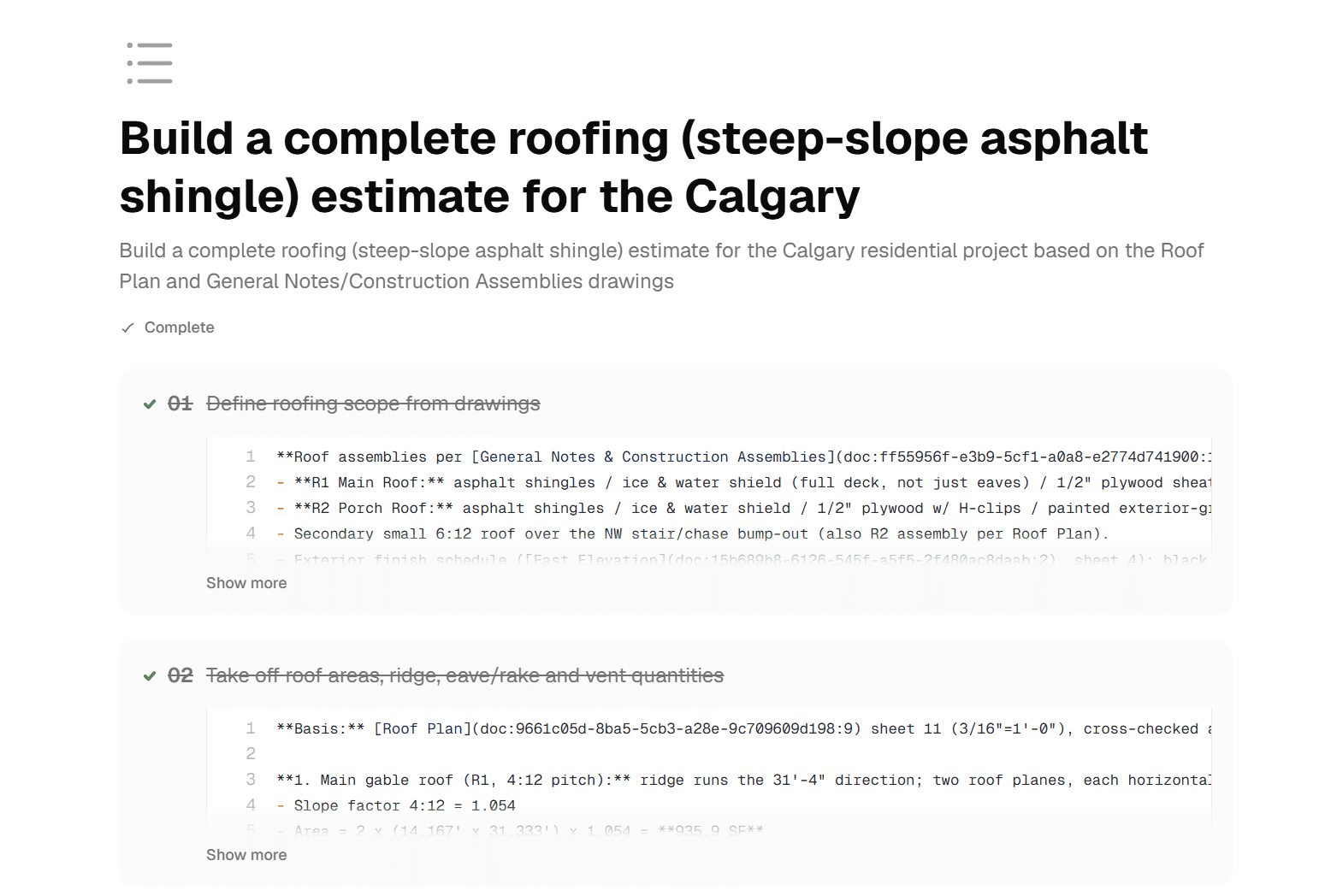
When you ask the AI to do something real — “put together a preliminary estimate from these drawings,” “review this set and flag every RFI we should send” — the work has steps. Until now, the AI did those steps behind the scenes and handed you a result. Today it shows its work. Agent Plan turns big requests into a visible, step-by-step plan: the AI researches, lays out what it’s going to do, records what it finds at each step, and — if you want — waits for your approval before it builds anything.
From a Prompt to a Plan
Ask for something multi-step and the AI now starts by orienting itself — skimming your drawing list and a key document or two — then writes a plan: a numbered list of the steps it intends to take. The plan opens in its own workspace tab, right beside your documents, with a rail of steps you can watch tick from pending to in-progress to done.
As it works each step, it writes its findings underneath — what it pulled from a drawing, what it noticed in a spec, the numbers it’s working with. Instead of a black box that eventually spits out an answer, you get a running account of the AI’s reasoning that you can read, trust, and check.
Approve Before It Builds
You’re in control of how much rope the AI gets. A simple Auto / Review toggle sits in the chat composer:
- Auto — the AI plans and builds straight through, showing its steps as it goes
- Review — the AI stops after it writes the plan and waits for you. Approve it and it proceeds; ask for changes and it revises the plan first
Review mode is the difference between “surprise me” and “run it by me.” For a quick summary, let it run. For a client-facing estimate, check the plan before it spends time building the wrong thing.
Every Deliverable, Logged
A plan often produces real documents — an estimate, a sheet, a schedule, a set of notes. Framework logs each one to the plan as it’s created, listed as click-to-open rows at the bottom. So a week later, when you reopen the plan, you have both the record of how the AI got there and direct links to everything it produced. Plans persist — close the tab, reload, come back tomorrow, and the whole thing is still there.
How It Works in Practice
Scenario: You upload a drawing set and ask for a preliminary estimate.
- Switch the composer to Review and ask the AI to prepare a preliminary estimate
- It orients on the set, then writes a plan: identify scope, take off quantities, price by division, assemble the estimate
- You read the plan, tweak as needed — “break out sitework separately” — and approve
- The AI works each step, writing its findings as it reads the drawings
- The finished estimate opens and is logged to the plan, so you can reopen both any time
Getting Started
- Start a chat in any project and ask for something multi-step
- Use the Auto / Review toggle in the composer to choose whether to approve the plan first
- Watch the plan tab as steps complete and findings fill in
- Open any document the plan produced from the list at the bottom
As always – if there are any questions please reach out directly at support@frameworkwork.construction


