
Scheduling a construction project usually means opening a separate tool — Primavera, MS Project, or a shared spreadsheet that nobody trusts. The schedule lives in one place, your documents live in another, and your estimates live somewhere else. When something changes, you’re updating three systems instead of one.
With Framework’s new Schedule feature, you build and manage your construction schedule inside the same project where your drawings, notes, estimates, and contacts already live. An interactive Gantt chart with a grid editor, dependency linking, and a server-side critical path engine — no extra software, no file imports, no learning curve.
Grid + Gantt: One View for Your Entire Schedule
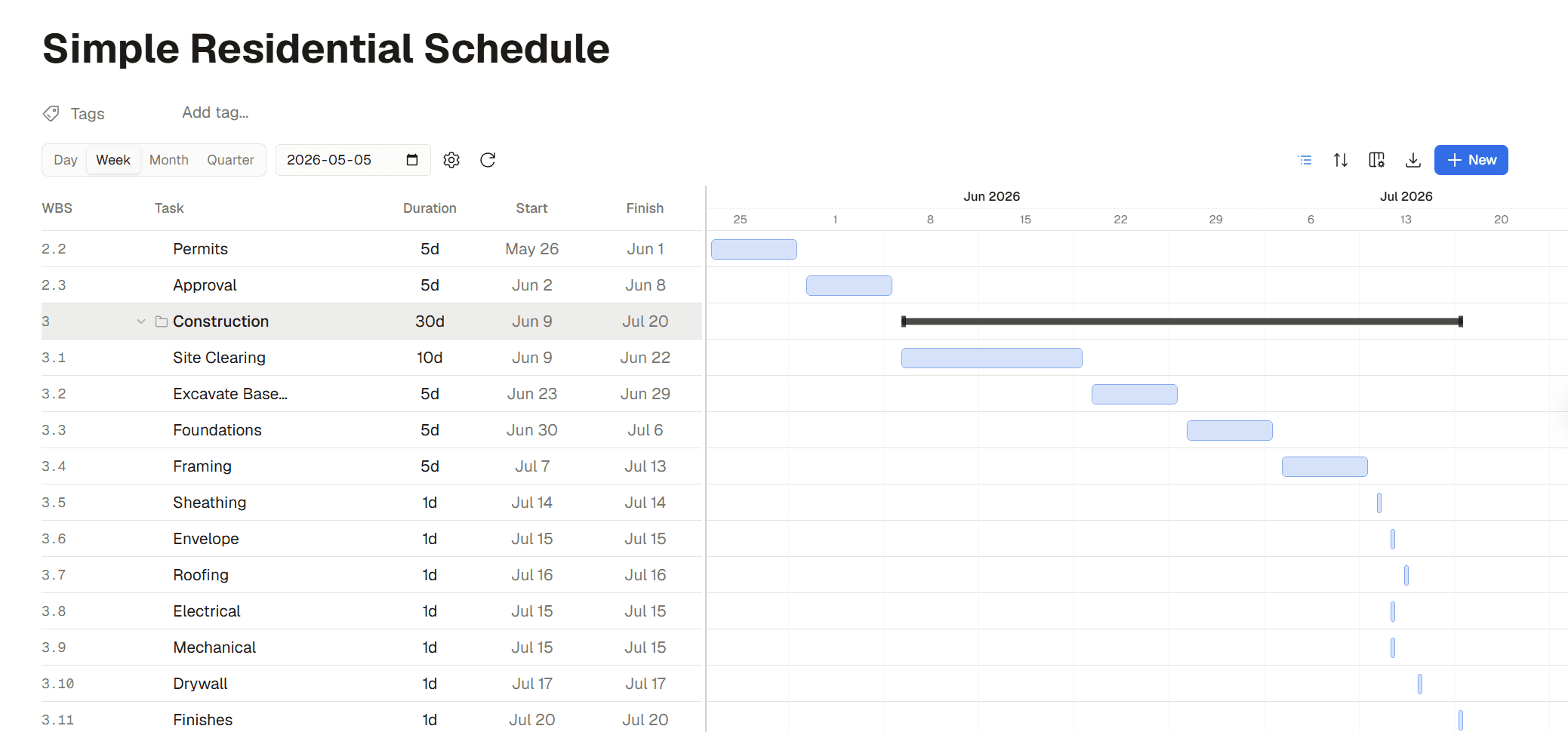
Open a schedule and you get a split view: a spreadsheet grid on the left, a Gantt chart timeline on the right. The grid is where you add and edit activities. The Gantt is where you see how they fit together.
The grid gives you inline editing for everything you’d expect:
- Activity name — what’s being done
- Start and finish dates — set manually or let the engine calculate them from dependencies
- Duration — in working days, respecting your project calendar
- Progress — percentage complete
- Task type — task, milestone, or summary
On the Gantt side, each activity renders as a bar whose length matches its duration. Milestones appear as diamonds. Summary tasks span their children. Drag a bar to move it, resize to change its duration, or draw a line between two bars to create a dependency — all directly on the timeline.
Dependencies and Critical Path
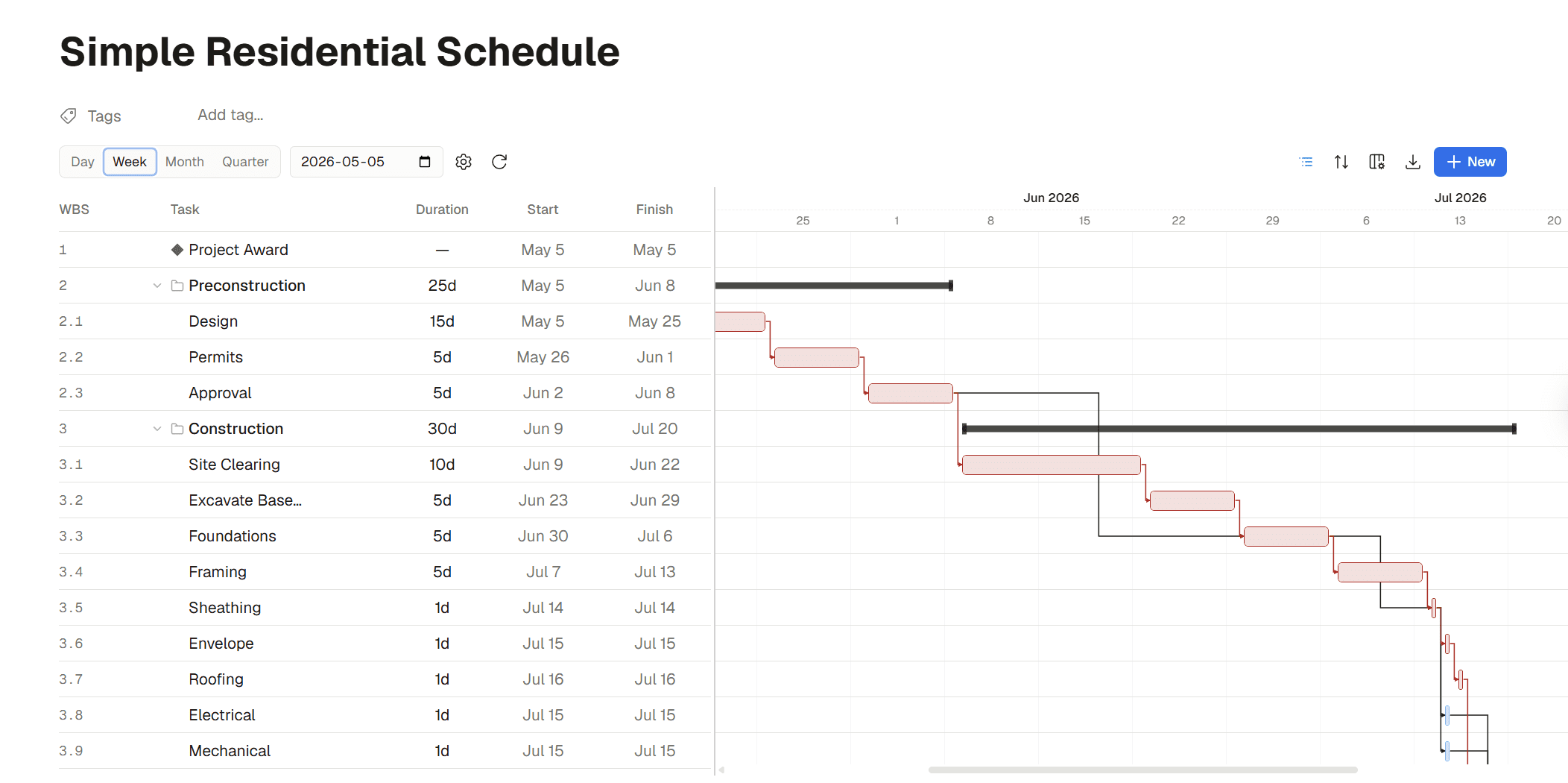
Construction schedules are driven by relationships. You can’t pour the slab until the formwork is done. You can’t close the walls until mechanical and electrical are roughed in.
Framework supports all four standard dependency types:
- Finish-to-Start (FS) — the most common; B can’t start until A finishes
- Start-to-Start (SS) — B starts when A starts
- Finish-to-Finish (FF) — B finishes when A finishes
- Start-to-Finish (SF) — B finishes when A starts
Each dependency can include lag — positive or negative — to model real-world delays like concrete cure time or lead time on material orders.
When you add or change a dependency, Framework’s server-side scheduling engine runs a full critical path calculation: forward pass, backward pass, float computation. Your dates update automatically. The critical path highlights which activities have zero float — the ones that will push out your completion date if they slip.
Timeline Zoom
Zoom in and out to see the level of detail you need. Framework supports multiple zoom levels:
- Day view — see individual working days, useful for near-term lookaheads
- Week view — the default for most project schedules
- Month view — for high-level project timelines
- Quarter view — for multi-phase or multi-year programs
Headers are sticky so you always know what date range you’re looking at. Grid lines get sparser at wider zoom levels so the chart stays clean. The timeline fills the full width of your screen on load, and the split between the grid and Gantt is resizable — drag the divider to give more space to whichever side you need.
WBS Hierarchy
Organize your schedule the same way you organize a construction project — by phase, area, trade, or whatever grouping makes sense. Indent activities under parent items to create a work breakdown structure. Summary tasks automatically span their children and roll up progress.
Reorder activities by dragging rows in the grid. Indent and outdent with toolbar buttons or keyboard shortcuts. The hierarchy is as deep as you need it — Framework doesn’t limit nesting levels.
Project Calendar
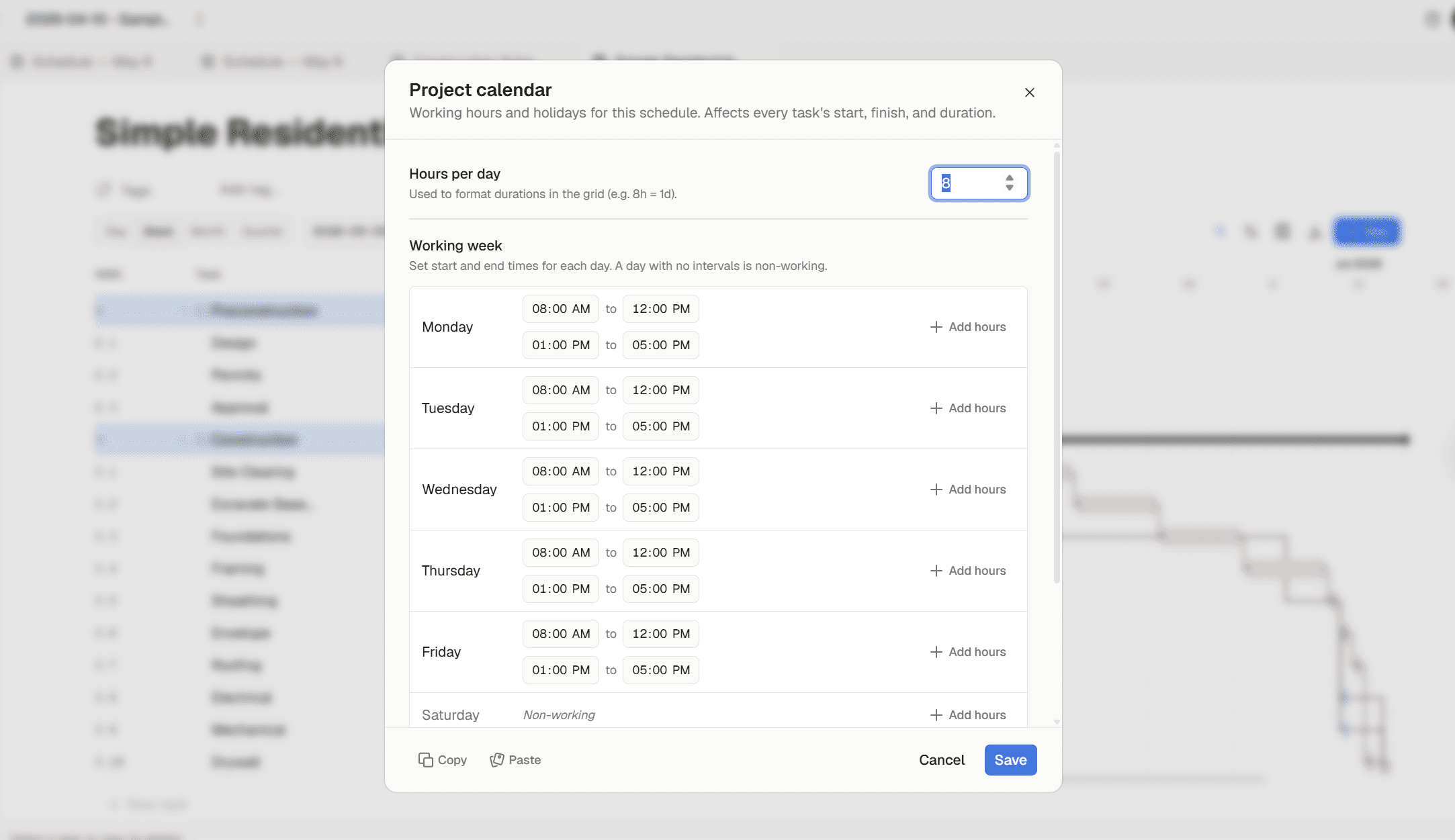
Every schedule has a project calendar that defines working days and hours. Set your standard work week, add holidays, and mark exception days. The scheduling engine respects the calendar when calculating durations and dates — a 5-day task that starts on Thursday finishes the following Wednesday, not Monday.
How It Works in Practice
Scenario: You’re starting a commercial tenant improvement project.
- Open your Framework project and create a new schedule from the sidebar
- Add top-level phases: Demo, Rough-In, Finishes, Closeout
- Under each phase, add the specific activities — frame walls, run conduit, hang drywall, paint, install fixtures
- Set durations based on your experience or your estimate quantities
- Draw dependencies on the Gantt — framing before MEP rough-in, rough-in before drywall, drywall before paint
- The engine calculates your dates and highlights the critical path
- As work progresses, update percentage complete and the Gantt reflects actual vs. planned
Your schedule lives right next to your drawings, estimates, and project notes. When you need to check a detail, everything is one click away — no switching apps, no emailing files back and forth.
Getting Started
- Open any project
- Click “+ New” in the sidebar and select Schedule
- Add activities in the grid, set durations, and start drawing dependencies on the Gantt
- Zoom in and out to see the timeline at whatever level of detail you need
What’s Next
This is the first version of Schedule, and it’s designed to grow. Here’s what we’re building toward:
- Baselines — save a snapshot of your schedule to compare planned vs. actual as the project evolves
- Lookahead views — filter to the next 1, 2, or 3 weeks for daily coordination
- P6 and MPP import/export — bring in schedules from Primavera or MS Project, and export back out
- AI scheduling — describe your scope and let the AI generate a draft schedule from your project documents
- Resource and cost loading — tie labor, equipment, and material costs to schedule activities
Ready to build your project schedule in the same place as your drawings and estimates? Log in to Framework and try Schedule today.
Have feedback or feature requests? We’d love to hear from you at support@framework.construction.


