
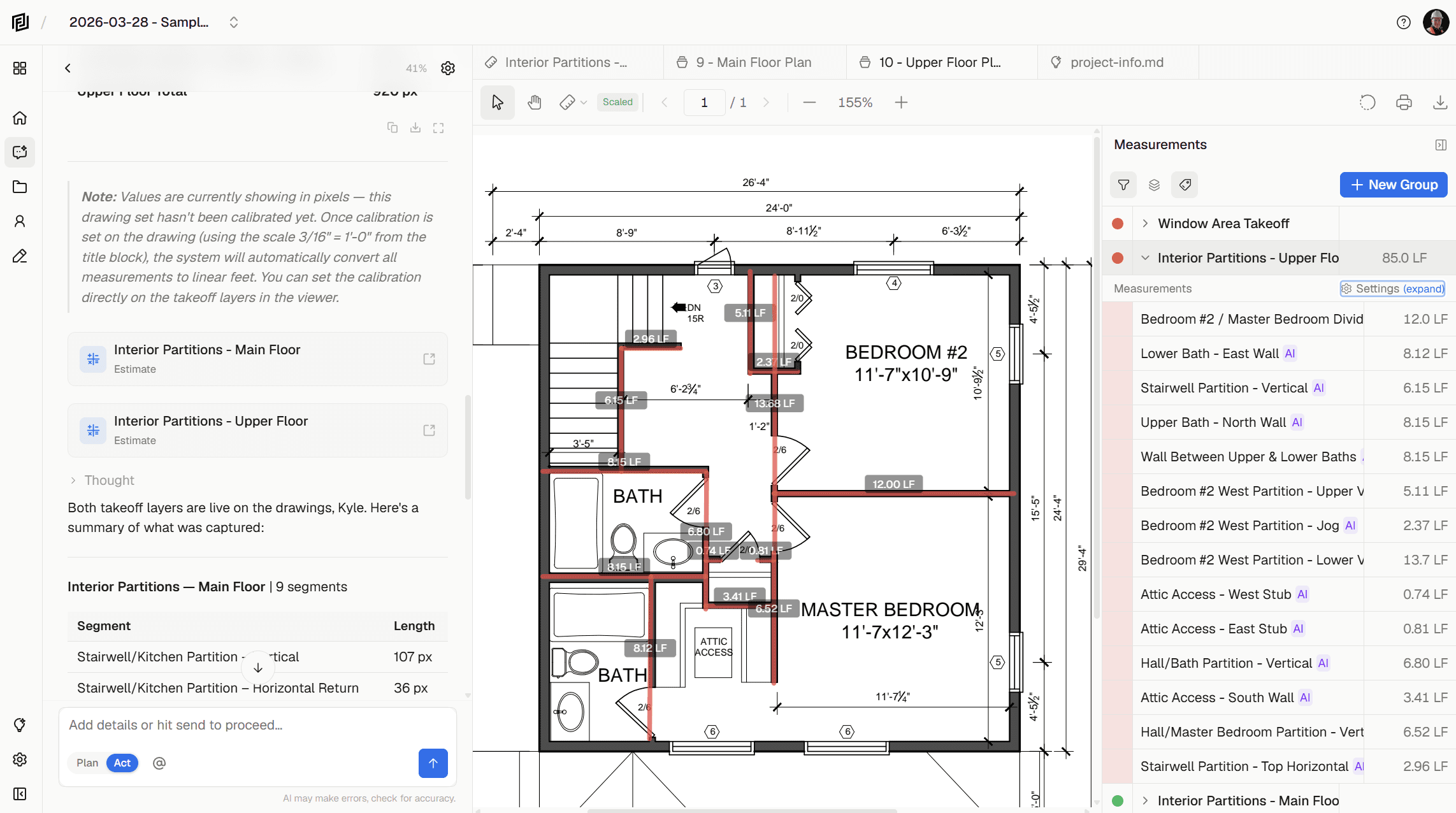
Taking off quantities from construction drawings shouldn’t require printing plans, pulling out a scale ruler, or switching between a PDF viewer and a spreadsheet. With Framework’s new Measurements feature, you draw directly on your uploaded construction drawings to measure distances, areas, perimeters, and counts — then push those quantities straight into your estimates or let the AI build one for you. It’s a complete on-screen construction takeoff built into the same platform where your documents, estimates, and project notes already live.
On-Screen Takeoff: Draw Directly on Your Construction Drawings
Open any uploaded drawing in Framework and start measuring. Five takeoff tools cover every common quantity scenario:
- Distance — Click two points to measure a linear dimension. Walls, pipes, edges, spans.
- Area — Click corners to trace a polygon and get the enclosed square footage (or square meters). Rooms, slabs, floor finishes, ceiling tiles.
- Perimeter — Same polygon tracing, but returns the total edge length instead of enclosed area. Baseboard, curbing, fencing, trim.
- Polyline — Multi-segment linear path for irregular runs. Ductwork, piping, wiring, crown moulding.
- Count — Click once per item to count fixtures, doors, windows, receptacles, or any repeating element.
Measurements snap to existing endpoints as you draw, so connecting wall segments or tracing adjacent rooms stays precise without zooming in to pixel level. Hit Escape to cancel, or use undo/redo to step back. Every measurement is drawn as a colored overlay on the PDF, so you can see exactly what you’ve taken off at a glance.
Calibrate to Real-World Scale — Three Ways
Before your measurements mean anything, the drawing needs a scale. Framework gives you three ways to calibrate your PDF construction drawings:
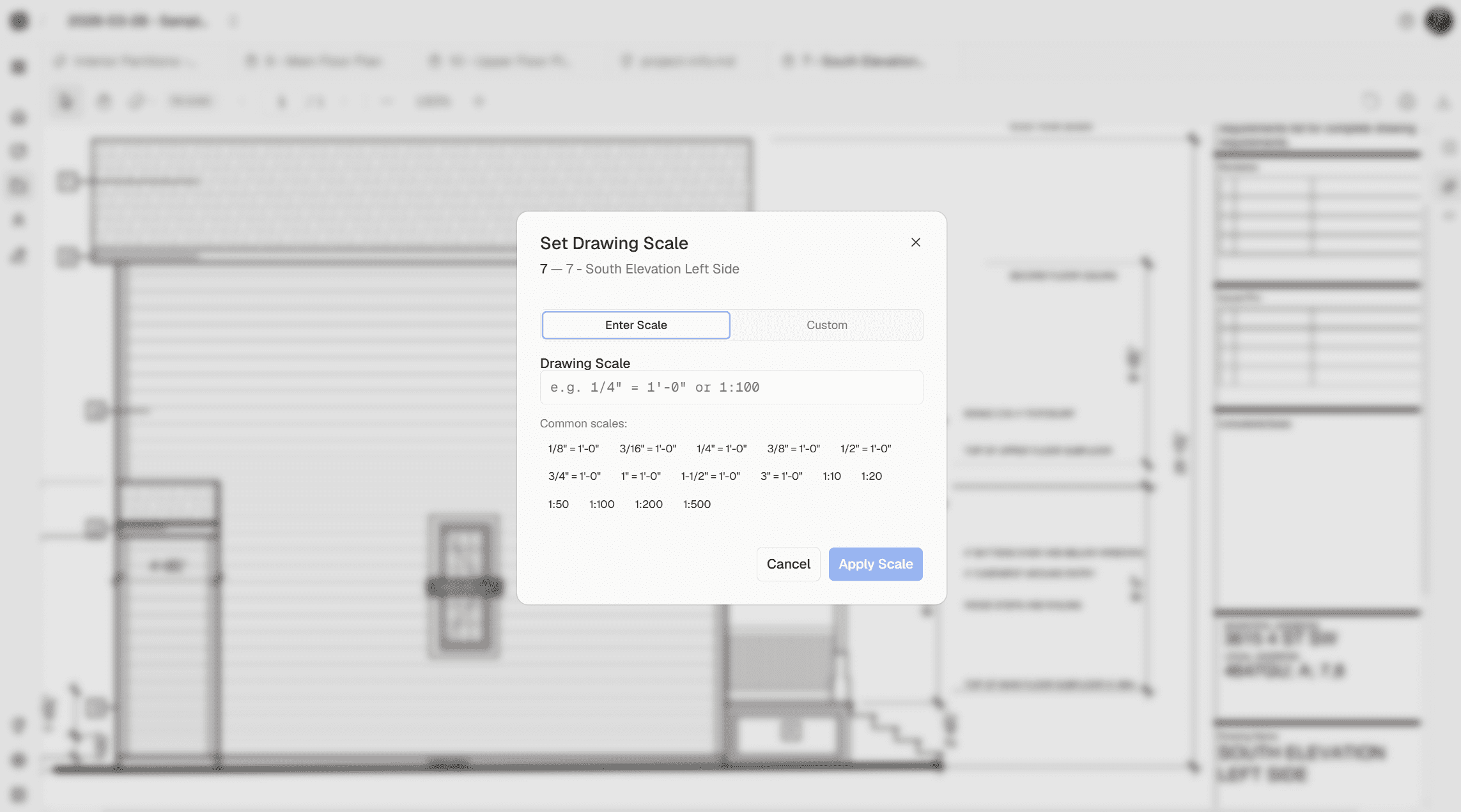
- Auto-detected — When the AI processes your drawing, it reads the scale notation from the title block (e.g., 1/4″ = 1′-0″). If it finds one, you’ll see a “Detected” badge with a one-click confirm.
- Manual scale entry — Type any standard architectural or engineering scale: 1/4″ = 1′-0″, 1:100, 3/16″ = 1′-0″, and more. Common scales are available as quick-picks.
- Two-point reference — Draw a reference line between two known points on the drawing (like a dimension line), enter the real-world distance, and the system calculates the scale automatically.
Once calibrated, every measurement on that drawing automatically converts to real-world units. Switch between imperial and metric at any time — the underlying pixel data is preserved, so your quantity takeoff is always accurate regardless of which unit you display.
Organize Your Takeoff With Measurement Sets
Measurements are grouped into named sets — think of them like layers. Each set has its own color, line weight, and default unit. Create sets like “Floor 1 — Drywall”, “Mechanical Rough-In”, or “Sitework” to keep your takeoff organized by trade, floor, or scope.
Each individual measurement can be assigned a CSI MasterFormat code and a descriptive label. When you select a CSI code, the division number is derived automatically — no need to look it up. Cost codes and divisions flow through to your estimates when you link measurements later, saving you from re-entering classification data.
Spreadsheet Grid View With Export
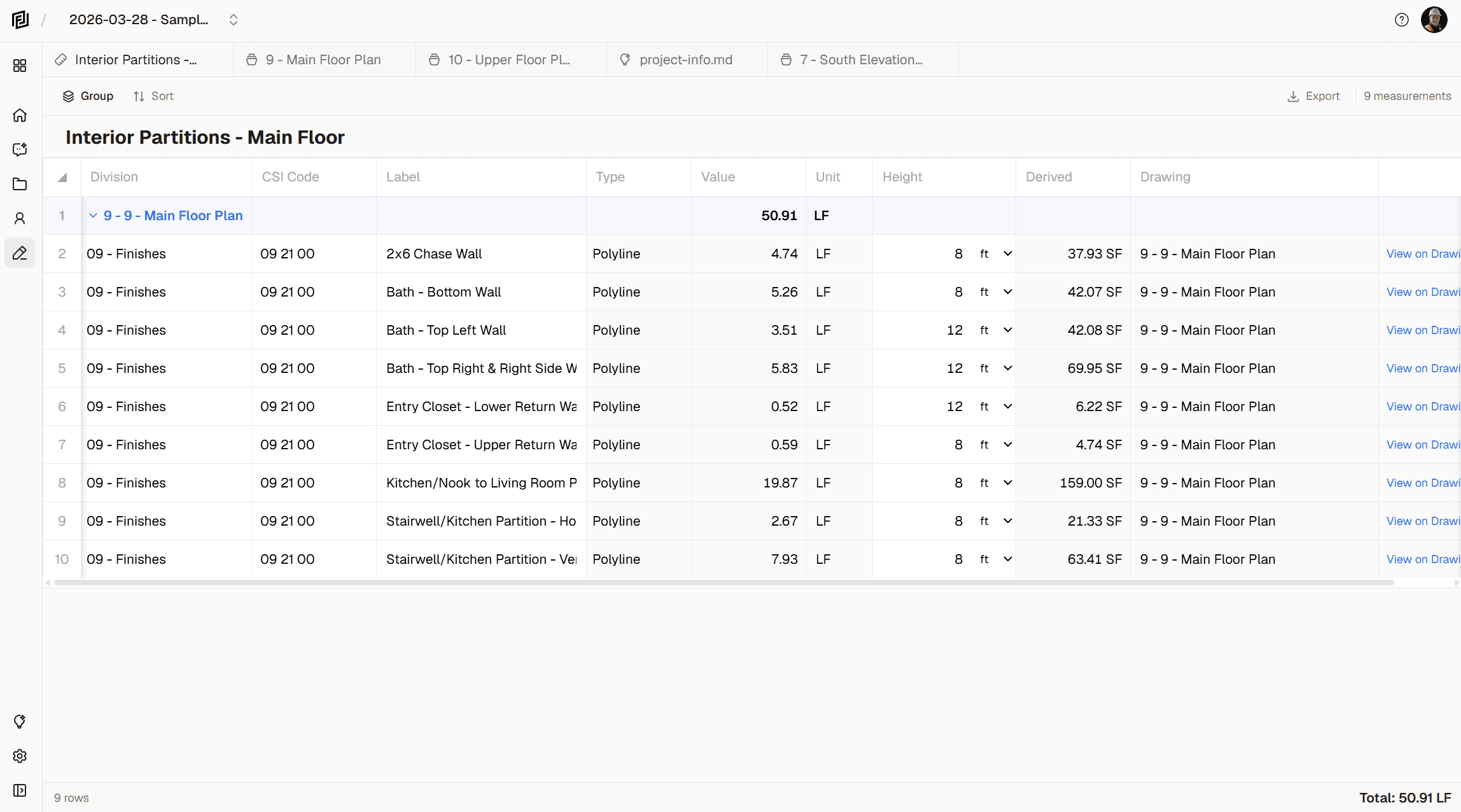
Every measurement you draw also appears in a spreadsheet-style grid. The grid gives you a different way to review your takeoff — sort by drawing, group by CSI division, and see subtotals calculated automatically for each group.
Inline editing lets you update labels, cost codes, units, and height values directly in the grid without switching back to the drawing. A “View on Drawing” link next to each row jumps you straight to the right page and highlights the measurement.
When you’re ready to share your construction takeoff, export to:
- Excel (.xlsx) — with SUM formulas on group subtotals, currency formatting, frozen headers, auto-filter, and proper column widths. A working spreadsheet, not a flat data dump.
- PDF — styled tables with group headers, page numbers, and automatic portrait/landscape orientation based on column count.
- CSV — for when you need raw data in another system.
Height Multiplier: Derive Volumes and Wall Areas Automatically
A flat measurement isn’t always enough. Add a height to any area measurement and Framework calculates the volume — useful for concrete pours, excavation, or fill quantities. Add a height to a polyline measurement and you get wall area — useful for paint, cladding, or insulation where you’re measuring linear feet of wall but need total square footage.
Derived volumes and areas appear in both the drawing sidebar and the grid view, and they flow through to your estimates when linked. Change the height and everything recalculates instantly.
Push Quantities Into Your Estimates
This is where measurements and construction estimating come together. Link any measurement (or group of measurements) to an estimate line item, and the quantity auto-computes from your drawings. Two ways to link:
- Bulk import — Click “Import Measurements” in the estimate toolbar, browse your measurement sets, and select the items you want. They’re inserted as new line items with quantities, units, descriptions, and CSI codes pre-filled.
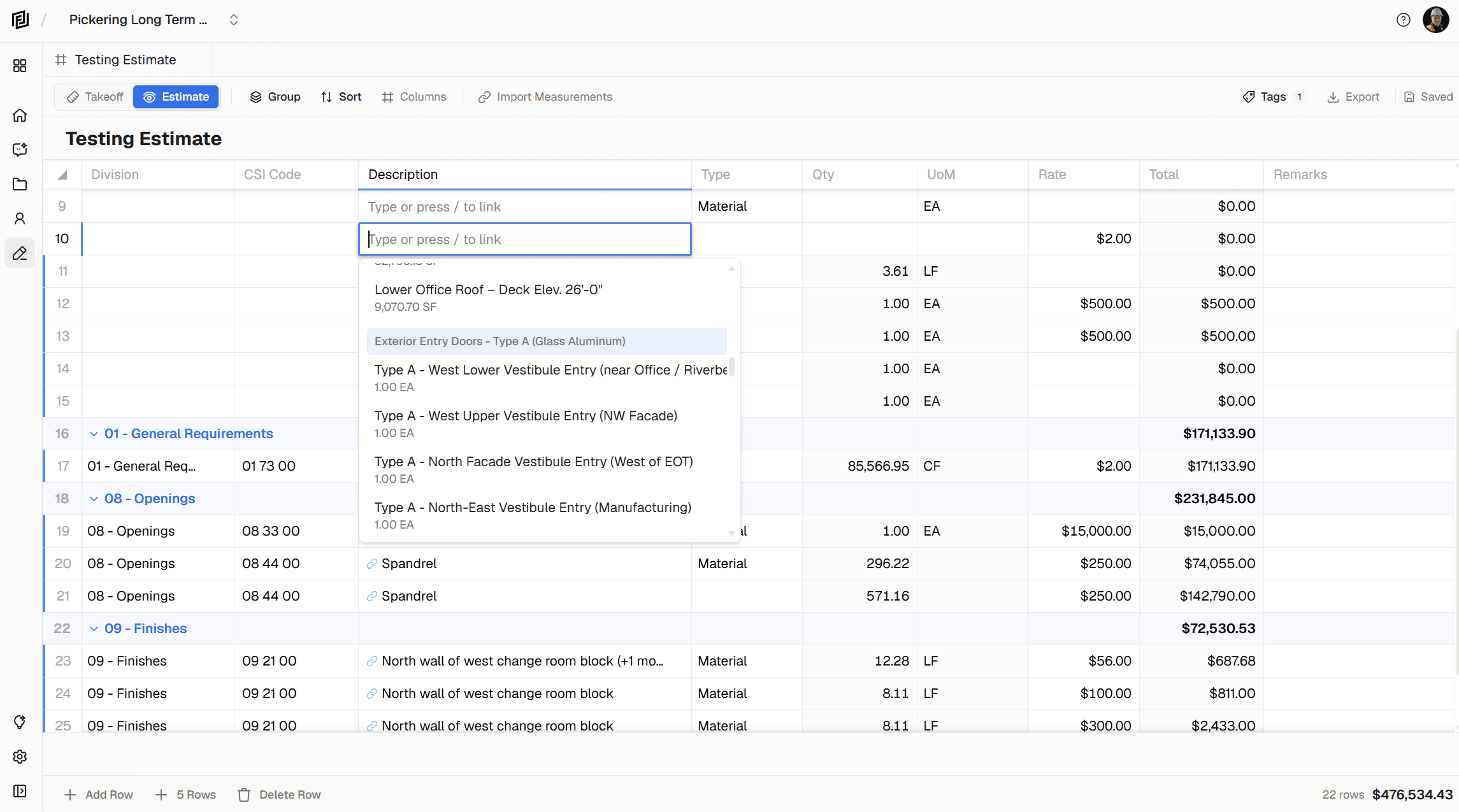
- Inline linking — Type
/in any estimate description cell to open a search picker. Find a measurement by label or cost code, select it, and the row’s quantity locks to that measurement’s value.
Linked quantities are locked — they update automatically if you adjust the measurement on the drawing. The unit of measure locks too, since it’s driven by the measurement. An unlink button next to the quantity lets you detach and go back to manual entry whenever you want.
Let AI Build an Estimate From Your Measurements
Once you’ve completed your takeoff, you don’t have to build the estimate manually. Open your AI assistant and describe what you need:
- “Create an estimate for the drywall scope using my measurements”
- “Build a pricing breakdown for the concrete work — use the quantities I’ve already taken off”
- “Generate an estimate for Floor 2 interior finishes based on my takeoff”
The AI sees your measurement data — quantities, units, CSI codes, labels, and the drawings they came from. It uses that information to generate a fully structured estimate with proper line items, rates, divisions, and totals. Rows are automatically linked back to your measurements, so the quantities stay connected to the source.
This is the workflow that used to take a full day: measure the drawings, type the quantities into a spreadsheet, look up rates, build line items, organize by division. Now the measuring happens on-screen and the estimate builds itself from the data you’ve already captured.
You can also update existing estimates with your measurements. Tell the AI “Add the mechanical rough-in quantities to the current estimate” and it appends the new line items with your measured quantities linked.
Works on Mobile and Tablet
On smaller screens, the measurements panel slides up as a bottom drawer so you can review your takeoff data without losing sight of the drawing. The full drawing toolbar and measurement tools are available on tablet-sized screens — useful for reviewing takeoffs on-site or in a meeting.
How to Get Started With On-Screen Takeoff
- Open any project and navigate to a construction drawing
- Click the ruler icon in the drawing toolbar to open the measurements panel
- Create a new measurement set and calibrate the drawing to scale
- Select a tool (distance, area, perimeter, polyline, or count) and start clicking on the drawing
- Switch to the grid view tab to review, sort, and export your quantities
- Open an estimate and click Import Measurements — or ask the AI to build one from your takeoff
Coming Soon: AI-Powered Takeoff
We’re building toward a workflow where the AI does the measuring for you. Tell it what you need — “Take off all the doors on Sheet A2.1”, “Count the light fixtures on the reflected ceiling plan”, or “Measure the perimeter walls on the floor plan” — and the AI analyzes the drawing, identifies each element, pinpoints its position on the sheet, and places the measurements automatically.
You review what it found, approve or adjust, and the quantities are ready to push into an estimate. The same measurement tools you’re using today become the review layer for AI-generated takeoffs — so there’s nothing new to learn. Just faster results.
Ready to take off quantities directly from your plans? Log in to Framework and try on-screen construction takeoff today.
Have feedback or feature requests? We’d love to hear from you at hello@framework.construction.
Framework is the AI-powered construction document platform that helps you find information, measure quantities, estimate costs, and manage your projects — all from the documents you already have.


