
This week we shipped an MCP connection for Framework. Plug your projects into Claude or ChatGPT, and your assistant works with the same drawings, registries, estimates and schedules your team uses every day.
Ask for What You Need
The easiest way to explain it is the requests themselves:
- Which sheet has the door schedule?
- Confirm the door count on Level 1 against the door schedule.
- Pull the architect’s contact details and add a note on the firm to the project.
- Draft an RFI for the conflict between the ceiling plan and the electrical plan.
- Upload this drawing to the project.
Your assistant runs these against your real project data and comes back with the numbers the app shows – estimate totals computed, takeoffs in real units, references included. Hand it a file link and the drawing lands in your project the same as a drag and drop: classified, indexed and summarized automatically.
Connecting Takes About a Minute
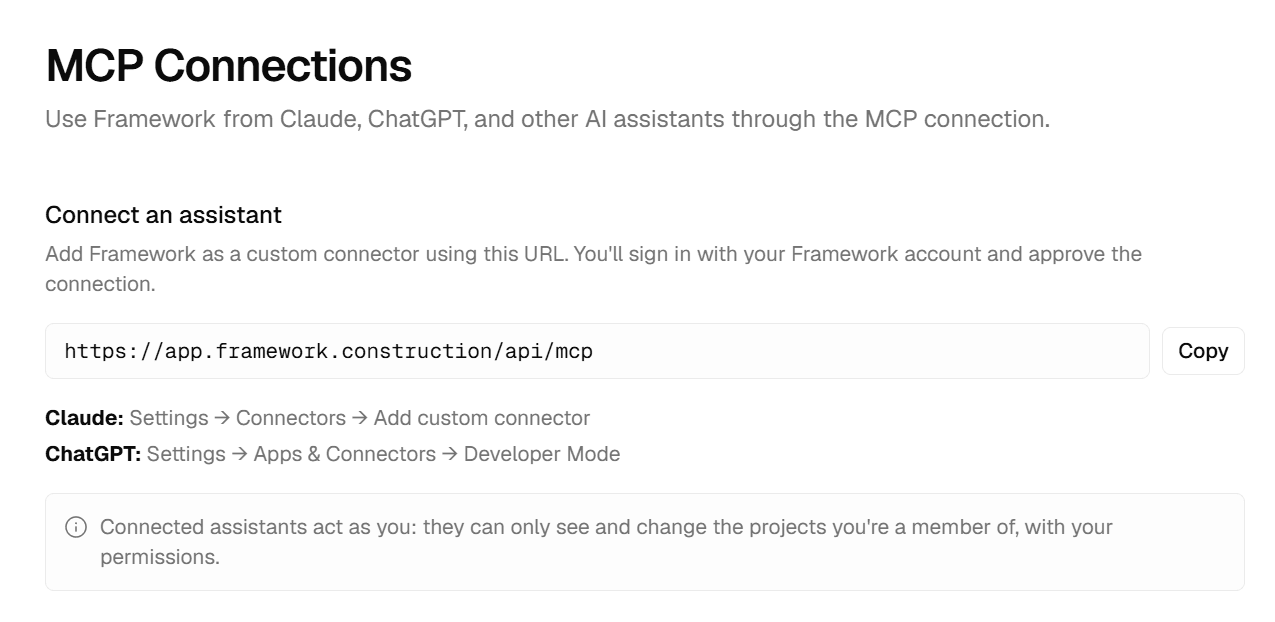
- In Framework, open Settings → MCP Connections and copy your connection URL
- In Claude: Settings → Connectors → Add custom connector. In ChatGPT: Settings → Apps & Connectors → Developer Mode
- Sign in with your Framework account and approve the connection
That’s it. No keys to manage, nothing to configure. The same screen shows every app you’ve connected, and you can disconnect any of them at any time.
Your Assistant Is You
A connected assistant can only see the projects you’re a member of. Every change it makes is attributed to you, anything that writes to a project asks before it runs, and it’s held to the same rules the app enforces – it can’t write a field your project doesn’t have. There are no separate permissions to manage, because your existing ones do the work.
How It Works in Practice
Scenario: a consultant emails you a revised floor plan and asks whether the door count still holds.
- Ask your assistant to upload the drawing to the project, and paste the link
- Framework classifies and indexes the sheet the same as any other upload
- Ask it to compare the door count on that level against the door schedule
- It reads both, gives you the count and the sheets it came from
- Ask it to draft an RFI on the discrepancy, and it writes it into the project under your name
Worth Knowing
The connection is new. Today it covers documents, search, registries, estimates, schedules, notes, companies and takeoffs, and the toolset grows automatically as Framework does. Answers are only as good as the assistant asking – use the references it returns to check the work, the same way you would with our own agents.
For the Builders
Behind the connectors sits a REST API with scoped keys for automation and integrations. Anything a connected assistant can do, the API can do, under the same rules.
Getting Started
- Open Settings → MCP Connections in Framework
- Copy your connection URL
- Add it as a custom connector in Claude or ChatGPT
- Sign in and approve the connection
- Ask it something about your project
Framework is the AI-powered construction platform that helps you find information, measure quantities, estimate costs, schedule work, and manage your projects — all from the documents you already have.


